August 12, 2021
Solved

Gross Profit on Individual Inventory Items

  • August 12, 2021
  • 1 reply
  • 0 views

Is there any created/or any way to create a report that will show the gross profit $ and % for every item based on the cost and sell price inputted when one sets up the item, doing the calculation of Sell Price - Total Cost and (Sell Price - Cost)/Sell Price? Not based on sales?

Best answer by Rea_M

Pulling up the appropriate report based on your business needs is my priority, @sziw.


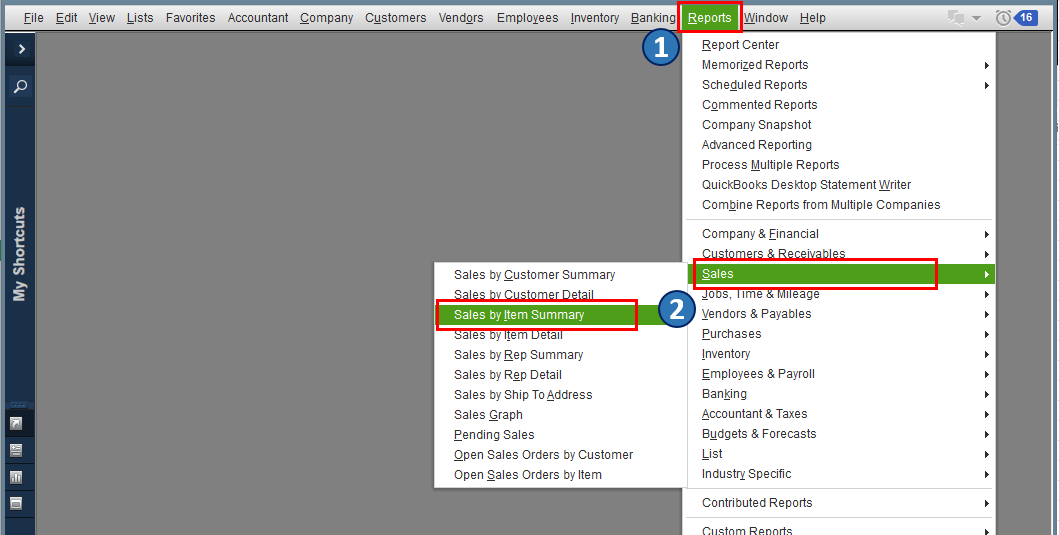
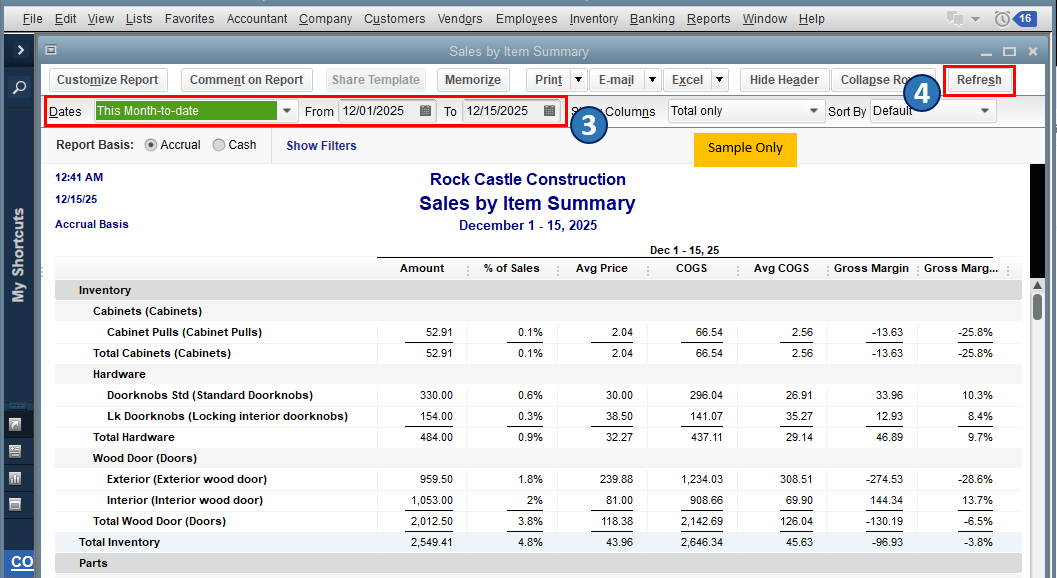
QuickBooks Desktop (QBDT) offers a wide variety of reports that cater to your business needs. Since you want to create one that'll show the gross profit $ and % for every item based on the cost and selling price inputted when you set them up, you can pull up the Sales by Item Summary report. Here's how:

  1. Go to the Reports menu.
  2. Select Sales, then choose Sales by Item Summary
  3. Set the report date through the Dates fields.
  4. Click Refresh


Also, you can customize the data on your report to focus on the details that matter to you the most. Then, add or delete columns, add or remove information on the header/footer, and even personalize the font and style of your report.


Once you're done customizing, you can opt to save the report's current customization setting for future use. to know more about this process, you can refer to this article: Create, access and modify memorized reports.


Let me know if you have other reporting concerns or inquiries about managing your sales in QBDT. You can drop a comment below, and I'll gladly help. Take care, and wishing you continued success.


1 reply

Rea_MAnswer
August 12, 2021

Pulling up the appropriate report based on your business needs is my priority, @sziw.


QuickBooks Desktop (QBDT) offers a wide variety of reports that cater to your business needs. Since you want to create one that'll show the gross profit $ and % for every item based on the cost and selling price inputted when you set them up, you can pull up the Sales by Item Summary report. Here's how:

  1. Go to the Reports menu.
  2. Select Sales, then choose Sales by Item Summary
  3. Set the report date through the Dates fields.
  4. Click Refresh


Also, you can customize the data on your report to focus on the details that matter to you the most. Then, add or delete columns, add or remove information on the header/footer, and even personalize the font and style of your report.


Once you're done customizing, you can opt to save the report's current customization setting for future use. to know more about this process, you can refer to this article: Create, access and modify memorized reports.


Let me know if you have other reporting concerns or inquiries about managing your sales in QBDT. You can drop a comment below, and I'll gladly help. Take care, and wishing you continued success.