June 2, 2020
Solved

Hello! Can we change "invoice" to "pledge" for a non-profit for our templates?

  • June 2, 2020
  • 1 reply
  • 0 views
We set up QB account as nonprofit, but our settings did not change "invoices" to "pledges"

Best answer by CharleneMaeF

Hello there, @laura89.


I'd be glad to help you change the name of your invoice template.
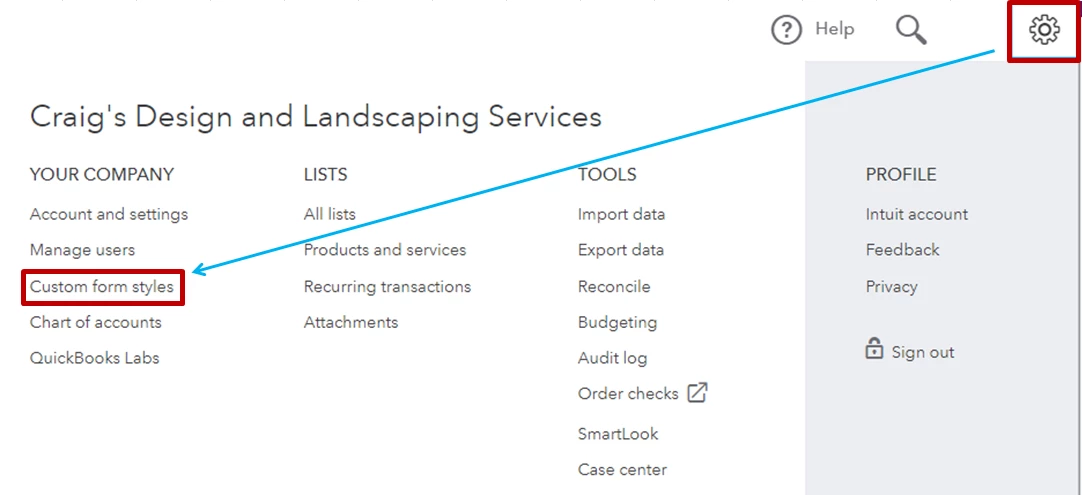
 

  1. Go to the Gear icon and select  Custom Form Styles.
  2. If you'd like to modify an existing style, click Edit in the Action column. If not, click New style and choose Invoice.
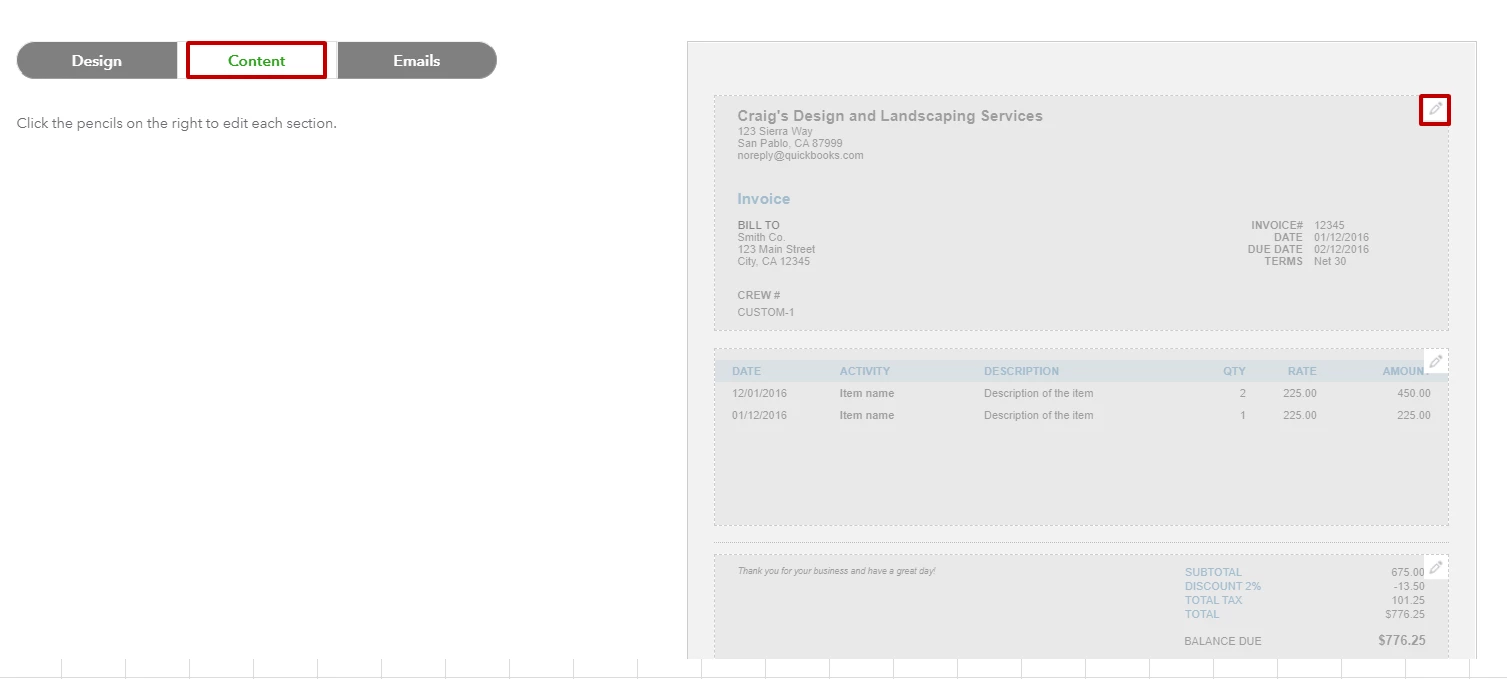
  3. On the Content section, click the pencil icon on the top box.
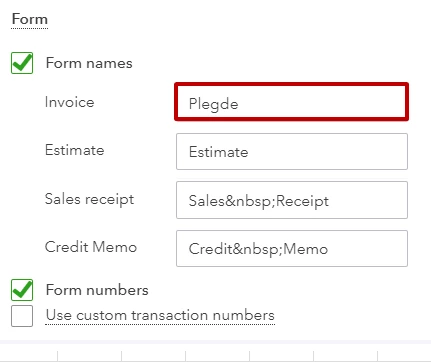
  4. Under Form names, type in Pledge in the box beside Invoice.
  5. You can click Preview PDF  to see the changes made, then click Done.


For additional details in customization of your template, check out this article: Customize Invoices, Estimates, and Sales Receipts.


Also, you may want to consider adding a logo on the sales form, which helps establish your company's brand and personality.


That should do it! Keep me posted for more QuickBooks questions. Have a great day ahead!

1 reply

June 2, 2020

Hello there, @laura89.


I'd be glad to help you change the name of your invoice template.

 

  1. Go to the Gear icon and select  Custom Form Styles.
  2. If you'd like to modify an existing style, click Edit in the Action column. If not, click New style and choose Invoice.
  3. On the Content section, click the pencil icon on the top box.
  4. Under Form names, type in Pledge in the box beside Invoice.
  5. You can click Preview PDF  to see the changes made, then click Done.


For additional details in customization of your template, check out this article: Customize Invoices, Estimates, and Sales Receipts.


Also, you may want to consider adding a logo on the sales form, which helps establish your company's brand and personality.


That should do it! Keep me posted for more QuickBooks questions. Have a great day ahead!

laura89Author
June 2, 2020

Whooo hooo! That was awesome - it worked! Thank you for the reply, the help, and especially the very detailed instructions.