June 12, 2021
Solved

How can I correct billable rates for employees that keep showing up as $0?

  • June 12, 2021
  • 1 reply
  • 0 views

Some background: I am not a TSheets/Time Premium user - just QuickBooks Online with basic "Time."


1. I have set up several Projects for our client work.


2. I have also set up several employees via the Payroll tab, including their hourly cost and their hourly billing rates. Some employees are set as "billable by default".


3. I have entered time for several employees, making sure to select the relevant project and include a detail note.


However - when creating an invoice or viewing the labor costs for the project, the billable rate always shows as $0 for all employees and I can not manually enter anything different. Help!

Best answer by DivinaMercy_N

Hello there, @userwill1.


I appreciate your detailed explanation about your issue as well as the screenshots you've attached. Making sure that you have accurate data for your projects is really necessary. To further help you with this, allow me to provide some info about the Billable Rate column. 


The Billable Rate column of the Time cost by employee or vendor report depends on the sales rate of the service item you've chosen on the Time entry details page. For instance, if the service item has no sales rate (or if you did not select an item), the report will show a 0.00 billable rate. 
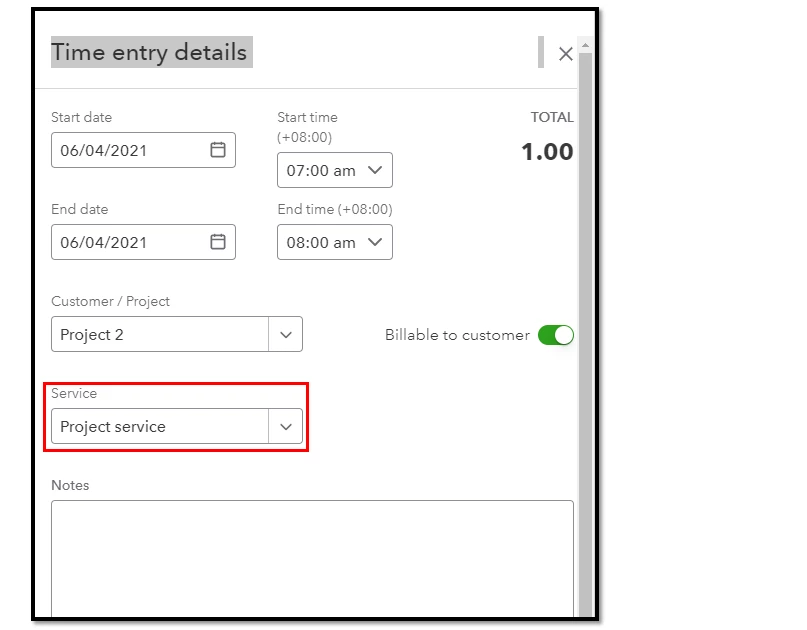
 

If you need to edit the rate for the service item, here are the steps you can perform:


  1. Go to the Sales menu.
  2. Click Product and Services.
  3. Look for the service item you need to edit.
  4. Select the Edit button.
  5. Enter an amount on the Sale price/rate field. 
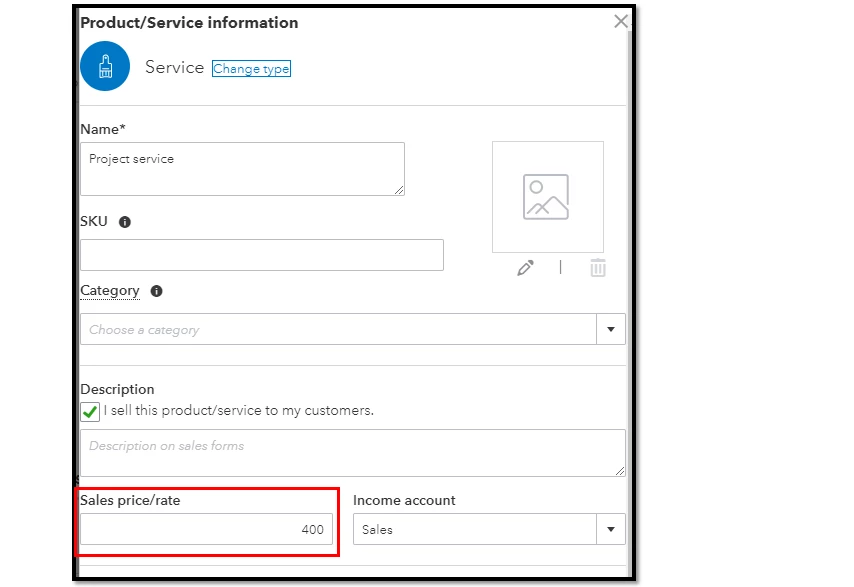
  6. Once done, click Save and close


For more info about creating projects in QuickBooks, please see this article: Set up and create projects in QuickBooks Online.


Also, monitoring your sales and customer transactions is easy with QuickBooks. This is more possible because the program has ready-made customer reports. To access them, simply go to the Reports menu and scroll down to the Who owes you section. From there, select any reports you'd like to open. 


Feel free to post here anytime you have concerns about creating projects in QuickBooks. I will be happy to assist you. Have a good one.


1 reply

userwill1Author
June 12, 2021

Screenshots below of the relevant areas (test entries only).


1. Employee setup, showing cost rate and billable rate (also "billable by default" selected)


2. But when I try to add open billing to an invoice, the entries show as $0 billable.  


3. And when I look at project billing summaries the hours show the correct cost but $0 billable (even though the column also correctly signifies the item is billable!

DivinaMercy_N
June 12, 2021

Hello there, @userwill1.


I appreciate your detailed explanation about your issue as well as the screenshots you've attached. Making sure that you have accurate data for your projects is really necessary. To further help you with this, allow me to provide some info about the Billable Rate column. 


The Billable Rate column of the Time cost by employee or vendor report depends on the sales rate of the service item you've chosen on the Time entry details page. For instance, if the service item has no sales rate (or if you did not select an item), the report will show a 0.00 billable rate. 


If you need to edit the rate for the service item, here are the steps you can perform:


  1. Go to the Sales menu.
  2. Click Product and Services.
  3. Look for the service item you need to edit.
  4. Select the Edit button.
  5. Enter an amount on the Sale price/rate field. 
  6. Once done, click Save and close


For more info about creating projects in QuickBooks, please see this article: Set up and create projects in QuickBooks Online.


Also, monitoring your sales and customer transactions is easy with QuickBooks. This is more possible because the program has ready-made customer reports. To access them, simply go to the Reports menu and scroll down to the Who owes you section. From there, select any reports you'd like to open. 


Feel free to post here anytime you have concerns about creating projects in QuickBooks. I will be happy to assist you. Have a good one.

userwill1Author
June 12, 2021

Hello @DivinaMercy_N, thank you for your response. Using the method you described, I was able to get billable hours into my project as expected. I did have to set up new "services" for each different employee billable rate tier, which takes some extra time, but overall the solution is great. 


This does bring up another question: where exactly within Quickbooks Online are the billable rates from the employee profiles actually used? Is that for reference only?


Thanks again!