Solved
How can I get my invoices sent as email with attached pdf invoice file? I used to be able to. I am using recurring invoice transaction.
Original commenter did not share additional details


Welcome to the Community space, @dreedy.
Let me provide you with the steps for sending your invoices as an email with a PDF attached in QuickBooks Online (QBO).
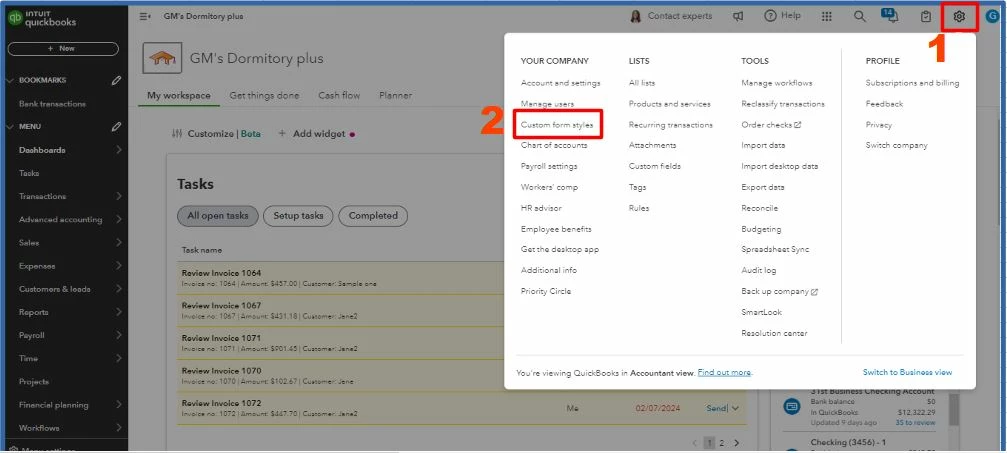
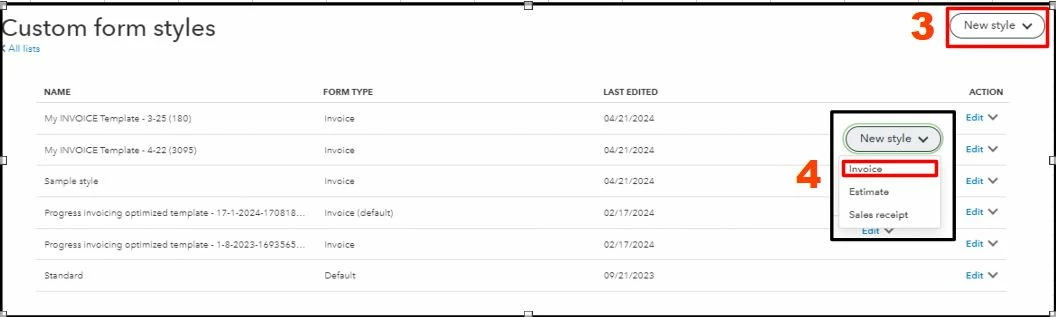
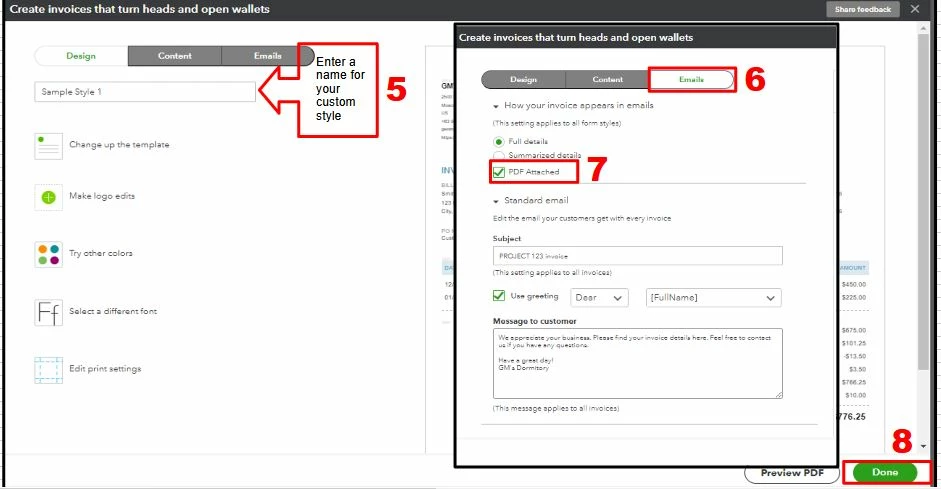
You can add a PDF attachment when sending your invoice using the Custom form styles feature in QBO. Here's how:
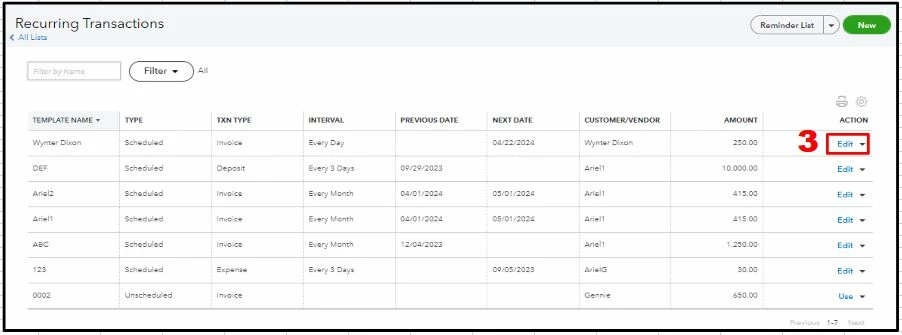
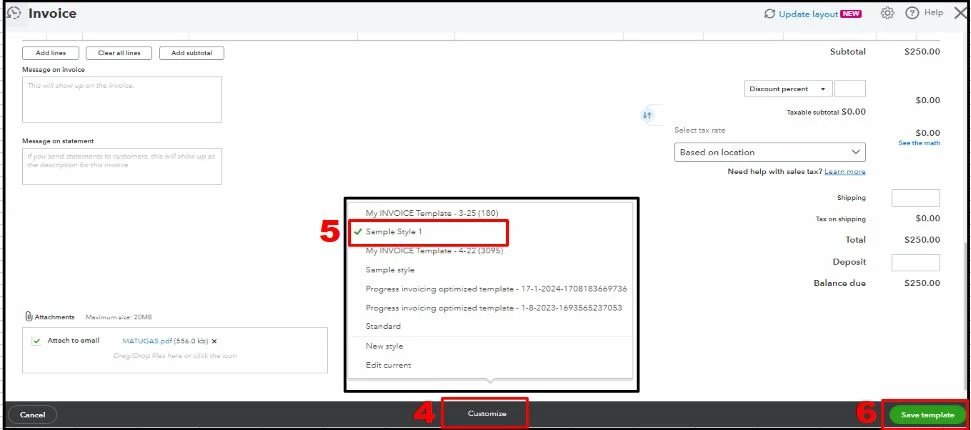
Now, let's customize your recurring invoices using the template we created. Follow the steps below:
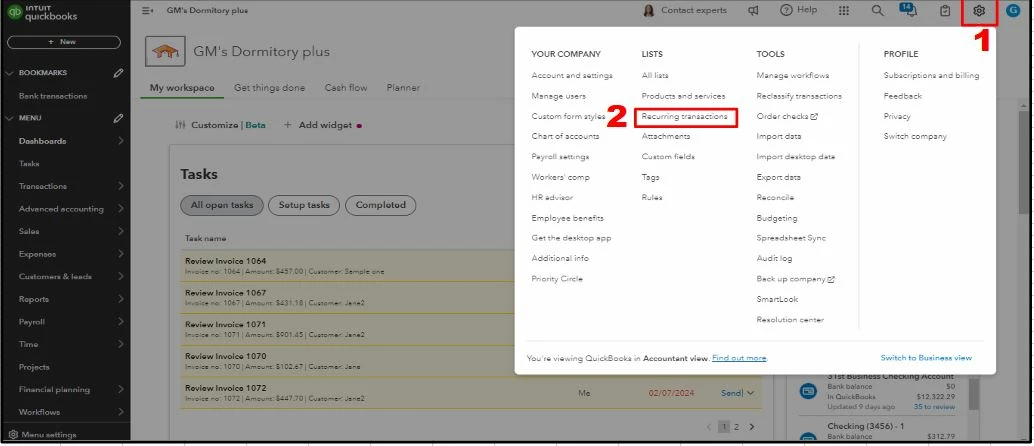
Moreover, I'm adding this helpful article as your reference in personalizing your other sales forms in QuickBooks Online: Customize invoices, estimates, and sales receipts in QuickBooks Online.
Return to this post if you have other concerns about sending and customizing your invoices in QuickBooks Online. I'll be here to lend a hand any time.
Enter your E-mail address. We'll send you an e-mail with instructions to reset your password.