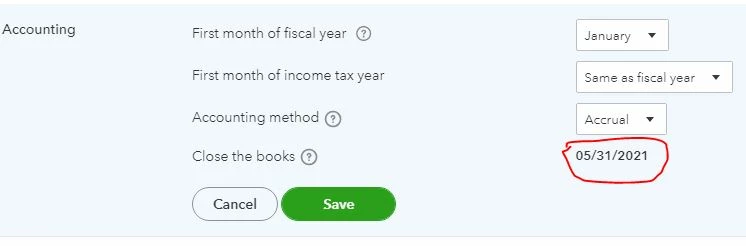
Thank you for joining us here, @Jawad.
Managing the closing date in QuickBooks Online (QBO) is only available for admin users. Make sure to sign as a primary or company admin to change the year-end closing date. You can follow the steps below:
- Sign in to QBO as a primary or company admin.
- Go to the Gear icon and then Accounts and settings.
- Select the Advanced tab.
- Click the Edit icon in the Accounting section.
- Change the closing date. To change your password, just enter a new password and confirm it.
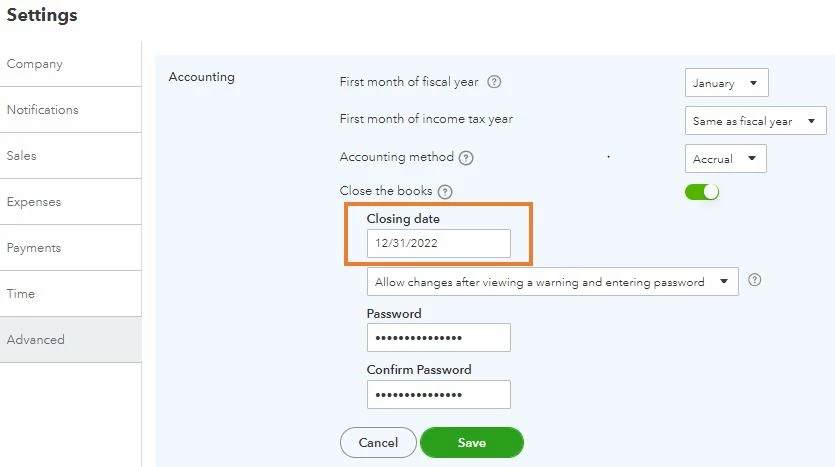
- Select Save and then Done.
If you're unable to change it even if you're logged in as admin, you may have too much accumulated historical data causing this unusual behavior. Whenever you visit a website, it saves some information from the web page in its cache and cookies. These files allow the websites you visit most often to load faster. Not to worry, clearing them will do the trick.
First, let's try accessing your account through an incognito window to rule out the possibility of a webpage issue. You can refer to these shortcut keys to open an incognito window in all supported browsers:
- Chrome: Ctrl+Shift+N
- Firefox: Ctrl+Shift+P
- Safari: Command+Shift+N
Once signed in, go to your Advanced settings. If it allows you to edit the closing date, I recommend clearing your browser's cache so you can access QuickBooks with a clean slate. You can also use a different supported one.
Visit us again here if you have further concerns about managing your books. I want to make sure everything is taken care of. Happy holidays!