April 4, 2019
Solved

How do I fix negative vendor AP balance from previous period?

  • April 4, 2019
  • 2 replies
  • 0 views
The previous bookkeeper wrote out a check to AP account, instead of to an expense account. The vendor now has a negative balance, as does the AP account. Transaction is dated Dec 2017. What is the best way to fix this?
 
I understand that JEs for AP and AR are not considered best practice. Could I
1) delete/void the Dec 2017 check written out to AP, then
2) create a bill dated Jan 2018, then
3) pay it with check dated Dec 2017, then
4) re-reconcile that check amount with a current month's reconciliation (2019 yr) so that everything is as it was before.
 
I'm thinking that would not change any figures for the 2017 tax year, is that correct?

Best answer by PreciousB

Welcome to the Community, aaaccounting.


First, I want to thank you for providing me with the complete details of your concern. I'm here to get you pointed in the right direction for fixing the negative balance of a vendor.


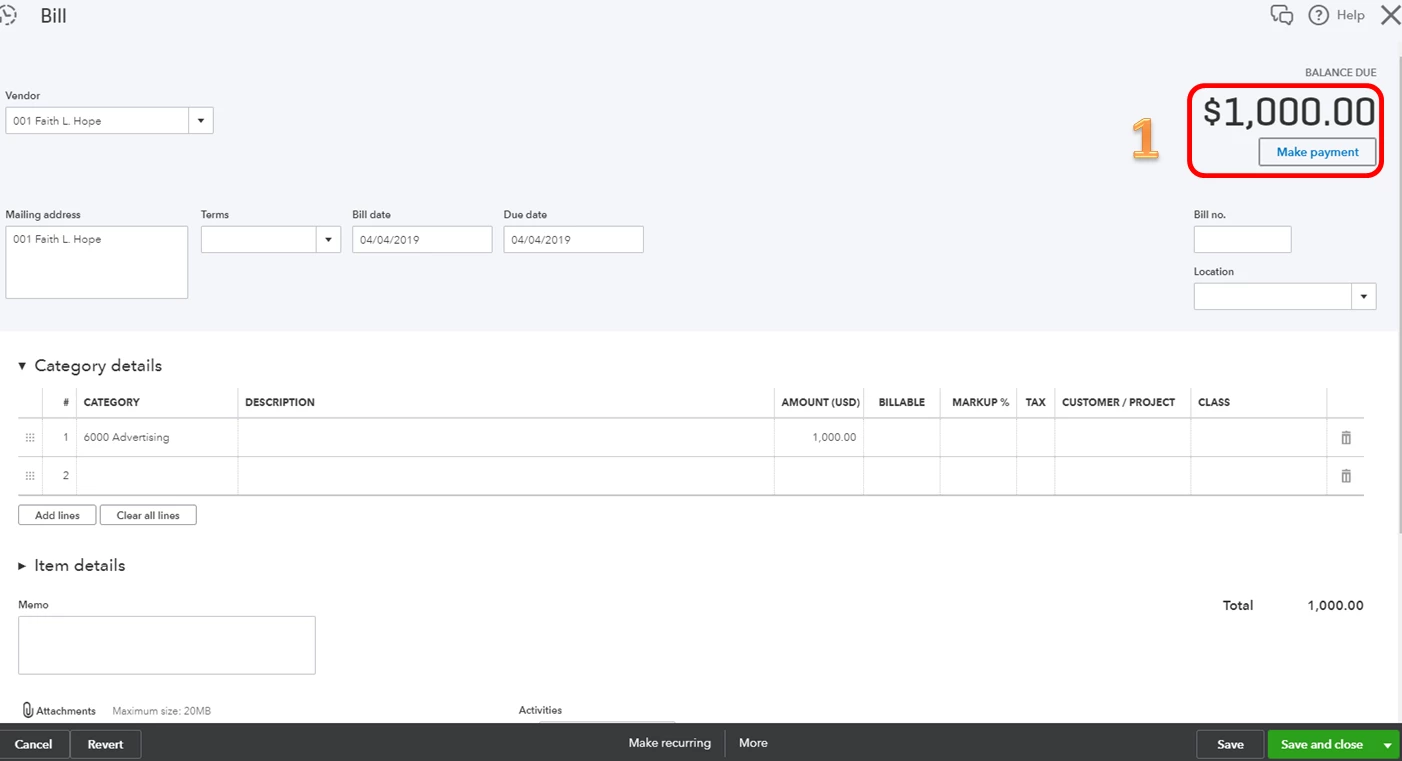
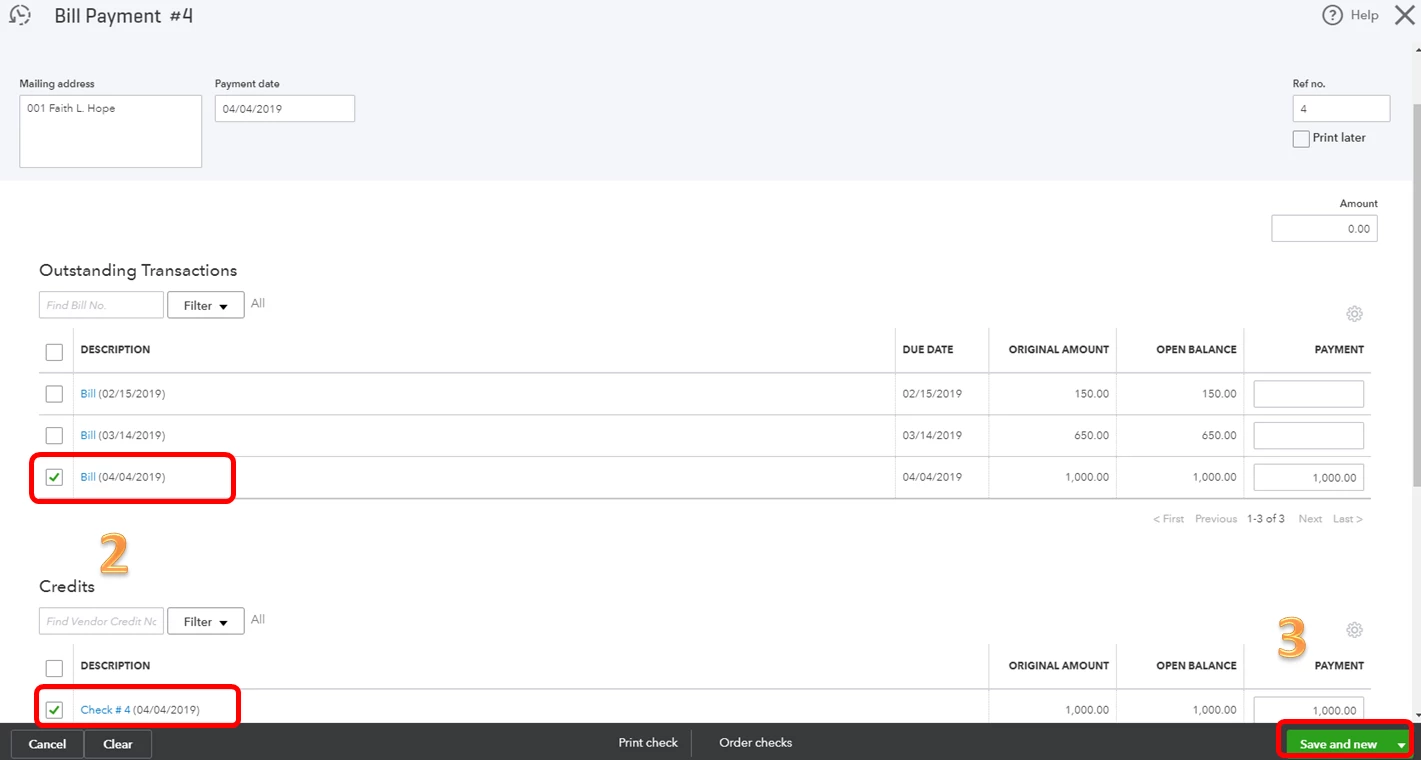
A check posted to Accounts Payable can be applied as credits to a bill. You can create a bill, then make a payment using the credits. Don't worry, this will not affect the reconciliation as long as the bank account and the amount stays the same.


I'm happy to show you how:

  1. Click the Plus sign icon, then select Bill.
  2. Choose the vendor's name.
  3. Enter the needed information.
  4. Click Save.
  5. Choose the Make Payment button at the top.
  6. Select the bill at the top and the check under Credits.
  7. Click Save.

Please refer to the screenshots below so you can easily follow the steps.


That information should get you back in order. I'd like to make sure that you're able to resolve this concern, so please let me know how that works for you. Best regards. 

2 replies

PreciousB
PreciousBAnswer
April 4, 2019

Welcome to the Community, aaaccounting.


First, I want to thank you for providing me with the complete details of your concern. I'm here to get you pointed in the right direction for fixing the negative balance of a vendor.


A check posted to Accounts Payable can be applied as credits to a bill. You can create a bill, then make a payment using the credits. Don't worry, this will not affect the reconciliation as long as the bank account and the amount stays the same.


I'm happy to show you how:

  1. Click the Plus sign icon, then select Bill.
  2. Choose the vendor's name.
  3. Enter the needed information.
  4. Click Save.
  5. Choose the Make Payment button at the top.
  6. Select the bill at the top and the check under Credits.
  7. Click Save.

Please refer to the screenshots below so you can easily follow the steps.


That information should get you back in order. I'd like to make sure that you're able to resolve this concern, so please let me know how that works for you. Best regards. 

April 4, 2019

Thanks very much, that worked perfectly.

PreciousB
April 5, 2019

You're most welcome, aaaccounting.


I'm happy that it worked for you. I'm including some helpful video tutorials that help navigate QuickBooks Online: QuickBooks Tutorials.


Please come back to the Community should you have any questions about QuickBooks. I'm wishing you all the best.

March 8, 2021

i have the same issue but in QuickBooks desktop? help please


MorganB
March 8, 2021

Hey there, contadora23.


Thanks for joining this thread. You've come to the right place for assistance and I'd be glad to provide some more info.


The steps to get this done in the Desktop version of the software were mentioned above by MirriamM (along with some handy screenshots). It can be easy to skip over when there are several comments in a thread. Here are the steps to get this done:

  1. Navigate to the Vendors menu at the top and select Enter Bills
  2. Enter the Vendor's name.
  3. Fill out the needed info. 
  4. Click Save.
  5. Select Pay Bill
  6. Click OK on the pop-up window.
  7. On the Pay Bills screen, select the Bills to be paid.
  8. Enter amount. 
  9. Choose Pay Selected Bills
  10. Click Done

The following articles provide even more info about this process:

That will do it. Please don't hesitate to reach back out if you have any other questions or concerns. Take care!