April 26, 2019
Solved

How do I generate a report to show contributions over $5,000, by customer, for Schedule B of our 990?

  • April 26, 2019
  • 1 reply
  • 0 views

I am using QuickBooks Online, Nonprofit. When completing the 990 report, we need to provide a list of contributions over $5,000 received during the fiscal year. The reports needs to be listed by customer. Is there a standard report than can be customized for this purpose? I haven't found one that will allow the amount field to be customized to a "greater than" filter.

Best answer by Mark_R

Hi there, @BD1123.


Currently, there isn't a specific report that allows you to filter customer payments above $5,000.


As a workaround, you can customize the Transaction List by Client report and export it so you can further customize it from there.


Here's how:


  1. Click Reports.
  2. Search for Transaction List by Client.
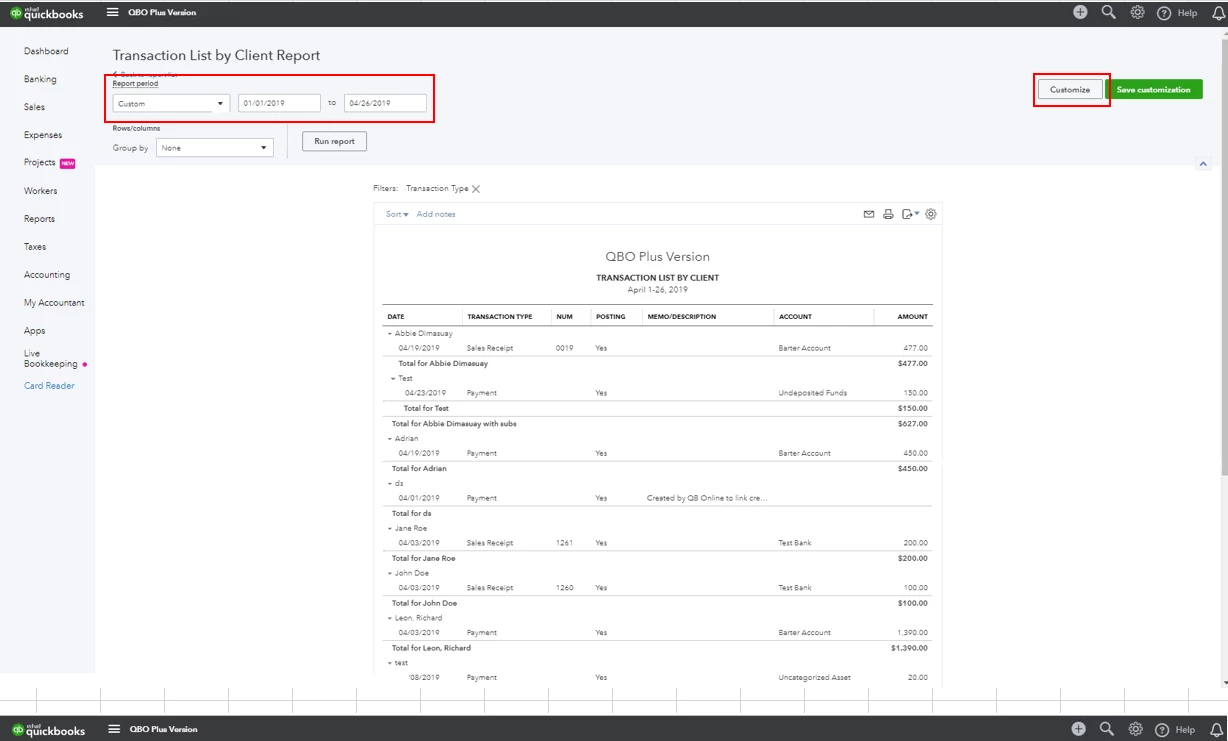
  3. In the Report period section, customize the date range of your fiscal year.
  4. Click Customize.
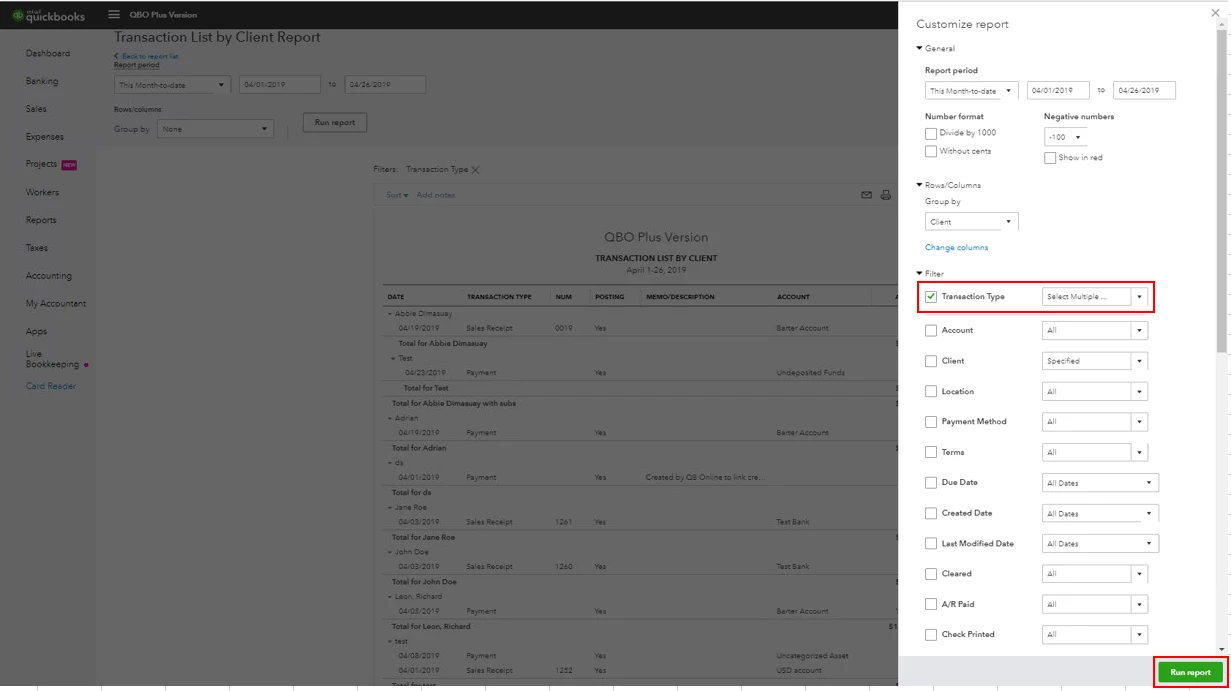
  5. Under the Filter section, select Payment and Sales Receipt from the Transaction Type drop-down menu.
  6. Hit Run report.
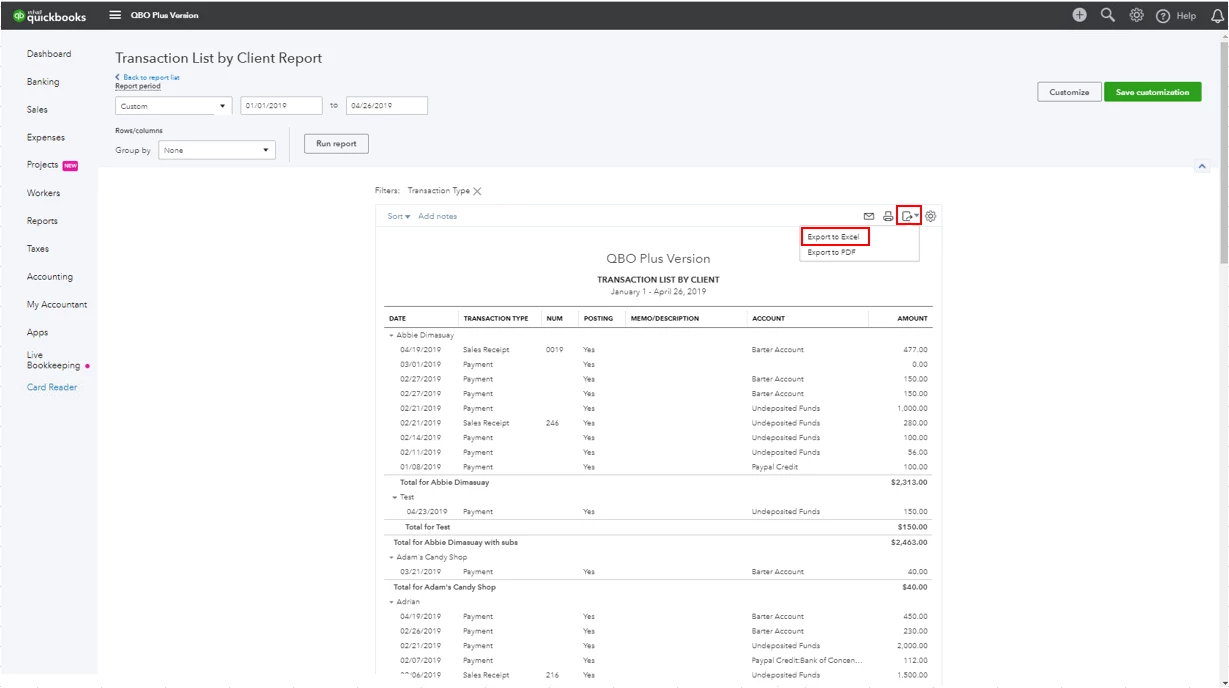
  7. Then, click the Export icon.
  8. Select Export to Excel.

From the MS Excel, you can sort/filter the customer payments from highest to lowest to figure out the amount over $5000.


I've got you an article for your reference: How to Customize Reports.


Also, I want to let you know that we're taking note of your feedback and suggestions to improve the experience we're providing.


Please let us know if you have any other questions with QuickBooks Online. We're always here to help.


1 reply

Mark_RAnswer
April 26, 2019

Hi there, @BD1123.


Currently, there isn't a specific report that allows you to filter customer payments above $5,000.


As a workaround, you can customize the Transaction List by Client report and export it so you can further customize it from there.


Here's how:


  1. Click Reports.
  2. Search for Transaction List by Client.
  3. In the Report period section, customize the date range of your fiscal year.
  4. Click Customize.
  5. Under the Filter section, select Payment and Sales Receipt from the Transaction Type drop-down menu.
  6. Hit Run report.
  7. Then, click the Export icon.
  8. Select Export to Excel.

From the MS Excel, you can sort/filter the customer payments from highest to lowest to figure out the amount over $5000.


I've got you an article for your reference: How to Customize Reports.


Also, I want to let you know that we're taking note of your feedback and suggestions to improve the experience we're providing.


Please let us know if you have any other questions with QuickBooks Online. We're always here to help.

BD1123Author
April 26, 2019

Thanks for the work around. Exporting to Excel will certainly work for a single year, but I like being able to save a customized report that will be used every year. I would appreciate Intuit adding a filter to customer reports that allows a greater than or less than option for the amount field. I used to be able to generate this report very easily with QB Desktop. However, when we switched to QB Online, all my customized reports were lost and I haven't had the best results when trying to recreate them.

BettyJaneB
April 26, 2019

Thanks for reaching back out, @BD1123.


Allow me to step into this conversation and provide you with some more information about customizing reports in QuickBooks Online.


At this time being able to save a customized report that will allow you to have a greater than or less than option for the amount field isn't an option for us. However, our development team is constantly working to improve the product and appreciates the help of users in bringing things like this to their attention.


I'd encourage you to visit our QuickBooks Online Blog regularly to keep updated with our latest news and updates including product improvements. 


Also, here's an article that you can check out about the available reports in QuickBooks Online: Report comparison between QuickBooks Online subscriptions.


Feel free to reach back out to me if you have any other concerns with QuickBooks. I'll be around to help you out. Have a great weekend.