
Solved
How do I prent invoices from showing my company address? I only want the company name and phone to print. I cannot leave it blank in the acocunt setup options.
Is there an option to turn that functionality off?

You can create a custom form template, @GClementAZ.
This will enable you to exclude your company address and leave only the company name and phone details when printing invoices. I've got a way on how to accomplish this in QuickBooks Online. Let me show you how:
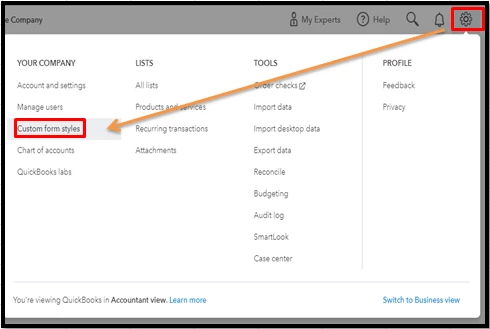
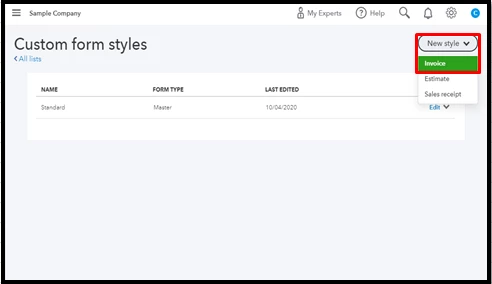
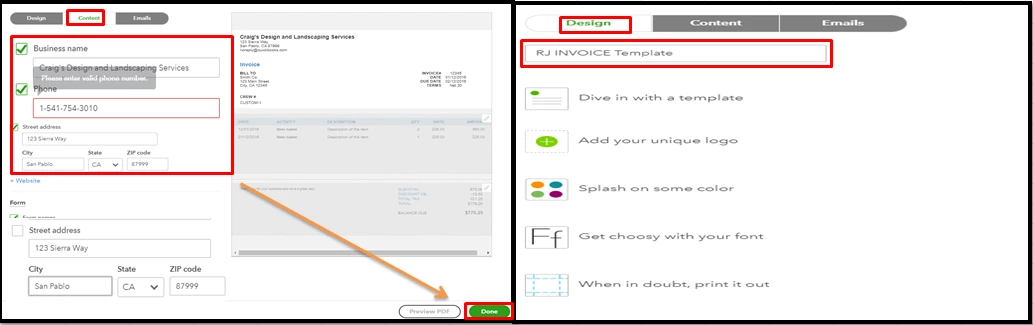
Then, you can apply this custom template to your invoices. Here's how:
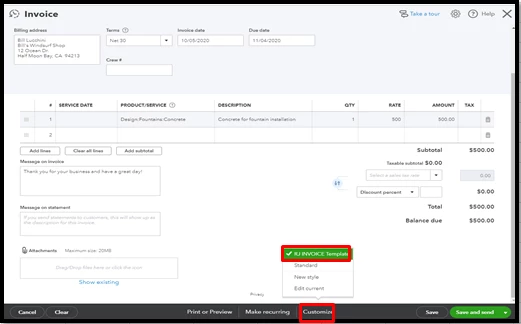
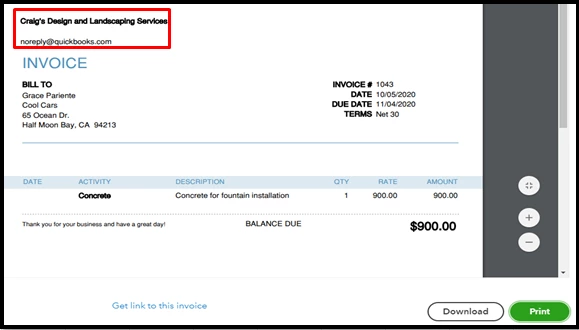
For more insights, you can review this handy article: Customize invoices and other sales forms.
To make your task easy and efficient, you'll want to email or print invoices in bulk. Also, you can pull up invoices-related reports to keep track of them. To achieve this, go to the Reports menu, hover down to the Who owes you section, and then select the desired report from there. Please see the screenshot below for visual reference: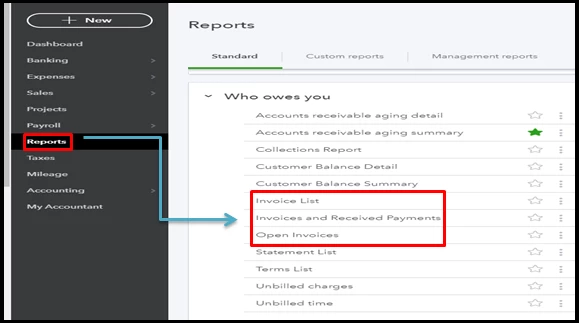
You can always tag me if you have more questions about managing your invoices. I'll be here to help. Take care and have a nice day, @GClementAZ.
Enter your E-mail address. We'll send you an e-mail with instructions to reset your password.