Solved
How do I Print a customer's Transaction list?
Print Transacrions


I've got two options to help you print a customer's transaction list in QuickBooks Online (QBO), @comtndrumming.
First, we can go to the Sales menu, click the Customers tab, then select the name. From the Transaction list column, you can set the Type, Status, and Date of the transactions. Once done, click the Print icon beside the Action column. See the sample screenshot below for the visual process.
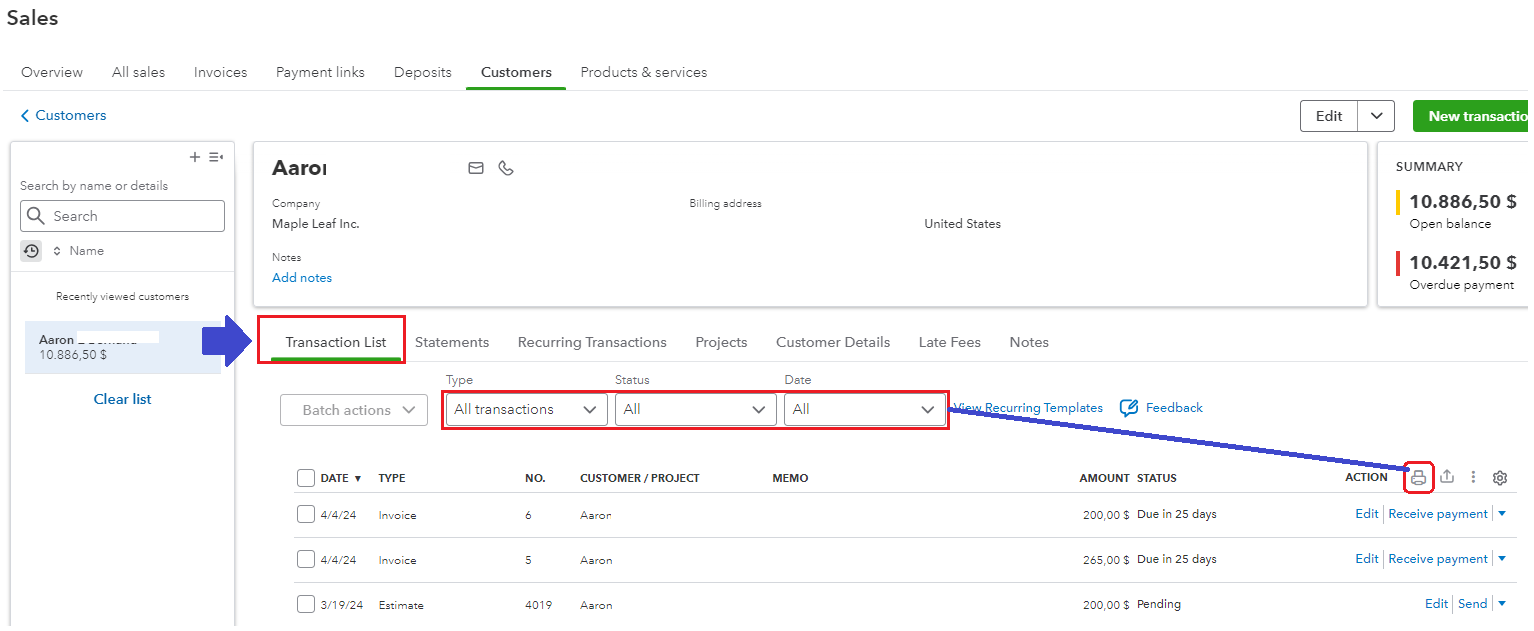
The other option is to run a Transaction List by Customer report. I'll guide you on how:
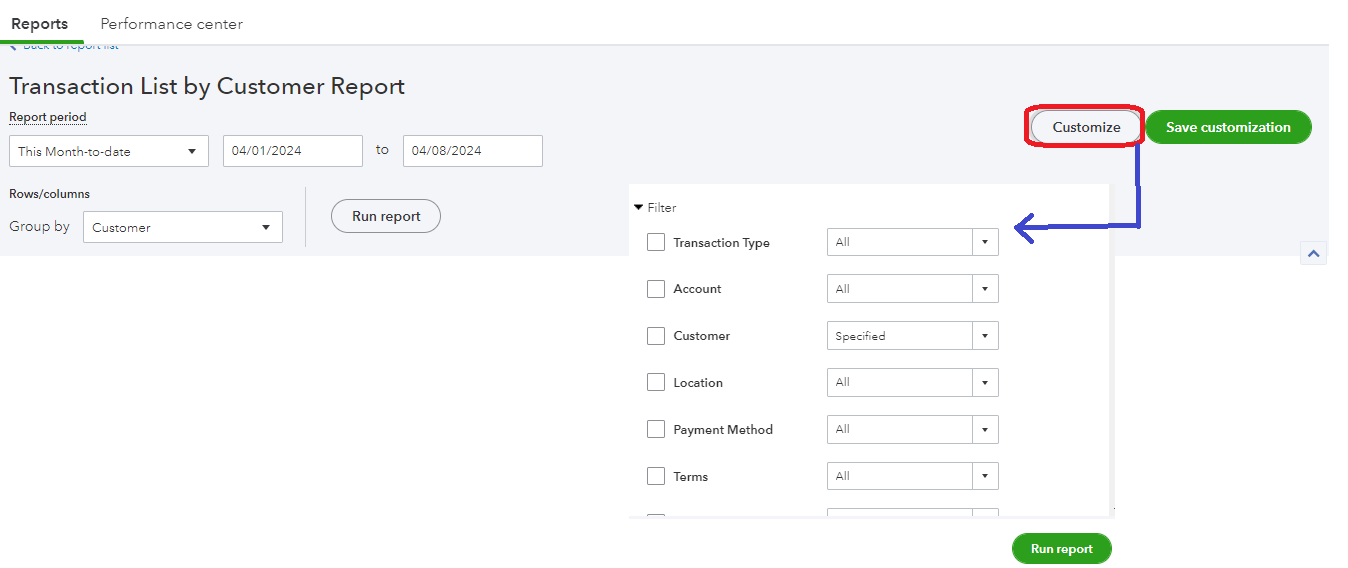
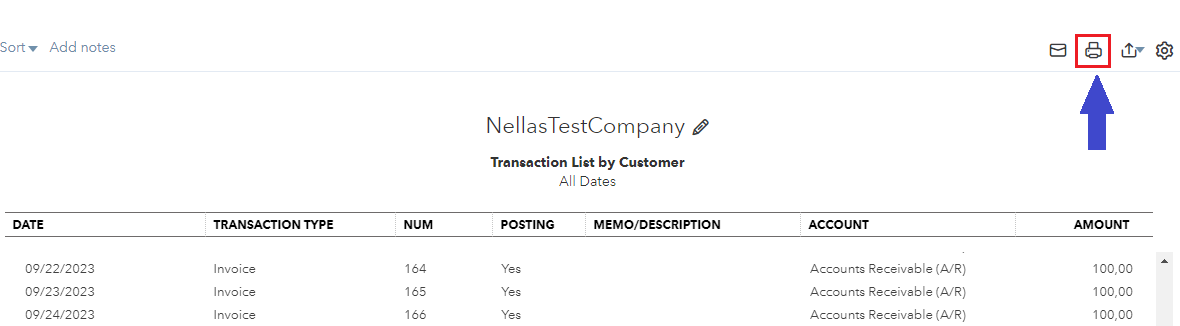
Moreover, after customizing the report, I suggest saving the current settings by clicking Save Customization. That way, you won’t have to go through the customization process again if you need the same information in the future. Utilize this article for more details: Memorize reports in QuickBooks Online.
Drop a comment below if you have more questions about printing your customer's transactions list or any other QuickBooks-related concerns. I'm here to assist you in any way I can.
Enter your E-mail address. We'll send you an e-mail with instructions to reset your password.