November 19, 2024
Solved

How do I record a deduction from a customer who overpaid us?

  • November 19, 2024
  • 2 replies
  • 0 views

We invoiced our customer for commission due to us. They wired the payment, and the payment was applied to the invoice. Two days later, they contacted us to tell us that the commission was wrong and deducted the overpayment from our bank account. How do I record this in QuickBooks online?

Best answer by JanbonN

Hello, Processing. I’m here to guide you through the steps for recording the deduction from the overpayment made by your customer.


First, we'll need to create a credit memo for the overpayment. If you have already recorded the payment, including the overpayment, you can skip this step, as it will automatically be recorded as a credit.


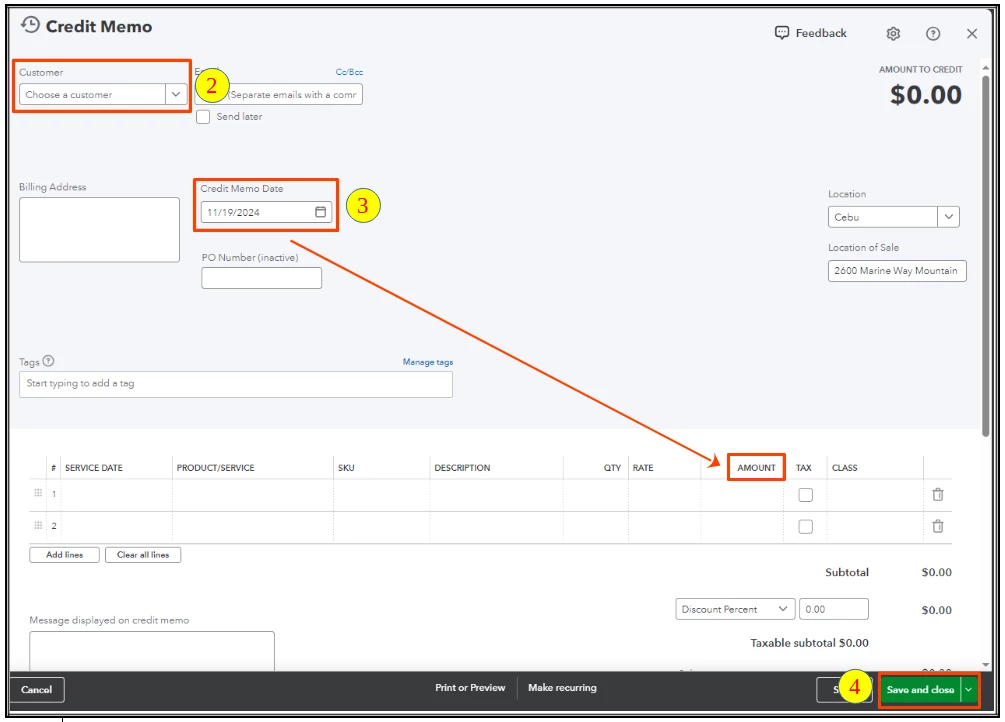
Here's how to create a credit memo:


  1. Go to + New and select Credit memo.
  2. Choose the appropriate customer in the dropdown.
  3. Enter the Credit Memo Date, Amount (overpayment), and fill in the necessary details.
  4. Once done, select Save and close.


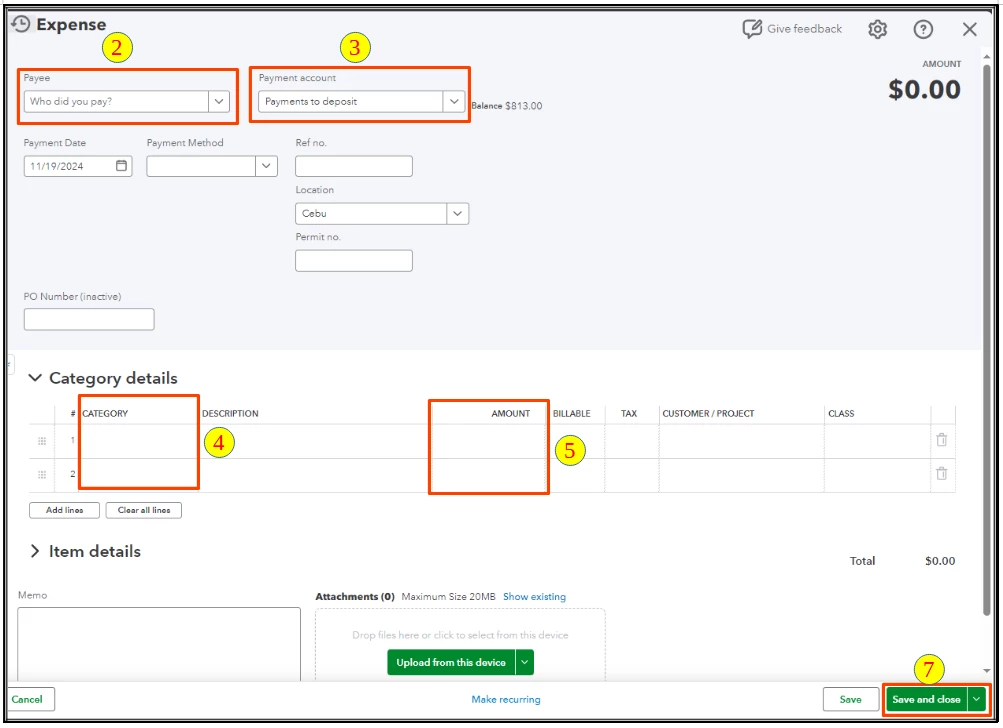
Next, create an expense transaction reflecting the overpayment amount:


  1. Go to + New and select Expense.
  2. Choose the preferred customer in the Payee dropdown.
  3. Select the bank the money is being refunded from in the Payment account dropdown.
  4. In the Category field, select the Debtors account (Accounts receivable).
  5. In the Amount field, enter the amount of the refund.
  6. Fill in the necessary details.
  7. Once done, select Save and close.


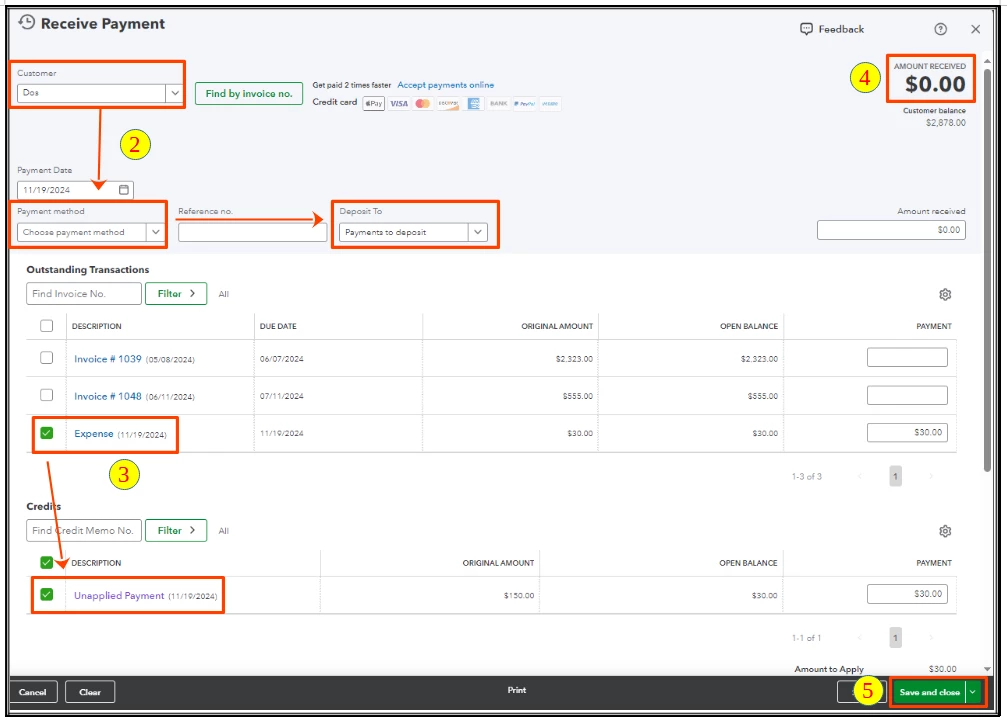
Lastly, link the expense and the credit through the Receive payment transaction:


  1. Go to + New and select Receive payment.
  2. Add the Customer and select the Payment method and Deposit to.
  3. Tick the expense we created under Outstanding Transactions and tick the Unapplied Payment under the Credits.
  4. The balance should be 0 as they will cancel each other out.
  5. Select Save and close.


If you have Online Banking, navigate to Transactions, then Bank transactions, and match the record you found.


Please refer to this article for more details: Record a customer refund in QuickBooks Online.


Additionally, you can run a report for your customers to get an overview of your accounts receivable transactions.


I'll be here to assist further if you have other questions about the steps, Processing. Take care.


2 replies

JanbonNAnswer
November 19, 2024

Hello, Processing. I’m here to guide you through the steps for recording the deduction from the overpayment made by your customer.


First, we'll need to create a credit memo for the overpayment. If you have already recorded the payment, including the overpayment, you can skip this step, as it will automatically be recorded as a credit.


Here's how to create a credit memo:


  1. Go to + New and select Credit memo.
  2. Choose the appropriate customer in the dropdown.
  3. Enter the Credit Memo Date, Amount (overpayment), and fill in the necessary details.
  4. Once done, select Save and close.


Next, create an expense transaction reflecting the overpayment amount:


  1. Go to + New and select Expense.
  2. Choose the preferred customer in the Payee dropdown.
  3. Select the bank the money is being refunded from in the Payment account dropdown.
  4. In the Category field, select the Debtors account (Accounts receivable).
  5. In the Amount field, enter the amount of the refund.
  6. Fill in the necessary details.
  7. Once done, select Save and close.


Lastly, link the expense and the credit through the Receive payment transaction:


  1. Go to + New and select Receive payment.
  2. Add the Customer and select the Payment method and Deposit to.
  3. Tick the expense we created under Outstanding Transactions and tick the Unapplied Payment under the Credits.
  4. The balance should be 0 as they will cancel each other out.
  5. Select Save and close.


If you have Online Banking, navigate to Transactions, then Bank transactions, and match the record you found.


Please refer to this article for more details: Record a customer refund in QuickBooks Online.


Additionally, you can run a report for your customers to get an overview of your accounts receivable transactions.


I'll be here to assist further if you have other questions about the steps, Processing. Take care.

November 19, 2024

Thank you! This worked. 

November 19, 2024

You're very welcome, Processing.


I'm delighted to hear that my colleague's previous response successfully helped you resolve the issue regarding recording the deduction from your customer's overpayment. Your positive feedback motivates us to continue providing the highest quality solutions for any concerns you may have.


Moreover, you can run a report for your customers to obtain a comprehensive overview of your accounts receivable transactions. This can provide valuable insights into your financial position and customer payment patterns.


Once again, I appreciate you taking the time to express your gratitude. You can always count on us if you require further assistance with any QuickBooks-related tasks.