October 24, 2020
Solved

How do I remove the PAID watermark from invoices in Quickbooks Online?

  • October 24, 2020
  • 2 replies
  • 0 views
Original commenter did not share additional details

Best answer by rvrfrf

Thanks for following up with the Community, mhenders.
 

Yes, with all QuickBooks Online plans an ability to remove your PAID stamp that appears on invoices after a payment's been applied to them is currently unavailable.
 

If you'd like to submit a product suggestion about this, you can do so while signed in.
 

Here's how:
1. Use your Gear (⚙️) icon.

2. Click Feedback.
3. Enter your suggestions and/or comments.
4. Hit Next.
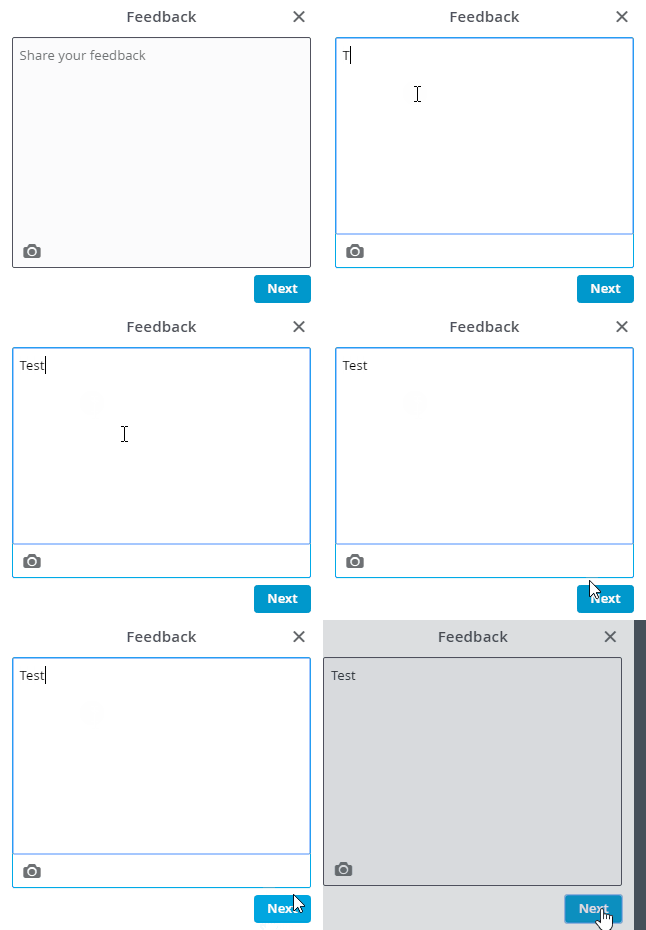
5. Choose Skip and send message.
6. The available drop-down menu can be used to pick an appropriate category.
7. Select Send message.


Your feedback is definitely valuable to Intuit. It goes directly to our Product Development Team and will be considered in future updates. Feature requests can be tracked through our Customer Feedback website.
 

If there's anything else I can help with, please feel more than welcome to reach out anytime. Have a fantastic day!

2 replies

Angelyn_T
October 24, 2020

Thank you for raising your question here on the Community page, @mhenders.


I can share some information about the PAID stamp on invoices in QuickBooks Online. The system will tag the invoice as paid when there's a payment recorded or linked to it. You can remove the watermark by reverting the status of the invoices to unpaid. 


Here's how:


  1. Open the invoice and click the payment link below the Payment Status Paid in the upper right corner.
  2. Then, tap on the date link.
  3. On the Receive Payment page, click the Clear Payment button.
  4. Hit Save and close.

Once done, the invoice will be open again. If you don't want to delete or clear the payment linked to an invoice, the option to remove the stamp is currently unavailable.


I can see the importance of having this feature. Rest assured our engineers never stop working to develop QuickBooks and deliver the best experiences for all users. Hopefully, they can consider this in the coming updates.


To stay current with the latest QuickBooks news and feature enhancements, feel free to visit our blog.


As you continue working with QuickBooks or invoices, you can as well open and search for related topics from our help articles.


Know that I'm only a couple of clicks away if you need anything else. I'm always here and ready to help. Have a nice day!

mhendersAuthor
October 29, 2020

Is this issue the same with all Quickbooks Online versions?

rvrfrfAnswer
October 29, 2020

Thanks for following up with the Community, mhenders.
 

Yes, with all QuickBooks Online plans an ability to remove your PAID stamp that appears on invoices after a payment's been applied to them is currently unavailable.
 

If you'd like to submit a product suggestion about this, you can do so while signed in.
 

Here's how:
1. Use your Gear (⚙️) icon.
2. Click Feedback.
3. Enter your suggestions and/or comments.
4. Hit Next.

5. Choose Skip and send message.
6. The available drop-down menu can be used to pick an appropriate category.
7. Select Send message.


Your feedback is definitely valuable to Intuit. It goes directly to our Product Development Team and will be considered in future updates. Feature requests can be tracked through our Customer Feedback website.
 

If there's anything else I can help with, please feel more than welcome to reach out anytime. Have a fantastic day!

August 31, 2022

I still can’t remove the paid stamp. It is a brand new invoice. 

August 31, 2022

Hi there, Loribarney.


Welcome to the QuickBooks Community. Let me discuss how Paid stamp work in QuickBooks. Then, ensure you can delete the Paid status and send feedback.


The invoice will only show as Paid in the QuickBooks program once there's a payment link to it. With this, if you're referring to the new invoice that was automatically paid, it might be the Automatically apply credits option was turned on. This will allow the program to automatically link the open invoice to available credit and mark them as paid.


I recommend making sure that the said option above is turned off from Account and settings. Then, unlinking the payment to an invoice so you can remove the Paid stamp and the entry will be tagged as open. 


Here's how to turn it off:


  1. Go to the Gear icon. Then, choose Account and Settings.
  2. Select Advanced on the left of the screen.
  3. Click the pencil icon in Automation.
  4. Turn off the Automatically apply credits
  5. Click Save and Done.


Then, please follow the steps below on how to unlink the payment: 


  1. Go to the Bookkeeping menu and choose Transactions. Then, select Invoices.
  2. Locate the entry that is tagged as paid and open it to expand the page.
  3. Click the payments made in the upper right corner and choose the date link.
  4. You'll be routed to the Receive Payment page. Then, click More at the bottom and select Delete.
  5. Choose Yes to confirm.


However, if you mean you'd like to remove the PAID stamp from your invoices, that option is still unavailable. Thus, I recommend sending feedback about it so our product development team can review your suggestion. Any recommendations are sent to our engineer for consideration in future updates. You can follow the steps shared above on how to perform the process.


Lastly, you may refer to this article to see various details on how the Sales page provides you a great at-a-glance of all the status of sales transactions like open and paid invoices: View sales transactions.


If you have follow-up questions on this matter or any related concerns about an invoice, just click the Reply button below. I'm always here to help you further, Loribarney. Have a good day!

August 31, 2022

Where do I find the gear icon