May 5, 2021
Solved

How do I unvoid an invoice?

  • May 5, 2021
  • 3 replies
  • 0 views
I voided an invoice by mistake? How do I fix that?

Best answer by Rubielyn_J

I’m here to share a few details about voided invoice in QuickBooks Online, @6cookkids.


When you void an invoice, the transaction doesn’t affect your account balances or reports, but you always have a record of it. 


Also, if an invoice is voided, it can only be recorded back by recreating it. You can use the Audit Log to figure out the exact information that was on the invoice. Let me show you how:


  1. Go to the Settings  menu.
  2. Choose Audit Log.
  3. Click the Filter button.
  4. Use the fields on the Filter panel to choose the appropriate UserDate, or Events filter to narrow the results.
  5. Click Apply

I’ve attached screenshots below for your reference.
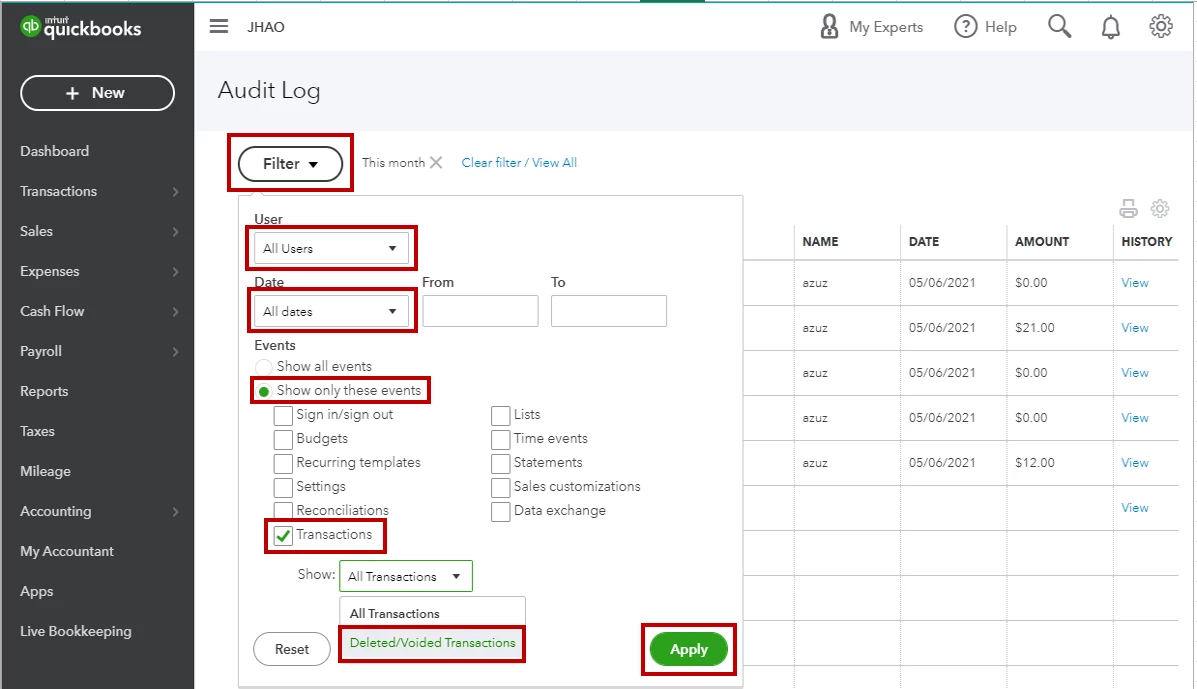
 

After performing the steps above, you’re now ready to manually re-enter the invoice. For further details, please see this resource: How to create an invoice.

Then, learn how to receive and record the accounting for invoice payments. Here's an article you can use for your reference: Record invoice payments in QuickBooks Online.


That should get you back to business. Let me know if you have other questions about managing invoices in QuickBooks. I'll be around to always lend a hand. Wishing for you and your business continued success. 

3 replies

Rubielyn_J
May 5, 2021

I’m here to share a few details about voided invoice in QuickBooks Online, @6cookkids.


When you void an invoice, the transaction doesn’t affect your account balances or reports, but you always have a record of it. 


Also, if an invoice is voided, it can only be recorded back by recreating it. You can use the Audit Log to figure out the exact information that was on the invoice. Let me show you how:


  1. Go to the Settings  menu.
  2. Choose Audit Log.
  3. Click the Filter button.
  4. Use the fields on the Filter panel to choose the appropriate UserDate, or Events filter to narrow the results.
  5. Click Apply

I’ve attached screenshots below for your reference.


After performing the steps above, you’re now ready to manually re-enter the invoice. For further details, please see this resource: How to create an invoice.

Then, learn how to receive and record the accounting for invoice payments. Here's an article you can use for your reference: Record invoice payments in QuickBooks Online.


That should get you back to business. Let me know if you have other questions about managing invoices in QuickBooks. I'll be around to always lend a hand. Wishing for you and your business continued success. 

6cookkidsAuthor
May 7, 2021

Thank you!!

Rubielyn_J
May 6, 2021

Hi, @6cookkids.


Hope you’re doing great. I wanted to see how everything is going about the invoice concern you had the other day. Was it resolved? Do you need any additional help or clarification? If you do, just let me know. I’d be happy to help you at any time.


Looking forward to your reply. Have a pleasant day ahead!

December 13, 2022

If you know the amount it was originally for, just change the amounts not to be zero anymore and save it. Original answer at https://quickbooks.intuit.com/learn-support/en-za/manage-customers-and-income/all-the-void-does-is-change-the-amount-s-to-zero-so-just/01/384956
