

July 24, 2022
Question

How to add tags to a payment (Receive Payment screen)

  • July 24, 2022
  • 1 reply
  • 0 views

I am working on enhancing my reporting capabilities based on tracking where income is coming from. To do this, I need to be able to add tags to payments when they are received.  It seems like the tag UI was removed from Accounts Payable for some reason? 

I have been able to successfully match the bank transaction to the payment no problem.  These get matched on the Transactions / Banking screen.  When I click on "Payment: Accounts Receivable" I expect to see a tags field so I can add a tag to the transaction.

 

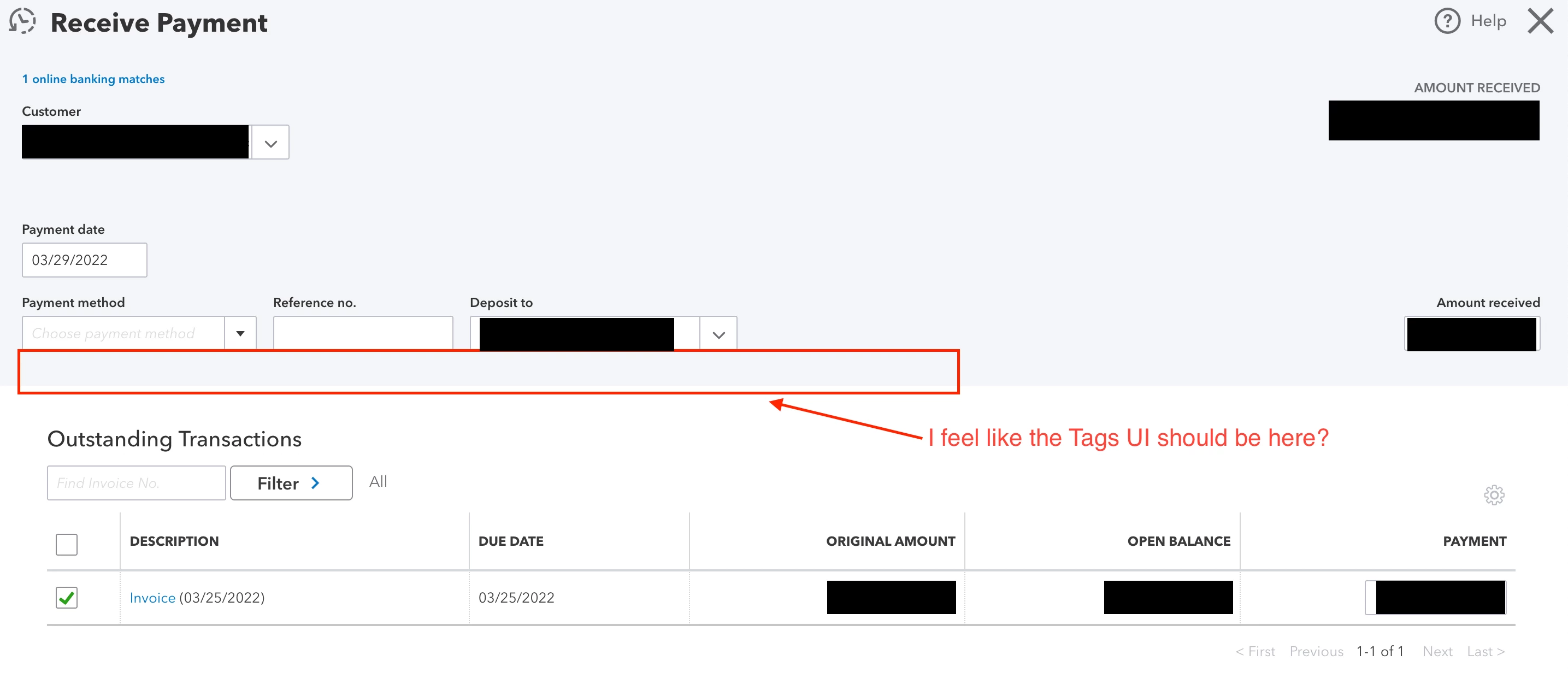
When clicking on Payment: Accounts Receivable I am brought to a screen that for some reason does not have the tags UI.


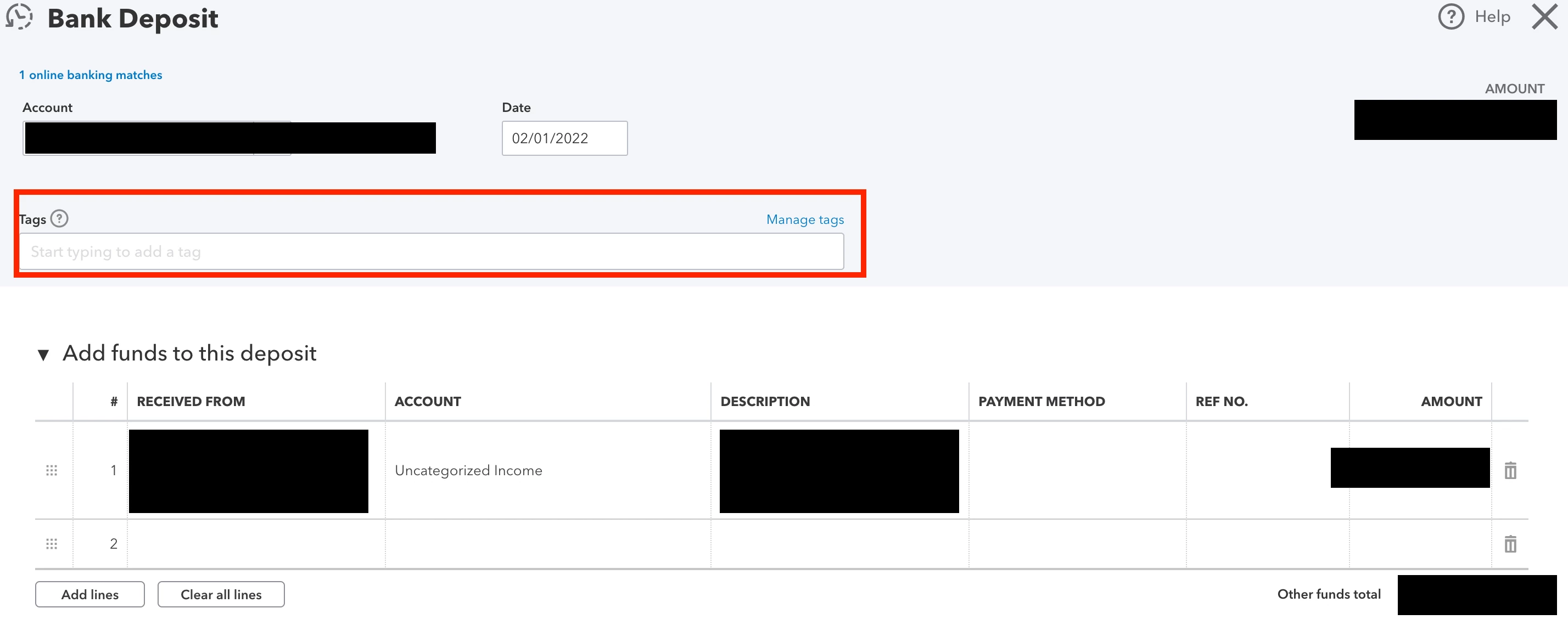
When comparing this to a Bank Deposit screen (navigated here from clicking the Bank Deposit from the Transaction screen), we see a very similar screen, except on this one you do see the Tags UI.
 

Anyway, I'm looking for guidance on how to add a tag to transactions when I match them to an invoice being paid.  I haven't been able to figure out how to find a screen to do that on so any help would be greatly appreciated.

1 reply

Rustler
July 26, 2022

I don't think the issue can be solved, and to be honest I don't think you want it to be.

The transaction that set a receivable is tagged.
The payment you want to be tagged with the same tag.

reporting on tags, would show a double amount for that tag, just not accurate IMO.

September 20, 2024

I have a similar problem and I *do* want it to be solved. I get a lot of payments that are not invoiced - walk in ticket sales, for example. I need to be able to add a tag to a receive payment form or to a line item in a deposit form. I can add a tag to check, why not to a received payment?

September 20, 2024

I have the information you need regarding the ability to add tags on the receive payment form and in each line item in the deposit form, Tomtenor. Allow me to drop it here for clarification.


In QuickBooks Online, we're unable to add tags on the receive payment forms as the option is already available on invoices. Receiving payments is part of the invoicing process. Hence, adding tags when creating an invoice and recording customer payments can cause inconsistencies in how they are tracked.


Since you mentioned that transactions are not invoiced, you'll want to utilize the sales receipt instead and deposit it directly into your bank account. Invoices are created if you get paid in the future, while sales receipts are used when customers pay immediately.


Here's how:


  1. Select + New on the left pane, then Sales receipt.
  2. Choose a customer from the Customer dropdown.
  3. From the Tag field, pick the tag/s you want to use.
  4. Under the Deposit To dropdown, select the bank account for the amounts to be deposited.
  5. Pick the product or service you sold in the Select a product/service dropdown.
  6. In the Qty and Rate field, edit the figure in each line item if necessary.
  7. Provide other details from the remaining fields, then hit Save.


For more information, refer to this article: Create sales receipts in QuickBooks Online.


Additionally, please remember to enter sales with different tags separately. Although you can include several tags for a single receipt, note that you're tagging the entire entry.


Moreover, the option to add tags in each line item in the deposit window is currently unavailable. Therefore, I recommend sending feedback directly to our product engineers. They might incorporate your suggestions in future product updates, ensuring they meet different accounting needs.


On the other hand, consider skimming these resources for guidance on generating data that allow you to review your business finances to understand how your company is doing:


We're always around the corner to respond to your concerns about tagging income transactions in QuickBooks Online. Kindly return to this thread and leave a reply so we can get back to you immediately.