May 30, 2020
Solved

How to apply customer type to a specific customer?

  • May 30, 2020
  • 1 reply
  • 0 views

Hi,

I have been searching for the procedure for applying Customer types to some of our customers to categorize them. Then I came to the following article:

https://quickbooks.intuit.com/learn-support/en-us/customer-topics/set-up-and-assign-customer-types-in-quickbooks-online/00/186656 

As mentioned in the aforesaid article, "On customer, screen select customer type". I don't find any menu or button saying customer type on my customers' screen.

Your help will be appreciated.

Thanks.
Best answer by JamesDuanT

Hi 

Thanks for your reply @MarsStephanieL 

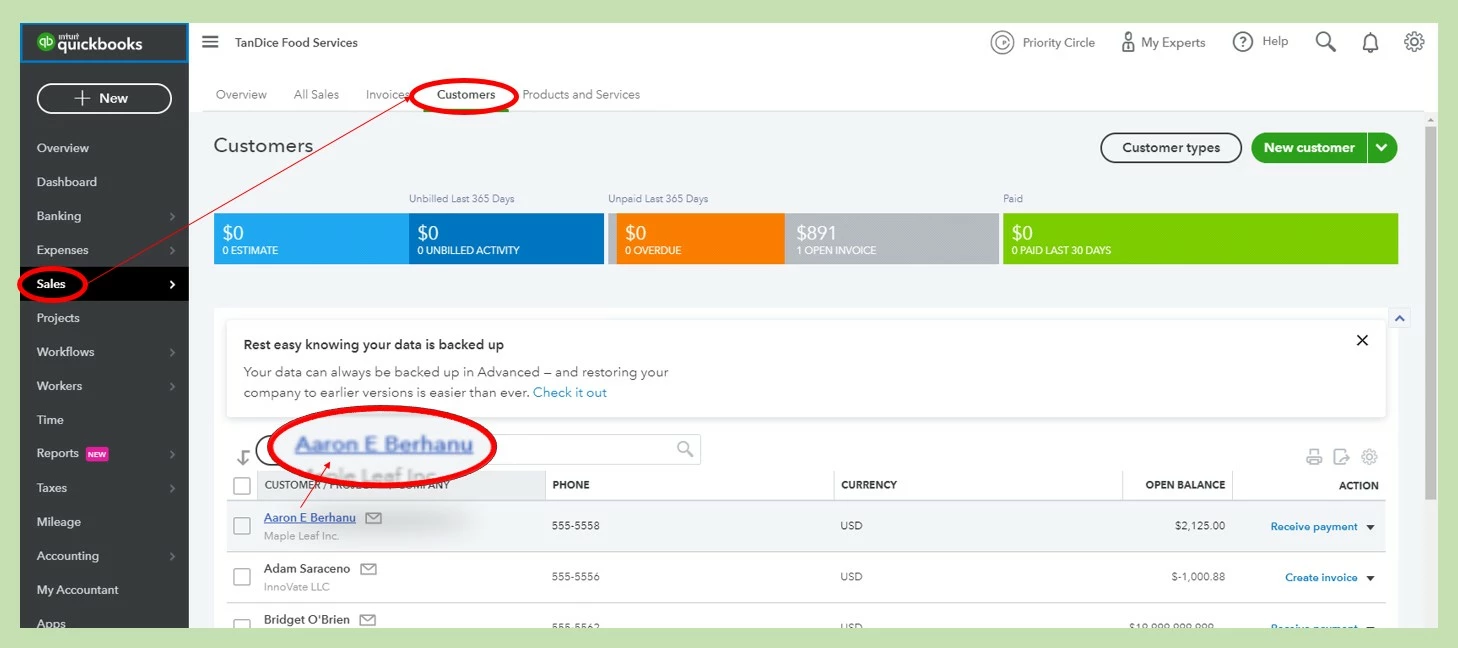
First look at the picture, you have shared:

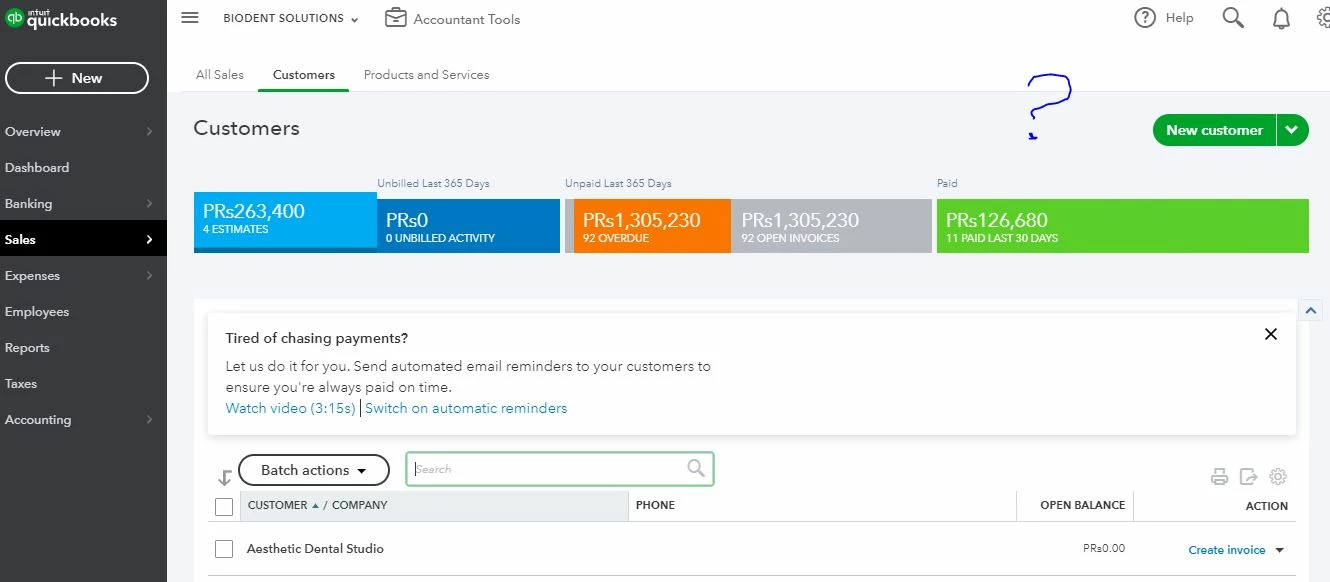
There is a button of "Customer Types" next to New Customer. But in my Quickbooks Online, this button is not present. Just have a look at my screenshot:

I think it is the problem. Why I am being able to see that Customer Type button?

Regards,
Mateen


Hello mateen,


The Customer types feature is only available in QuickBooks Online Plus for US regions. If you're using Essentials or Simple Start, I'd recommend upgrading your subscription.


Once you have upgraded, the Customer type feature will appear in the Customers tab automatically. The article you've found earlier will also help you assign and set up your customer types.


Feel free to get back to us if you need additional help with this. Have a great day!

1 reply

MaryLurleenM
May 31, 2020

I'd be glad to assist you, mateen.


The article you attached provides the steps on how to create customer types. Applying the customer type is another task to do. Let me show you how:


  1. Open the Customers tab.
  2. Select the customer's name to open.
  3. Click on Edit button.
  4. On the Customer information box, click on Additional Info located at the lower right corner.
  5. Select the Customer Type from the dropdown, then Save.

Let me know if you have other things you need help with.

mateenAuthor
May 31, 2020

Thanks for replying @MaryLurleenM 

I am not even able to create any customer type.

The Customer Screen I have doesn't show the "Customer Type" menu or button. For reference, I am enclosing a screenshot of my Customer Screen. So you may able to guide me. 

Thanks

MarsStephanieL
May 31, 2020

Hi there, @mateen.


I'm here to guide you throughout the steps so that you can successfully add the customer type to your customers in QuickBooks Online. Please be guided by the steps below:


  1. Go to the Sales tab and select Customers.
  2. Choose the customer on the list you wish to modify the customer type by clicking their name. (I added this screenshot for Steps 1 and 2.)


  3. In the customer's profile, click the Edit button located beside the New transaction button.


  4. Select the Additional Info tab then, click the drop-down icon under Customer Type.
  5. Verify the details and click Save once done. (Also, please check below these screenshot for Steps 4 and 5.)


I can see that this article can be handy in the future about managing your customers' transactions: Send online invoices in QuickBooks Online.


You can always get back to this thread if you need anything else. I'll be here to help you. Keep safe.