Hello there, @jjzhang. I'd like to impart further insight about the Undeposited Funds account and guide you on how you can put transactions to it in QuickBooks Online (QBO).
Yes, you're correct that the Undeposited Funds account is used to hold payments (cash or cheques) that you haven't been deposited yet at your real-life bank.
You only have one Undeposited Funds account in QBO. If your transactions are downloaded from your bank and/or processed with QuickBooks Payments, there's no need to combine, use, or put them in the said account. This is because QuickBooks already has the info from your bank and takes care of the payments for you.
If you create a sales receipt for payments you process outside of QuickBooks, here's what you need to do to put the transaction into the Undeposited Funds account:
- Go to the + New button.
- Select Sales receipt.
- Choose the customer from the Customer dropdown.
- From the Deposit to dropdown, select Undeposited Funds.
- Fill out the rest of the sales receipt.
- Select Save, Save and send, Save and new, or Save and close.
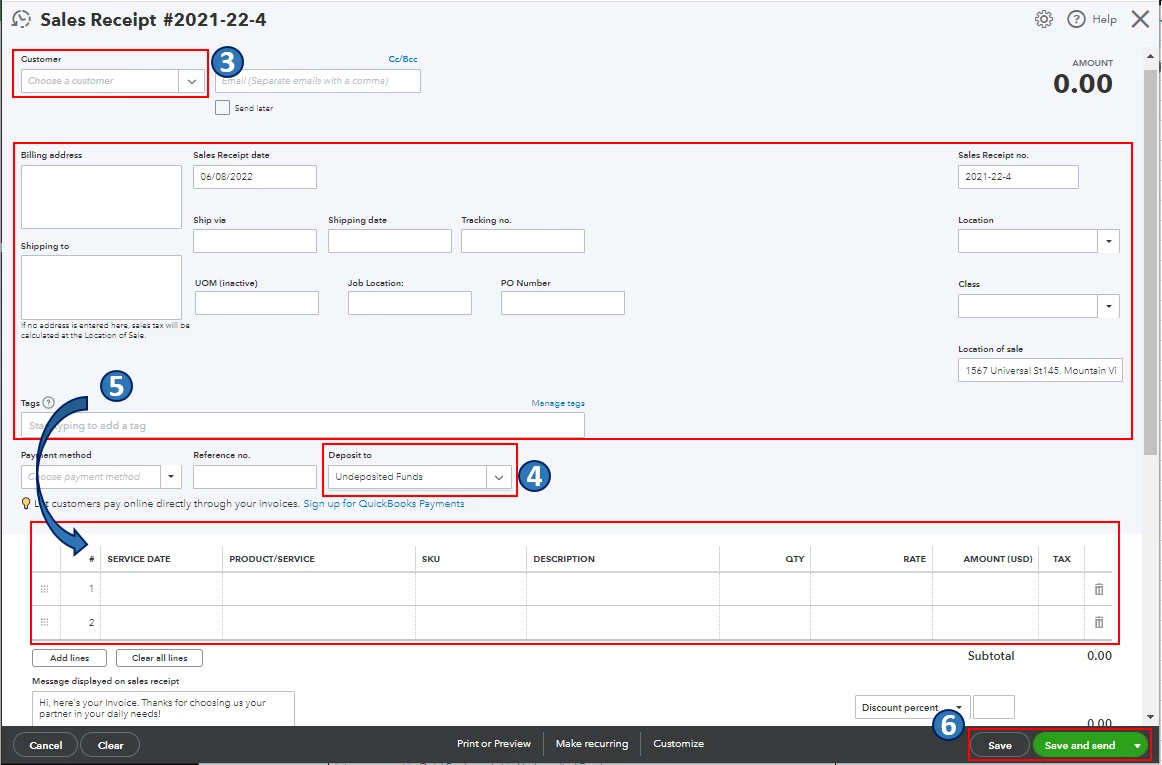
For the complete guide on how you can put payments into the Undeposited Funds account, please see this article: Deposit payments into the Undeposited Funds account in QuickBooks Online.
Once you're done and ready to make a bank deposit, all your payments from sales transactions in the Undeposited Funds account will automatically appear in the Bank Deposit window. For the detailed steps in depositing money at the bank, you can refer to this article: Record and make bank deposits in QuickBooks Online.
Also, I would encourage you to reconcile your accounts in QBO every month. This helps manage your income and expense transactions, detect any possible errors, and make sure they match your real-life bank and credit card statements. You may want to check out this article for the step-by-step guide: Reconcile an account in QuickBooks Online.
Let me know in the comments if there's anything else you need or concerns about creating accounts to your chart of accounts in QBO. I'm always ready to help. Take care, and I wish you continued success, @jjzhang.

