September 16, 2024
Solved

How to split a single deposit from a customer into invoiced revenue and non invoiced revenue?

  • September 16, 2024
  • 1 reply
  • 0 views
I have a notary signing service with notaries all over the country. Title companies pay me to have my notaries do real estate closings for them. I also, personally do real estate closings for those same title companies. Signing service payments are tied to a specifice invoice. Personal signings are not invoice driven. Usually I receive separate checks for personal signings and signing service signings. Occasionally the payments are combined. How do I record them when the payments are combined?
Best answer by ShyMae

I appreciate you sharing additional information. I truly understand how valuable your time and efforts are. I'm here to help record these transactions. Consider me your partner in this, @blueview1901.


In your case, we can create a bank deposit with the total amount of each invoice and split it when we use the Receive Payment feature. Make sure to select the Accounts Receivable as the account.

Here is the step-by-step guide: 


  1. Click +New. Select Bank Deposit.
  2. Head to the Add funds to this deposit section. Pick your preferred customer.
  3. Choose Accounts Receivable in the Account dropdown.
  4. Enter the amount. Once done, hit Save and close.


Please see the attached screenshot for a visual guide.


Now, let's open one associated invoice.


  1. Hover to the Sales menu. Locate only one invoice included.
  2. Press Receive payment.
  3. In the Outstanding Transactions area, tick all the entries needed.
  4. Save and close.


For future reference, you can set up automatic invoice reminders, which saves you the hassle of manually tracking due dates. Check out this article on how to set this up: Send invoice reminders automatically.


I appreciate all the efforts you've already put in. I'm here to assist you every step of the way, so tell me how it goes after following the steps above. I hope everything goes well, @blueview1901!


1 reply

Tori B
September 16, 2024

Good morning, @blueview1901.


How's your day going so far? I hope all is well. 


You can certainly split a single deposit from a customer in QuickBooks Online. I'm including some steps to help walk you through the process below. 


  1. Go to Sales, then click on Invoices.
  2. Find the invoice to which you want to deposit, then hit Edit.
  3. Enter the amount in the Deposit field.
  4. From the Deposit to dropdown menu, choose Payments to deposit or Undeposited funds.
    Note: If you select a bank account, it won’t show up on your deposit detail report. The deposit detail report only shows deposit transactions and payments deposited directly to the bank.
  5. Tap on Save and close.


That should do the trick. For additional information, check out Add a Deposit to an Invoice in QuickBooks Online


I also wanted to mention our new QuickBooks Live Expert Assisted Bookkeeping. Here you can find help with tricky accounting questions to make the bookkeeping process a breeze. Our team of experts can help with common issues such as: 


  • What accounts you should add in QuickBooks
  • What categories you should categorize your transactions
  • Troubleshoot and resolve other bookkeeping errors


Please know I'm here if you have further questions or concerns. Don't hesitate to reach back out. Have a good one! 

September 17, 2024

Good morning, thank you but that doesn't help. Here us the scenario. 1 customer check payment $400. One invoice $125. 2nd invoice $150. 3rd item is a non-invoiced item of $125 for service, tota; $400.

When I go to SALES>INVOICE>EDIT there is NOTHING THERE about DEPOSIT.

ShyMaeAnswer
September 17, 2024

I appreciate you sharing additional information. I truly understand how valuable your time and efforts are. I'm here to help record these transactions. Consider me your partner in this, @blueview1901.


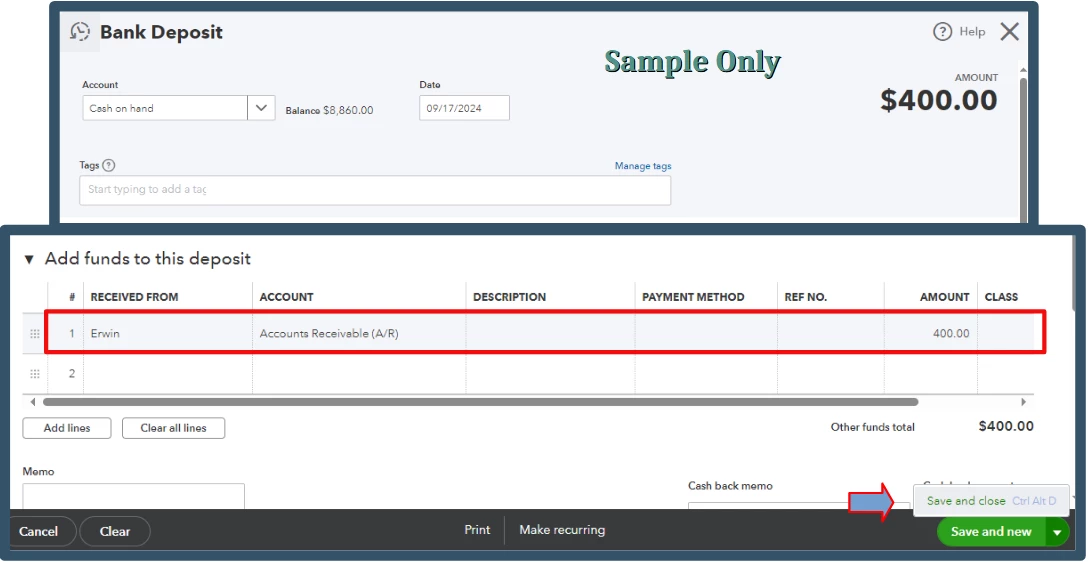
In your case, we can create a bank deposit with the total amount of each invoice and split it when we use the Receive Payment feature. Make sure to select the Accounts Receivable as the account.

Here is the step-by-step guide: 


  1. Click +New. Select Bank Deposit.
  2. Head to the Add funds to this deposit section. Pick your preferred customer.
  3. Choose Accounts Receivable in the Account dropdown.
  4. Enter the amount. Once done, hit Save and close.


Please see the attached screenshot for a visual guide.


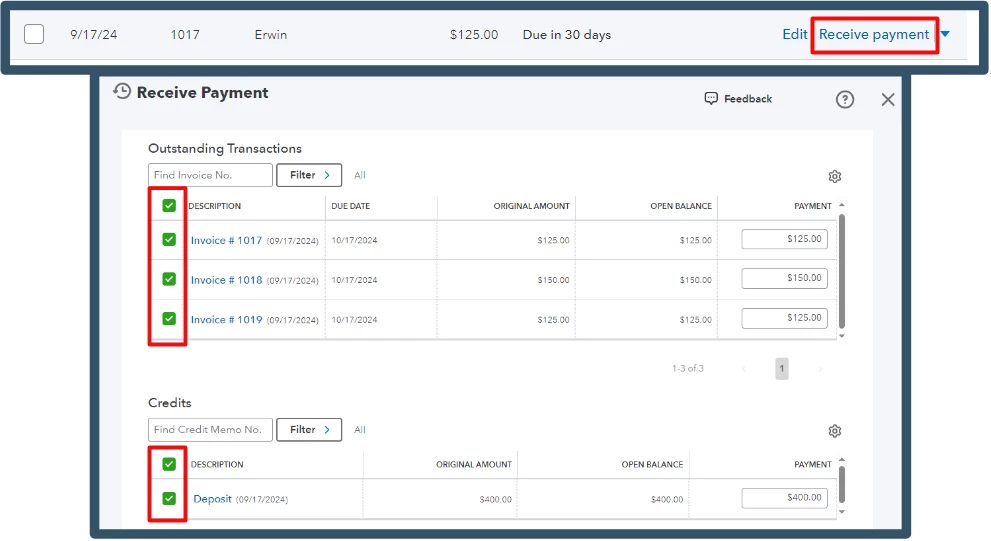
Now, let's open one associated invoice.


  1. Hover to the Sales menu. Locate only one invoice included.
  2. Press Receive payment.
  3. In the Outstanding Transactions area, tick all the entries needed.
  4. Save and close.


For future reference, you can set up automatic invoice reminders, which saves you the hassle of manually tracking due dates. Check out this article on how to set this up: Send invoice reminders automatically.


I appreciate all the efforts you've already put in. I'm here to assist you every step of the way, so tell me how it goes after following the steps above. I hope everything goes well, @blueview1901!