January 22, 2022
Solved

I'm using QB online. I accidentally added "Office Depot" as a client and they should be a vendor. How can I correct this? I don't see anywhere to add or change these.

  • January 22, 2022
  • 1 reply
  • 0 views
Original commenter did not share additional details

Best answer by MariaSoledadG

Let me guide you on how you can set your client as inactive so you can add them as vendor, terri-plantbased.


Once you've added a customer, the option to remove them is unavailable. You'll want to make them inactive instead. To do this, I've outlined the step below:
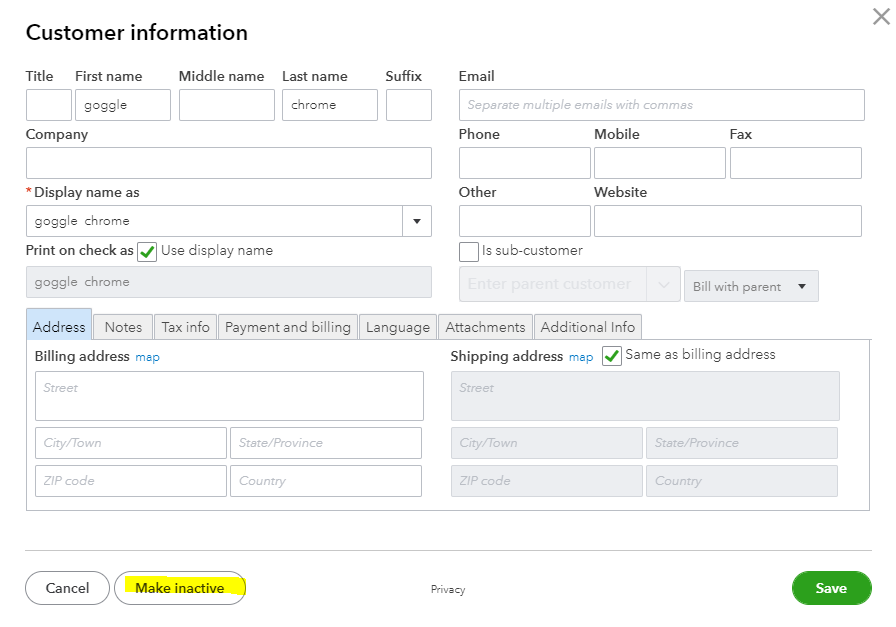
  1. Go to the Sales tab menu.
  2. Select Customers.
  3. Search for the customer on the search bar. You can also scroll down to locate them and click. 
  4. Go to the Customer Details tab, click Edit.
  5. Select Make inactive to remove the customer's name. 


Once done, you can enter Office Depot as a vendor. I've provided you with this link so you can check out the video: Adding Vendors. Furthermore, learn how to enter bills and record payments form vendors. I've added this resource for your guide: Enter Bills And Record Bill Payments In QuickBooks Online.


Please touch base with us if you have any questions about vendors. We're here for you 24/7. Stay safe!

1 reply

MariaSoledadG
January 22, 2022

Let me guide you on how you can set your client as inactive so you can add them as vendor, terri-plantbased.


Once you've added a customer, the option to remove them is unavailable. You'll want to make them inactive instead. To do this, I've outlined the step below:

  1. Go to the Sales tab menu.
  2. Select Customers.
  3. Search for the customer on the search bar. You can also scroll down to locate them and click. 
  4. Go to the Customer Details tab, click Edit.
  5. Select Make inactive to remove the customer's name. 


Once done, you can enter Office Depot as a vendor. I've provided you with this link so you can check out the video: Adding Vendors. Furthermore, learn how to enter bills and record payments form vendors. I've added this resource for your guide: Enter Bills And Record Bill Payments In QuickBooks Online.


Please touch base with us if you have any questions about vendors. We're here for you 24/7. Stay safe!

January 25, 2022

Thanks for this info, but I cannot find the "Sales" tab. I'm using QB Online. The only thing close to that is "All Sales" on the Transactions tab, but the only option I have on the "All Sales" tab is to Create an Invoice. It says nothing about Customer there.  Am I looking in the wrong place?

January 25, 2022

Hi there, terri-plantbased.


I'm here to share additional information on how you can set your client as inactive in QuickBooks Online. 


Before doing so, let's switch to accountant view so you'll be able to see the Sales menu in QuickBooks Online. Changing this view won't affect your company data.


You can go to the Gear icon and simply click the Switch to Accountant view.


Once done, you can now make your customer inactive successfully. 


Here's how:


1. Go to the Sales tab and choose Customers.
2. Locate the customer's name.
3. Go to the Customer Details tab, click Edit.
4. To remove the customer's name, select Make Inactive.
5. Click Yes to confirm.


You can browse this article to know more about managing clients in QuickBooks Online.


These resources should help to get you back on track. If you've got other questions in mind on how to inactive clients, feel free to leave a reply below. I'll be glad to assist you.
