July 7, 2020
Solved

I used to enter a bill, save it, and then pay it using the "pay bill" button on the top right. Now my "pay bill" button is "pay bill online", which I don't want to do.

  • July 7, 2020
  • 2 replies
  • 0 views
Original commenter did not share additional details

Best answer by RCV

Good day, sara48.


Yes, moving forward just use the "Mark as paid" button to pay your bills. Just go to the Expense Transactions page or go to the Pay Bills screen to make a payment.


To give you more insights about managing your expense, check out this link: https://quickbooks.intuit.com/learn-support/en-us/expenses-and-vendors/07?product=QuickBooks%20Online. From there, you'll see related articles in the Subtopics section.


The Community will always have your back if you need anything else in QuickBooks Online. Have a great day ahead. 

2 replies

July 7, 2020

Let me provide some information about the Pay Bills Online feature in your account, sara48.


It's possible you're using Online Bill Pay (powered by Bill.com) that enables you to pay your bills with Pay Bills Online feature. This also allows you to pay your bills online in a faster way by clicking the Submit payment to send your scheduled payments.


For more details about this one, check out these articles:


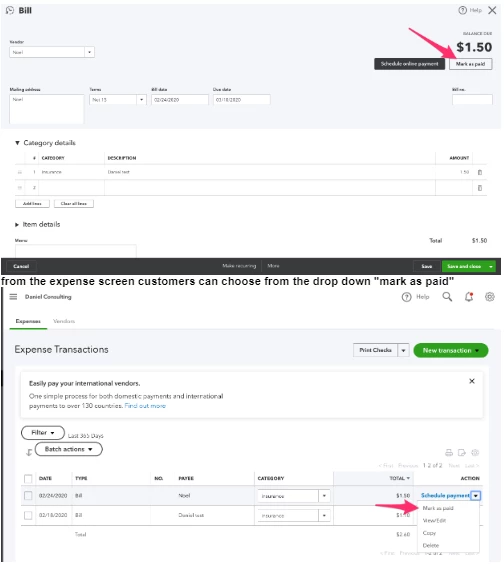
In Online Bill Pay, the option to Make Payments has been changed to Mark as Paid when paying bills. If you don't want to submit your scheduled payments and pay it directly in your account, just click the Mark as paid button in QuickBooks Online (QBO).


Just go to the Expense Transactions page, then choose a transaction you'll want to pay. Once done, click the Action drop-down button and select Mark as paid. You can also open the bill transaction and tick the drop-down arrow to select that option.


Lastly, you can go to the Pay Bills screen to make a payment. Let me show you how: 


  1. Click the New Plus icon.
  2. Choose Pay Bills.
  3. Select the bills you'll want to pay by placing a check-mark on the box. 
  4. Press Save and close.


To learn more about schedule payments in Online Bill Pay, check out this article: Understanding payment schedules in Online Bill Pay.


If you'll want to deactivate your Online Bill Pay, I'd suggest contacting our Customer Support Team. They'll pull up your account in a secure environment and help you with this one. 


Here's how:


  1. Go to the Help icon on the top right. 
  2. Enter your concern in the search field.
  3. Choose Talk to a human.
  4. Click the OK. To get you to the right human, in a few words, tell me what you need help with option and tap I still need a human
  5. Press Contact us.
  6. Tick Continue
  7. Choose Message an agent or Get a callback.

Fill me in if you need a hand with running your financial reports or any QBO related. I'll be here to help. Take care always.

sara48Author
July 8, 2020

Sorry, I didn't explain that very well.  I don't want to use online bill pay.  Whenever I used to enter a bill, I could hit save, and then "pay bill" button on the top right.  It would let me pay that bill only.  A few weeks ago, that button changed to "Schedule online payment".  So I have to go out of the "enter bill" screen and click +, then pay bill.  It adds so many steps!  How can I get that button changed back?


Thanks.

July 8, 2020

Thanks for coming back, sara48.


The option to disable the Schedule Payment feature is unavailable in QuickBooks Online (QBO). You can pay your bills by clicking the Mark as Paid button.


You can also tick the Schedule payments online drop-down and choose Save and close or Save if you don't want to send your scheduled payments.


To disable your Online Bill Pay (if you subscribe to it), it would be best to contact our Customer Support Team. Just follow the steps I've provided above.


I've got a link here that provides you with articles about managing vendor payments: https://quickbooks.intuit.com/learn-support/en-us/expenses-and-vendors/pay-expenses-and-bills/08?product=QuickBooks%20Online.


I'm just one click away if you need a hand with creating recurring payments or any QBO related. You have a good one. 

sara48Author
July 8, 2020

I think I figured it out, ironically one second after posting below.  So I want to use the "Mark as paid" button now?

RCVAnswer
July 8, 2020

Good day, sara48.


Yes, moving forward just use the "Mark as paid" button to pay your bills. Just go to the Expense Transactions page or go to the Pay Bills screen to make a payment.


To give you more insights about managing your expense, check out this link: https://quickbooks.intuit.com/learn-support/en-us/expenses-and-vendors/07?product=QuickBooks%20Online. From there, you'll see related articles in the Subtopics section.


The Community will always have your back if you need anything else in QuickBooks Online. Have a great day ahead. 

August 26, 2021

This does not help when you have to pay multiple bills for 1 vendor. QBO used to be able to check off as many invoices I needed to pay for one vendor. My save button at the bottom is gone. When you go to the vendor the way you explain you can't tell if they bill has been paid. 

You need to fix this issue. It should not take me an hour to pau 1 vendor