

August 8, 2023
Question

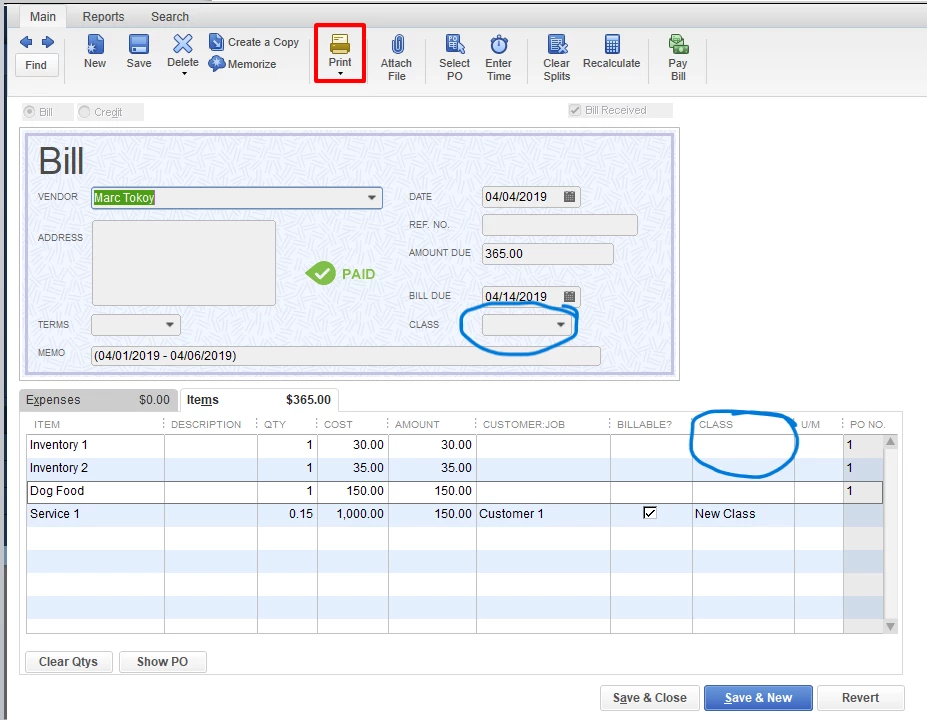
In Quickbook Enterprise when entering bills what happens if the class in the upper 'Bill' section of the entry does not match the class selected 'Expense' section?

  • August 8, 2023
  • 1 reply
  • 0 views

In Quickbook Enterprise when entering bills what happens if the class in the upper 'Bill' section of the entry does not match the class selected 'Expense' section? Ive been told the top line is for the ap when reporting balance sheet by class. The bottom lines are used for the profit and loss by class report. Is this correct?  Is there a report that could identify errors if the classes do not match? 
1 reply

August 8, 2023

Thank you for asking and genuinely learning about tracking classes on reported transactions, @ClaireRTF.


Tracking classes lets you mark transactions and line items. With this feature in QuickBooks Desktop Enterprise, you can pull up specified transaction reports, such as Balance Sheet reports for the asset, liability, and equity accounts used when saving a record like Accounts Payable for Bills and Accounts Receivable for Invoices.


Profit and Loss reports then let you see the posting of income and expenses. For this reason, expense categories used in the Bills' line item will show in that report.


With these aspects, you're correct about using Balance Sheet by Class and Profit and Loss by Class reports. We can't identify if the class in a transaction matches the Expense tab's class line item since its usage in QuickBooks isn't alike. That said, it's crucial reviewing the bill before saving them, ensuring you're tracking class transactions and categories in a line item accurately.


Because of the class usage difference in a transaction from the Expense section line item, there are no specific report/s that could identify errors if the classes do not match aside from opening each transaction like invoice, bill, check, expenses, etc. The targets and sources are the main factors we can't customize a report to identify errors if classes don't match.


I know you're hopeful to see this data since it's beneficial to track errors to correct them. I like you to check this article for more details: Understand reports. You'll want to add this resource to your bookmarks to see other insights about class tracking: Set up and use class tracking in QuickBooks Desktop.


Furthermore, I'm also adding this article to learn more about customizing transactions when you need to see some particular data: Customize reports.


Feel free to contact me here by tagging my name (@Jovychris_A) if you have other QuickBooks reporting and class tracking concerns. I'll make myself available anytime to help you more. Thanks for dropping by, Claire.

July 11, 2024

Can you please explain further about what the difference is between these two classes? I know that the bottom Class is what hits GL. Why do we need the Class in the Bill section? What do it do exactly? 

July 11, 2024

Let me explain the difference between the two classes and their roles in QuickBooks, MissB1. 


In QuickBooks Desktop, the Class in the upper Bill section and the Class selected in the Expense tab serve similar purposes but have slight differences in their functionality.
 

The Class in the upper Bill section allows you to assign a single class to the entire bill. This means that all the expenses included in the bill will be categorized under the same class. It provides a way to track and allocate expenses to different segments or projects of your business, allowing you to generate reports and analyze the financial performance by class.
 

On the other hand, the Class selected in the Expense tab of QuickBooks Desktop is used to assign a class to individual line items within the bill. This means that you can assign different classes to each expense line item within the same bill. This level of detail allows for more specific tracking and reporting of expenses by class. 


Additionally, the Class that hits the General Ledger (GL) is used in transactions like Invoices, Sales receipts, Estimates, Sales orders, Statement Charges, Refunds and credits, Checks, Credit card charges, Bills, Purchase orders, and Paychecks. This Class assignment affects the GL accounts associated with those transactions, allowing you to track income and expenses by class in your financial statements. 


Moreover, check out these articles below to find out more about classes usage and how to personalize reports in QuickBooks: 


Feel free to ask me if you have further questions about classes and reports in QuickBooks. I'm always willing to help you.