June 11, 2024
Solved

Inventory Quantity on Hand By Site vs Inventory Quantity on Hand by Lot discrepancy

  • June 11, 2024
  • 1 reply
  • 0 views

Hello,


This is my first time asking a question here. I have been trying to deal with an ongoing issue in which the Quantity On Hand by Site inventory doesn't match with Quantity on Hand by Lot number. I am unsure of how to make an adjustment to correct that discrepancy. When using the Adjust Quantity/Value on Hand function, any change made through that channel changes the total quantity on hand. Is there a way to adjust the quantity of a specific item and lot without affecting the total quantity on hand? 

Best answer by AlverMarkT

Yes, there's a way to adjust the quantity of an item by lot without impacting the overall quantity on hand. I'd be glad to assist with this, @dkassner.


You can consider adjusting inventory by lot number to change the quantity of a specific item and address the inventory discrepancy. I can provide the steps to achieve this in QuickBooks Desktop (QBDT).


Adjusting the inventory by lot number changes the quantity of the items but doesn't change the total quantity on hand by site. To assist in the task of correcting the discrepancies in your inventory quantity, I suggest pulling up the Quantity on Hand by Site and Lot Numbers in Stock reports side-by-side to compare quantities on the lot number level and total quantity on hand by site. Once done, you can follow these steps:


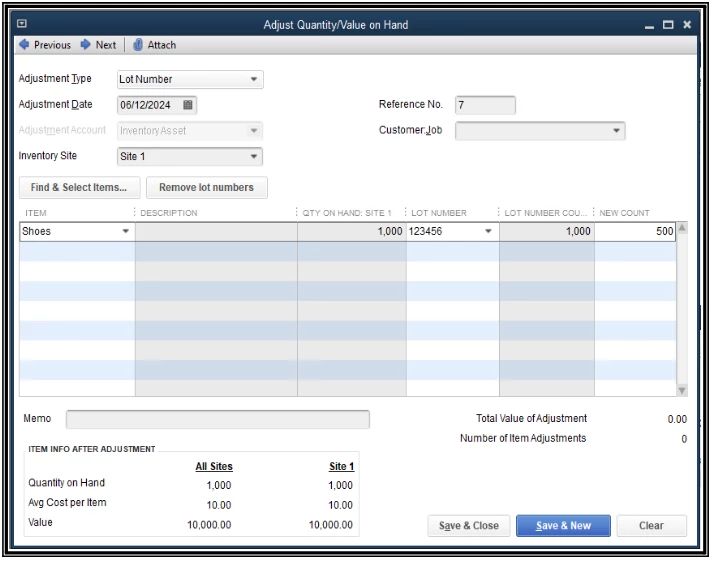
  1. Go to the Inventory menu. Then, select Adjust Quantity/Value on Hand.
  2. Choose Lot Number for the Adjustment Type.
  3. Enter the Adjustment Date.
  4. Choose the Inventory Site where the item you want to change the amount is.
  5. If applicable, type in the Reference No and choose the Customer:Job.
  6. Pick from the drop-down list the Inventory Site where the item you want to adjust is.
  7. Enter the Item, Lot Number, and the New Count of the item. The amount you input in the New Count box will be the new quantity on hand by lot. 
  8. Type in a description in the Memo field for reference.
  9. Hit Save & Close.


For future reference, let me add this article as a guide in saving the current customizations of your inventory reports in QBDT: Create, access and modify memorized reports.


We'll be here in the Community if you have additional questions about adjusting inventory in QBDT. We'll do our best to assist.


1 reply

AlverMarkT
June 12, 2024

Yes, there's a way to adjust the quantity of an item by lot without impacting the overall quantity on hand. I'd be glad to assist with this, @dkassner.


You can consider adjusting inventory by lot number to change the quantity of a specific item and address the inventory discrepancy. I can provide the steps to achieve this in QuickBooks Desktop (QBDT).


Adjusting the inventory by lot number changes the quantity of the items but doesn't change the total quantity on hand by site. To assist in the task of correcting the discrepancies in your inventory quantity, I suggest pulling up the Quantity on Hand by Site and Lot Numbers in Stock reports side-by-side to compare quantities on the lot number level and total quantity on hand by site. Once done, you can follow these steps:


  1. Go to the Inventory menu. Then, select Adjust Quantity/Value on Hand.
  2. Choose Lot Number for the Adjustment Type.
  3. Enter the Adjustment Date.
  4. Choose the Inventory Site where the item you want to change the amount is.
  5. If applicable, type in the Reference No and choose the Customer:Job.
  6. Pick from the drop-down list the Inventory Site where the item you want to adjust is.
  7. Enter the Item, Lot Number, and the New Count of the item. The amount you input in the New Count box will be the new quantity on hand by lot. 
  8. Type in a description in the Memo field for reference.
  9. Hit Save & Close.


For future reference, let me add this article as a guide in saving the current customizations of your inventory reports in QBDT: Create, access and modify memorized reports.


We'll be here in the Community if you have additional questions about adjusting inventory in QBDT. We'll do our best to assist.

dkassnerAuthor
June 12, 2024

Hi, AlverMarkT,


Thanks for taking the time to reply. I will try this out when I have a chance!