I’m here to walk you through in finding the list of your invoices in QuickBooks Desktop, @melissa321.
Yes, BRC is right. We can generate the Transaction List by Customer report and filter the transaction type to show just your invoices.
Here’s how:
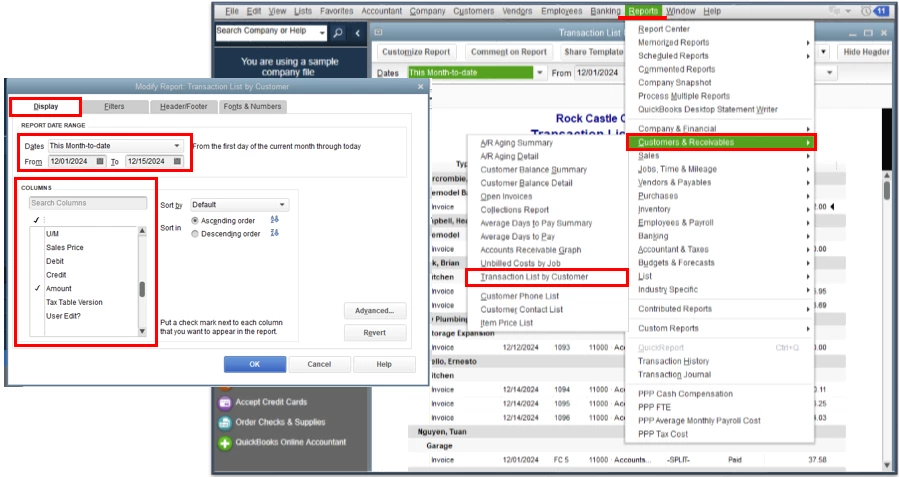
- On the Reports menu, select Customer & Receivables, then click on Transaction List by Customer.
- Click on the Customize Report button on the report's page.
- From the Modify Report window, click Display and under Columns, tick which ones you’d like to appear in the report.
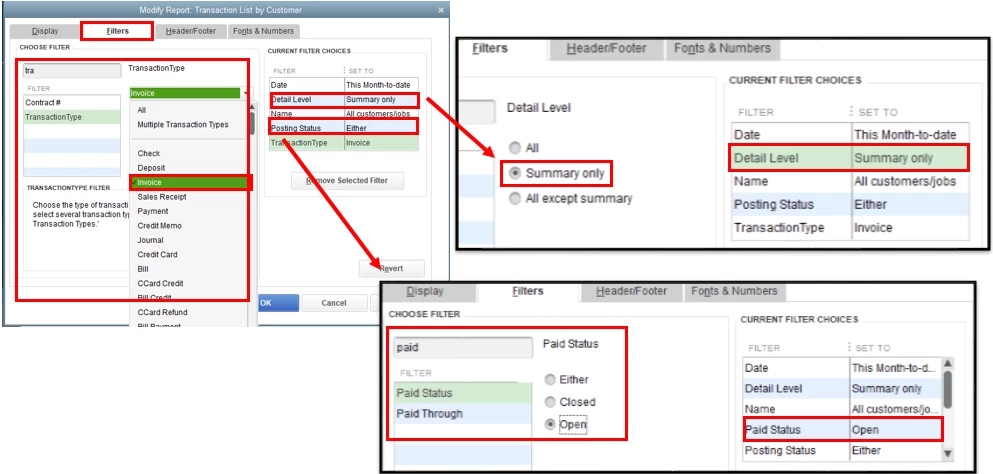
- Go to the Filter column, then search for Transaction Type and select Invoice.
- On the Current Filter Choices, click Detail Level and select Summary only.
- Click Paid Status, choose between:
- Open – unpaid invoices
- Closed – paid invoices
- Either – paid and unpaid invoices
I’ve added some snippets below for your references:
Here's an article you can read for more details: Customize reports in QuickBooks Desktop.
Just in case you want to export this report to Excel, feel free to check out this article for the detailed steps and information: Export reports as Excel workbooks in QuickBooks Desktop.
If you have other report concerns or requires additional assistance, don’t hesitate to reply below. It’s always my pleasure to keep you on the right track. Keep safe.

