September 20, 2021
Solved

Is there a way to set "SAVE AND CLOSE" as the default action when creating a new invoice? It was previously my default, but somehow (maybe an update?) it has changed.

  • September 20, 2021
  • 1 reply
  • 0 views
Original commenter did not share additional details

Best answer by MadelynC

I’m glad to share some information with you about QuickBooks invoicing, @bexmg.


Once you select Save and close on your current invoice, QuickBooks Online (QBO) will automatically set that option when you create a new one. You may consider this process so the said option will remain.


I recognize how convenient it's for users to set Save and close as the default action when creating invoice transactions. You can use the Feedback feature within your QBO company file to send this idea. This way, our management and engineering teams could take action to help improve your experience.


Here’s how:
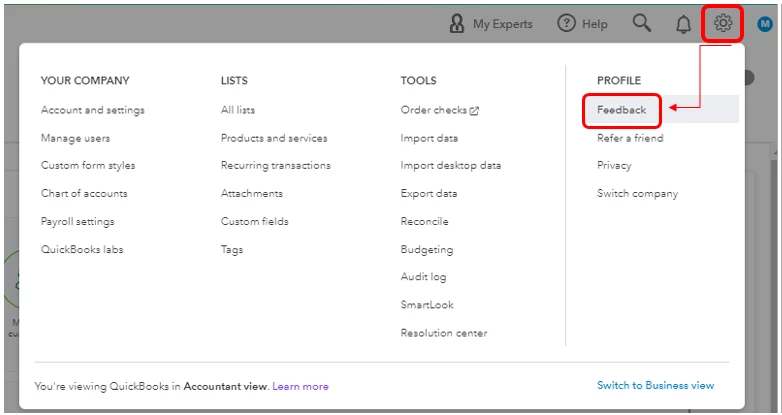
 

  1. Go to the Gear icon, then select Feedback.
  2. Enter your suggestions, then select Next.
  3. You'll be provided a list of suggested Help articles related to your comment. You can select Skip and send message.
  4. From the drop-down, choose the appropriate category, then press Send message.


You can track feature requests through the QuickBooks Online Feature Requests website.


You might want to personalize and add a specific information to your sales forms. Check out this reference for complete instructions: Customize invoices, estimates, and sales receipts in QuickBooks Online.


Let me know if you have additional questions or concerns about invoicing. I’m always here to help. Have a great day ahead!

1 reply

MadelynCAnswer
September 20, 2021

I’m glad to share some information with you about QuickBooks invoicing, @bexmg.


Once you select Save and close on your current invoice, QuickBooks Online (QBO) will automatically set that option when you create a new one. You may consider this process so the said option will remain.


I recognize how convenient it's for users to set Save and close as the default action when creating invoice transactions. You can use the Feedback feature within your QBO company file to send this idea. This way, our management and engineering teams could take action to help improve your experience.


Here’s how:


  1. Go to the Gear icon, then select Feedback.
  2. Enter your suggestions, then select Next.
  3. You'll be provided a list of suggested Help articles related to your comment. You can select Skip and send message.
  4. From the drop-down, choose the appropriate category, then press Send message.


You can track feature requests through the QuickBooks Online Feature Requests website.


You might want to personalize and add a specific information to your sales forms. Check out this reference for complete instructions: Customize invoices, estimates, and sales receipts in QuickBooks Online.


Let me know if you have additional questions or concerns about invoicing. I’m always here to help. Have a great day ahead!

bexmgAuthor
September 20, 2021

Hello Madelyn,

Thank you so much for your quick reply.

That is what it used to do---once I chose that option, it remained.  However, it is not 

doing that now.  I have to choose SAVE AND CLOSE each time.  

Any ideas?

Jen_D
September 20, 2021

Thanks for coming back here, @bexmg.


I want to make sure the settings in your QBO account is saved. Accessing the account on the regular browser will allow the cache to save site settings or memorize account history. 


If you are accessing your account this way, but can't save the changes to the invoice save options, make sure there aren't any third-party apps that will prevent QuickBooks from saving cache.


If you're still getting the same problem, I recommend contacting our Support again. This way our representatives can report this to our engineers for thorough review. Here's how to contact us:


  1. Go to the Help menu in QuickBooks, then choose the Search tab.
  2. At the bottom click on Contact us.
  3. Enter the keyword Account Management and Billing in the What can we help you with? box.
  4. On the next screen, scroll down to How would you like to connect with us section.
  5. Choose Chat with us to initiate a discussion with a live agent.
  6. Enter you account contact information then press Get a chat.
  7. When using this option, make sure to enable pop-up windows. The chat box will appear at the bottom right section of your monitor, and an agent will be with you shortly after. See this:


Please drop by again if you have any other concerns besides this invoice question. I'll be right here to help you anytime. Have a good one!
