October 23, 2024
Solved

Is there a way to sort by "discount date" when viewing bills to pay in Quickbooks Online version?

  • October 23, 2024
  • 1 reply
  • 0 views
Original commenter did not share additional details

Best answer by Jelayca V

Thanks for posting your concern here in the Community, @XORCO6472.


To begin with, I would like to clarify if what you mean by the discount date is a filter on the Pay Bills page. If that’s the case, please know that you cannot filter by discount dates in this window in QuickBooks Online (QBO), as it only allows you to filter by Due Date.


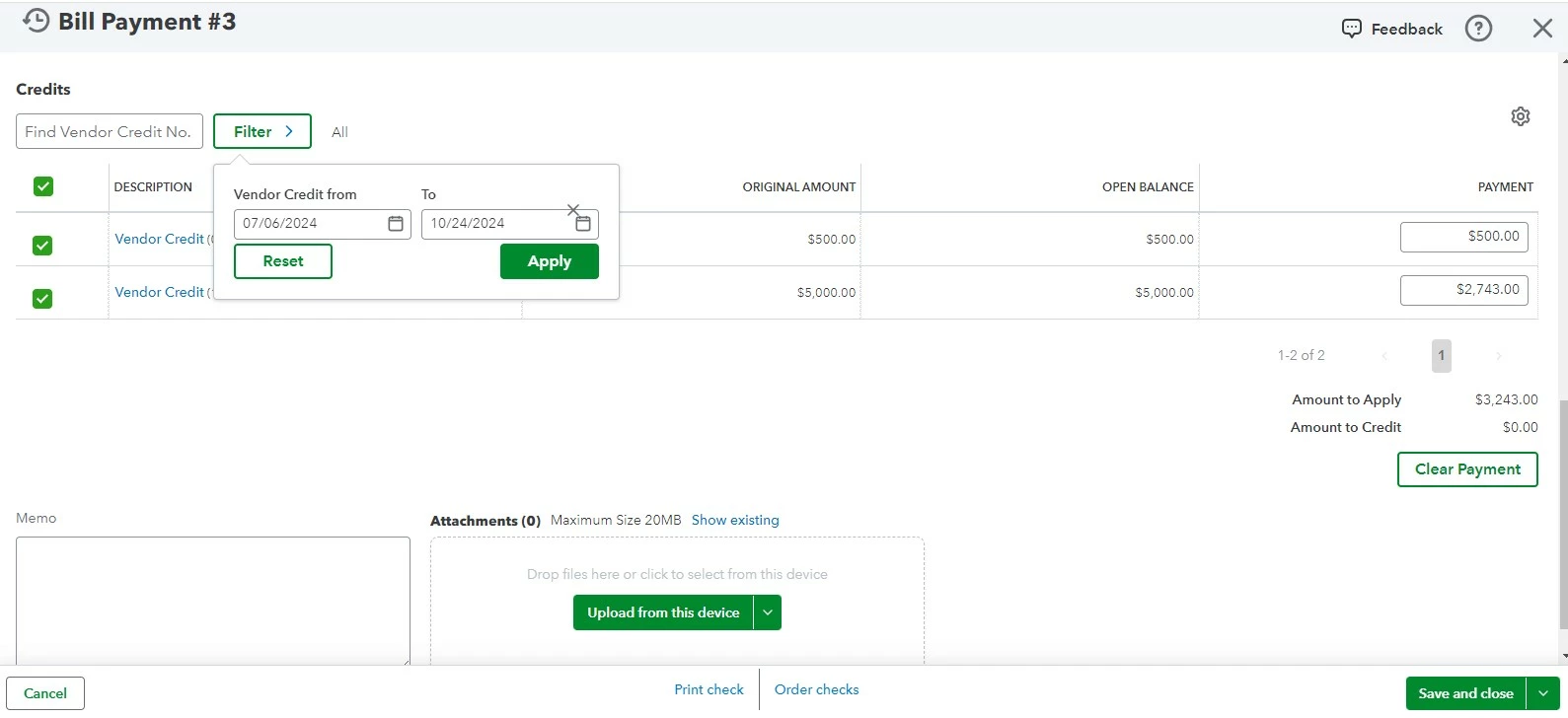
On the other hand, if you mean the discount date related to Vendor credits, you can access those, but not directly from the Pay Bills page. Instead, you'll want to open the bill itself. Here’s how:
 

  1. Navigate to Expenses, then select Bills.
  2. Choose Unpaid and open the specific bill transaction you'd like to apply the vendor credit to.
  3. Click the Mark as paid button and scroll down to the Credits section.
  4. There, you'll see a list of vendor credits that can be applied. Select Filter.
  5. Provide your specific date range, then hit Apply once done.


However, if you meant something else regarding the discount date, please feel free to share more details. A screenshot would also help us provide a more accurate solution.

You can read this article for more information: Enter and manage bills and bill payments in QuickBooks Online.
 

To learn how to run the Vendor Balance Detail report to track your vendor transactions, kindly check out this article: Run reports in QuickBooks Online.


You can always return here if you have further questions about handling expenses, vendor bills, credits, and other QuickBooks-related concerns. We're here to help you. Take care.

1 reply

Jelayca VAnswer
October 23, 2024

Thanks for posting your concern here in the Community, @XORCO6472.


To begin with, I would like to clarify if what you mean by the discount date is a filter on the Pay Bills page. If that’s the case, please know that you cannot filter by discount dates in this window in QuickBooks Online (QBO), as it only allows you to filter by Due Date.


On the other hand, if you mean the discount date related to Vendor credits, you can access those, but not directly from the Pay Bills page. Instead, you'll want to open the bill itself. Here’s how:


  1. Navigate to Expenses, then select Bills.
  2. Choose Unpaid and open the specific bill transaction you'd like to apply the vendor credit to.
  3. Click the Mark as paid button and scroll down to the Credits section.
  4. There, you'll see a list of vendor credits that can be applied. Select Filter.
  5. Provide your specific date range, then hit Apply once done.


However, if you meant something else regarding the discount date, please feel free to share more details. A screenshot would also help us provide a more accurate solution.

You can read this article for more information: Enter and manage bills and bill payments in QuickBooks Online.
 

To learn how to run the Vendor Balance Detail report to track your vendor transactions, kindly check out this article: Run reports in QuickBooks Online.


You can always return here if you have further questions about handling expenses, vendor bills, credits, and other QuickBooks-related concerns. We're here to help you. Take care.
