

April 2, 2025
Question

Issue detected in the "Journal Entry" module of QuickBooks

  • April 2, 2025
  • 2 replies
  • 0 views

A recurring issue has been identified in the "Journal Entry" module of QuickBooks, which allows users to record accounting transactions through entries with unique identifiers.


Issue Description:

When multiple users access the module simultaneously to create a new journal entry, the system assigns the same journal number (ID) to each of these sessions. This number is automatically generated as soon as the entry form is opened, even before any data is completed or saved.

As a result, when users attempt to save the journal entry, an error occurs indicating that the journal number has already been used. Users are then forced to manually change the assigned number, causing confusion, delays, and potential inconsistencies in the accounting sequence.
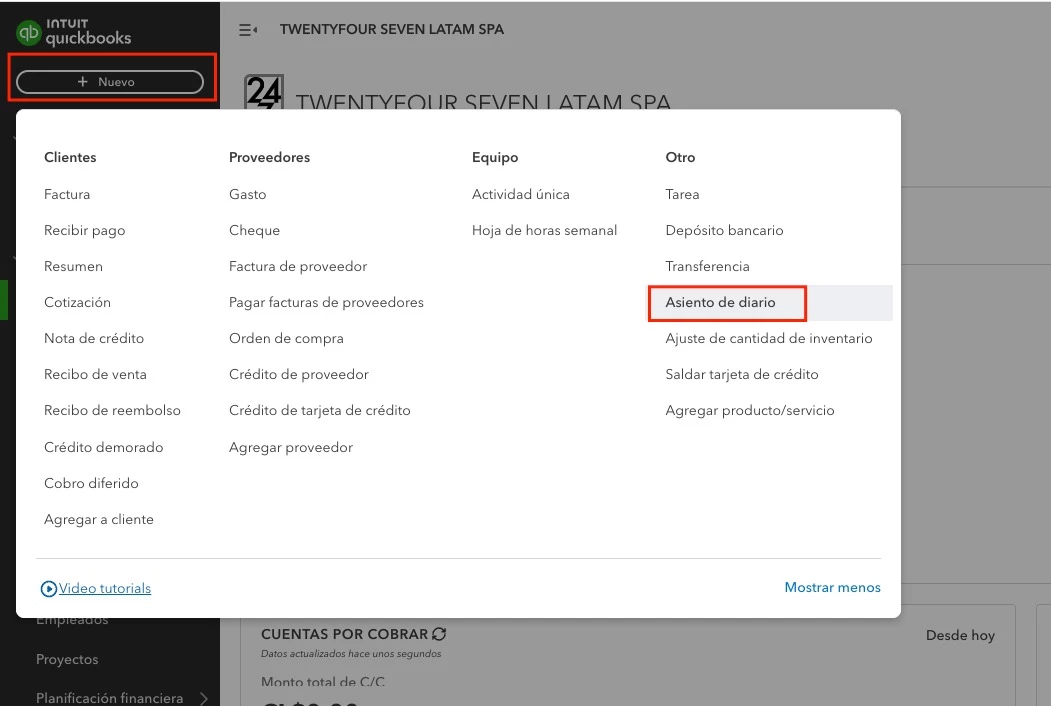
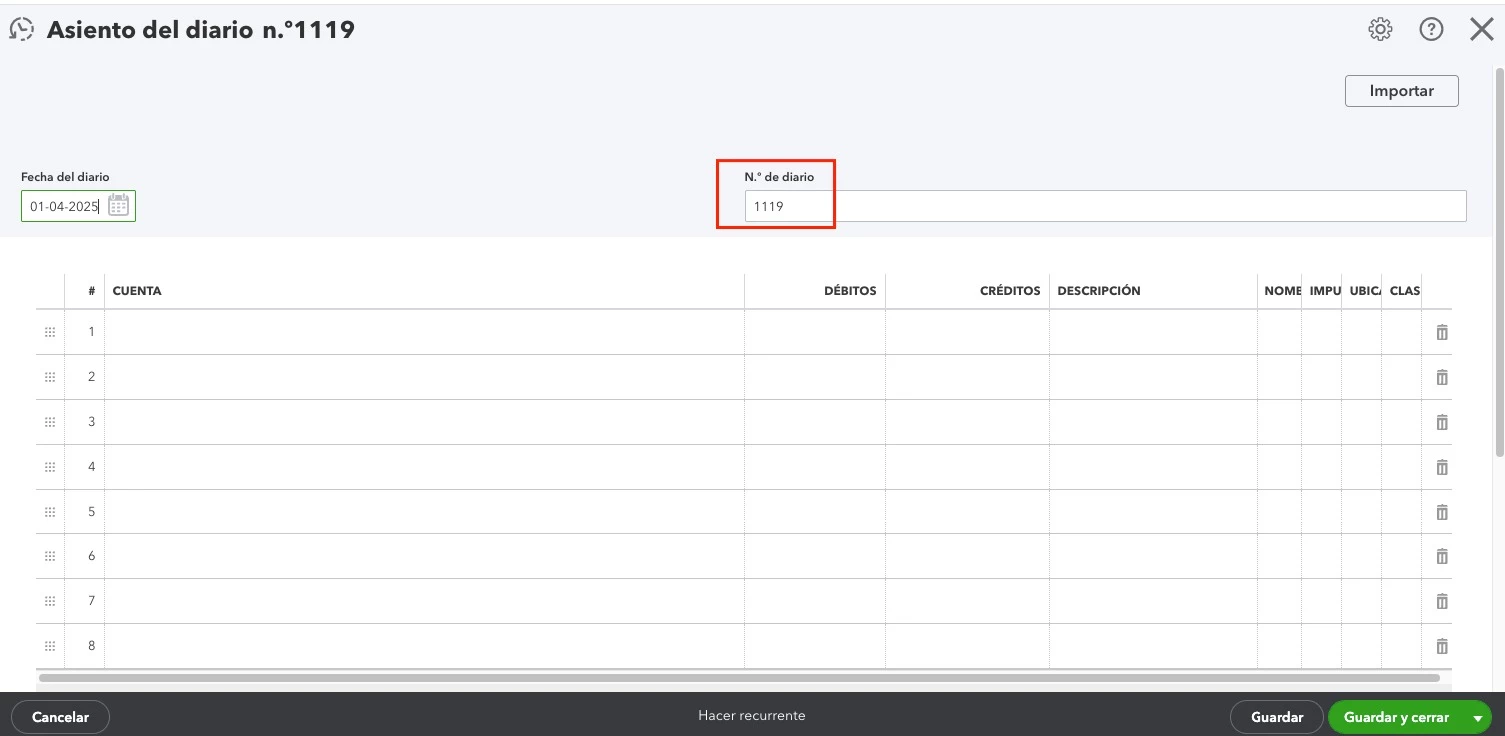
Inquiry:

We would appreciate it if you could let us know whether this behavior is currently being reviewed by the development team and, if so, whether there is an estimated release date for an update that will address this issue.


Suggestion:

We recommend reviewing the ID assignment mechanism so that the journal number is only generated at the moment the entry is saved, or alternatively, implementing a temporary reservation or locking strategy to ensure uniqueness in concurrent access scenarios.

2 replies

Tori B
April 2, 2025

Good evening, @scartes.


How are you doing today? I hope all is well. 


I appreciate the detailed information and screenshots of your issue. It's a big help to understand your situation. 


In QuickBooks Online, when multiple users simultaneously create journal entries, the system might assign the same journal number (ID) to each session, potentially leading to duplicated numbers. However, you can disable the auto-filling of journal numbers and manually enter your own.


Here's how: 


  1. Go to the Gear icon, then Account and Settings.
  2. Select the Advanced tab, then Automation.
  3. Uncheck the box for "Pre-fill forms with previously entered content".
  4. Save and then Done.


That should do the trick. For more information about this process, check out the help guides I'm including below.


Please don't hesitate to let me know if you have any additional questions or concerns that I can assist you with. I'm happy to lend a hand. Have a good one! 

scartesAuthor
April 2, 2025

Good evening, and thank you for your kind message.


I really appreciate the explanation and the workaround you suggested. However, I believe the issue goes beyond the auto-fill feature.


The main problem is that the system generates and displays the journal number as soon as the screen is opened, even if the user hasn’t saved anything yet. So, when two users open the form at the same time, they both get the same number — regardless of whether auto-fill is enabled or not.


Disabling the “Pre-fill” option might help in some cases, but it doesn’t fully prevent journal number duplication in concurrent usage scenarios.

That’s why we believe the best solution would be to assign the journal number only at the time of saving, or through a reservation mechanism that avoids overlap between users.


Is there any plan to improve this functionality in upcoming updates of QuickBooks? Currently, this limitation makes concurrent work within our organization quite difficult.

Thanks again for your support!

April 2, 2025

In QuickBooks Online, the numbering system works sequentially, choosing the number of the new transaction based on the last number entered, Scartes. Allow me to help you send feedback to our Product Development Team and provide information on this below.
 

I encourage you to share your suggestions directly with our Product Development Team, as they actively seek user feedback to improve our platform. Here's how you can submit your input:
 

  1. Log in to your QuickBooks Online account.
  2. Click the Gear icon located at the top-right corner.
  3. Select Feedback under the Profile section.
  4. Enter your suggestions and click Next.
     

Meanwhile, you can manually modify existing journal numbers to match your preferred number or sequence when creating journal entries.
 

To do so:
 

  1. Locate the journal number field (positioned just above the journal entry details).
  2. Enter your preferred number in the field.


For comprehensive insights on understanding debits and credits in an accounting system, you may refer to this informative article: Debit vs. credit in accounting: The ultimate guide and examples.
 

Transaction numbers are essential for efficiently managing your books, Scartes. As part of the QuickBooks support team, we are committed to enhancing your navigation experience with QBO, please know that the community will be there 24/7 ready to assist you.

scartesAuthor
April 3, 2025

Thank you for the detailed response and for guiding me on how to submit feedback — I’ve already done so via the Gear icon in QuickBooks Online yesterday.


Just to clarify, the concern is not about manually editing journal numbers, but rather about how the system behaves when multiple users access the Journal Entry screen at the same time. In those cases, the system pre-fills the same number for both users even before any entry is saved, which causes conflicts and manual corrections later.


This behavior significantly impacts our operations team, especially during peak hours when several users need to work in parallel. We hope this scenario can be considered for improvement in future updates.


Additionally, you mentioned the Product Development Team — would it be possible to formally escalate this issue to them or check if there is any visibility of improvements in the roadmap related to this functionality?


Thanks again for your support and for keeping the community active and responsive!