October 21, 2022
Solved

linking items to classes

  • October 21, 2022
  • 1 reply
  • 0 views

HI I am using Enterprise for Contractor.

I am trying to link items (cost codes) by class, is this possible? I would to a link individual items to a class

eg Project Management (item)  to Construction (class)

I am using Procore for my project tracking and management.


Thanks in advance

Tracey

Best answer by Giovann_G

Welcome to the Community space, Tracey203.


Yes, QuickBooks Desktop Enterprise allows you to assign a class to an item. I'll guide you on how to do it.


You must first enable class tracking in the Preferences


Here's how:


  1. From the Edit menu, choose Preferences on the drop-down.
  2. Select Accounting from the left pane, then choose the Company Preferences tab.
  3. Under the CLASS section, put a checkmark to Use class tracking for transactions.
  4. Check the box beside Assign classes to, and then select Items on the drop-down menu.
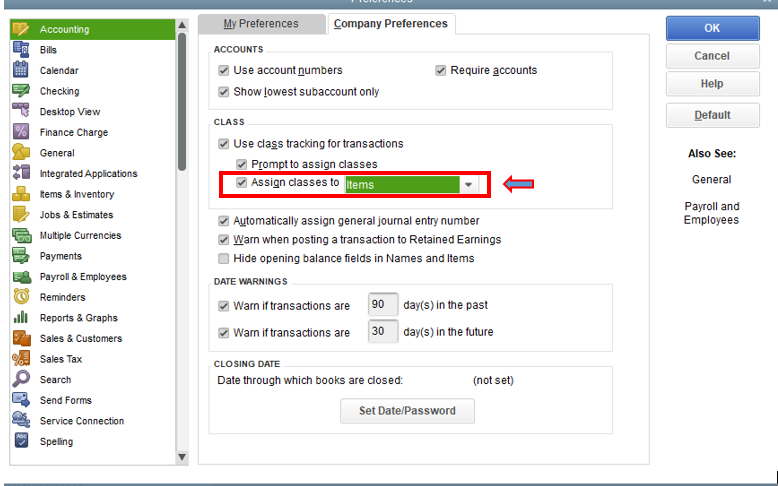
  5. Once done, hit OK.


You can now select Item List from the Lists menu. to add or edit an item and assign a class to it.
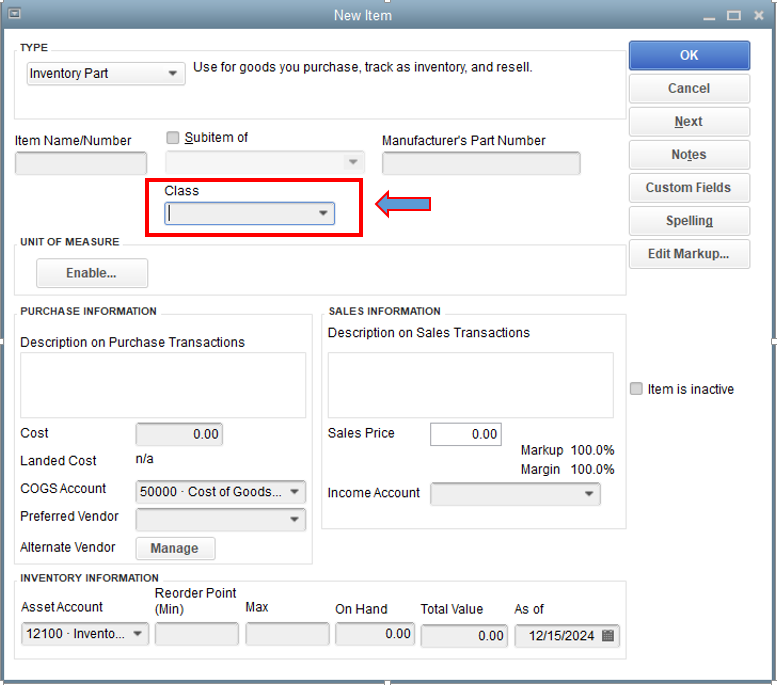
 

Want more guidance on the Class tracking feature? I advise reading the following article: Set up and use class tracking in QuickBooks Desktop.


You can run reports in QuickBooks to check your sales data and other financial data if necessary. In case you need to familiarize yourself with the reports, I'll include this resource: Understand reports.


If you need anything else, please let me know. I'll be around to help you.

1 reply

Giovann_GAnswer
October 21, 2022

Welcome to the Community space, Tracey203.


Yes, QuickBooks Desktop Enterprise allows you to assign a class to an item. I'll guide you on how to do it.


You must first enable class tracking in the Preferences


Here's how:


  1. From the Edit menu, choose Preferences on the drop-down.
  2. Select Accounting from the left pane, then choose the Company Preferences tab.
  3. Under the CLASS section, put a checkmark to Use class tracking for transactions.
  4. Check the box beside Assign classes to, and then select Items on the drop-down menu.
  5. Once done, hit OK.


You can now select Item List from the Lists menu. to add or edit an item and assign a class to it.


Want more guidance on the Class tracking feature? I advise reading the following article: Set up and use class tracking in QuickBooks Desktop.


You can run reports in QuickBooks to check your sales data and other financial data if necessary. In case you need to familiarize yourself with the reports, I'll include this resource: Understand reports.


If you need anything else, please let me know. I'll be around to help you.
