June 18, 2022
Solved

Make many classes inactive at one time using QuickBooks Accountant Desktop 2022

  • June 18, 2022
  • 1 reply
  • 0 views

Does anyone using QB 2022 know a way to choose multiple classes to inactivate? I am doing this one class at a time, and hoping that with 2022 I don't have to.

Thanks

Best answer by Jen_D

It's nice to have you here in the QuickBooks Community.


I can share the shortcut to help you mark multiple classes as inactive. To do that, follow the steps below in your QuickBooks Desktop 2022 account.


  1. Go to the List menu, then Class List.
  2. At the bottom, click on the Include inactive checkbox.
  3. Once you have all the list, click the class with blank fields so they will have an X mark.
  4. Continue marking all the classes you want to make inactive.
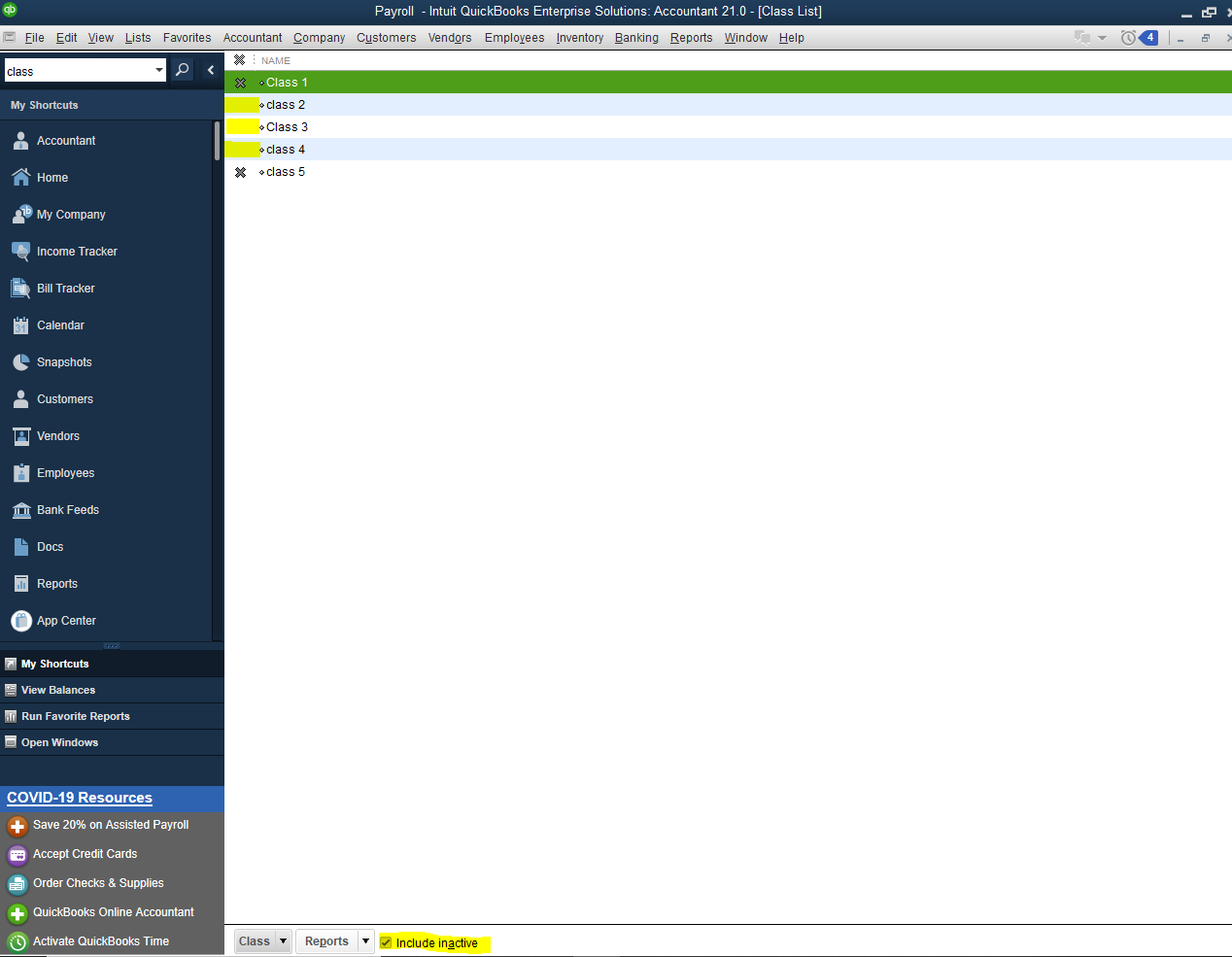
  5. Once done, clear the Include inactive checkbox by clicking it again and you're all set.


See the following links about using and running class reports:


Mention me anytime for QuickBooks and class concerns. I'll be right here to give you a hand.

1 reply

Jen_D
Jen_DAnswer
June 18, 2022

It's nice to have you here in the QuickBooks Community.


I can share the shortcut to help you mark multiple classes as inactive. To do that, follow the steps below in your QuickBooks Desktop 2022 account.


  1. Go to the List menu, then Class List.
  2. At the bottom, click on the Include inactive checkbox.
  3. Once you have all the list, click the class with blank fields so they will have an X mark.
  4. Continue marking all the classes you want to make inactive.
  5. Once done, clear the Include inactive checkbox by clicking it again and you're all set.


See the following links about using and running class reports:


Mention me anytime for QuickBooks and class concerns. I'll be right here to give you a hand.
