I'm glad to see you in the Community today, HF0948.
I completely understand how important it is to keep track of your transactions. It helps you gain a better understanding of your sales and expenses. That's why I'm here to offer you an alternative solution to run a report that shows open invoices divided by tags.
While the tag column is currently unavailable in the Open Invoice report, you can still obtain the information you need by using the Transaction List by Tag Group. Let me show you the steps to build the statement.
Here's how:
- In your company, head to the Reports menu on the left panel and enter Transaction List by Tag Group in the search field.
- Tap the Report period drop-down and choose the date range.
- Click the Group by drop-down and select Ungrouped tags.
- Press the Customize button to open the Customize report screen.
- Head to the Rows/Columns section and tick the box for Open Balance.
- If you wish to add more columns, select the items from the list.
- Go to the Filter section to mark the box for Transaction Type and select Invoice.
- Click the Run report button to apply the changes.
I've included a screenshot of what it should look like: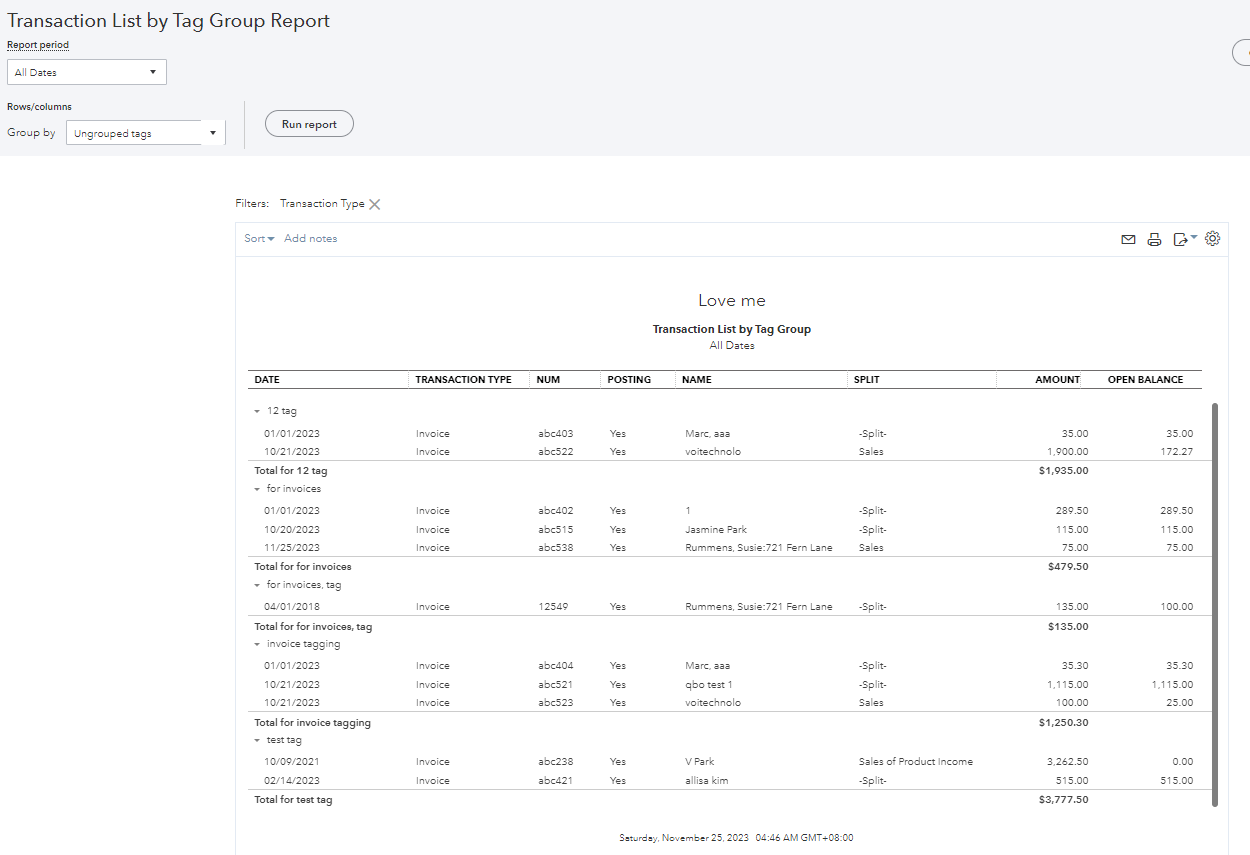
These steps will help you move forward today. For more information on displaying specific accounts or customers in your reports and personalizing the layout and format, you'll find detailed instructions in this article: Customize reports in QuickBooks Online.
If you're interested in learning about the tags feature and how to make the most out of it, check out the following links for the complete details:
If you have any other concerns regarding tagging your transactions or need further assistance with running reports using tags, don't hesitate to let me know. I'm available to help you anytime, HF0948. Have a great day!

