

July 25, 2024
Question

Open Sales Order Report

  • July 25, 2024
  • 1 reply
  • 0 views

We are using ...


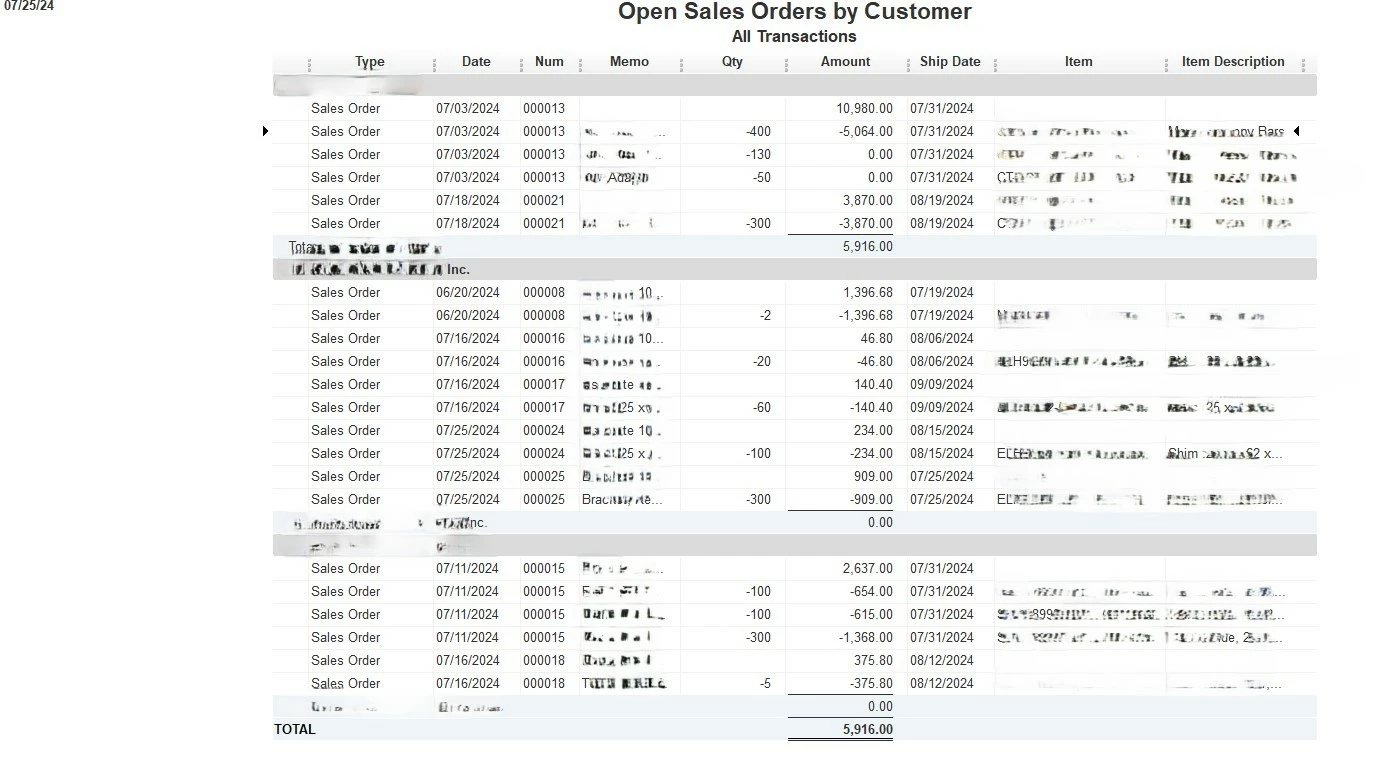
I am generating the Open Sales Orders by Customer report.  Using this same exact version of QBs at another company I used to work for, I can generate this report cleanly.  All items on orders for this company and the previous company are Non-Inventory items.


Now, this report generates with negative quantities & negative dollars for each of the lines on the order instead of positive numbers.  It also generates an additional line showing the total dollars for the entire order which I do not want included.


Below is a screenshot of the report results generated.  I have masked our customer names and product information.


I hope someone can help because I spent over 45 minutes on the phone with QBs support yesterday and the person could not find the problem. I was supposed to receive a call back and never did.


Thanks!


1 reply

July 25, 2024

I appreciate your effort in calling our phone support team, NCFAB. I can help you resolve this data issue in QuickBooks Desktop.


Before we start, have you tried to perform troubleshooting steps with our phone representative? If not, we can do that here.


First, non-inventory doesn't track quantities on hand. They represent services, fees, or products that don't use stockpile. Thus, QuickBooks does not record quantities for non-inventory items.


To resolve this, we can run the Verify/Rebuild tool. Verify will find any corrupted files, and Rebuild will fix the corrupted data in the software.


Let's ensure we create a backup copy of your company file before doing the process. If changes occur, having a backup copy allows you to restore it to undo the changes.


Follow the steps below on how to verify data:


  1. On the top menu, click File.
  2. Choose Utilities.
  3. Select Verify Data.
  4. Click OK when you see the message.
  5. If Verify finds an issue with your data, press the Rebuild Now or View Errors.
  6. Click Close or View Errors and take note of the specific error message.


Next, here's how to rebuild data:


  1. On the top menu, click File.
  2. Choose Utilities.
  3. Select Rebuild Data.
  4. Click OK if you receive a prompt to back up your company file.
  5. Press OK when you get the message "Rebuild has completed and proceed to the next step.
  6. Then, run Verify Data to make sure there's no error.


However, If issue persist, I recommend contacting our QuickBooks Desktop support team. Doing so will enable them to find the root cause of this and will share some explanation why this is happening on your end.


Additionally, use these handbooks to address performance issues and optimize your company data file:


There you go, NCFAB. Feel free to swing by and add a comment if you have other concerns besides generating reports. Together, we can make it.

NCFABAuthor
July 25, 2024

Did all of that when I was on the phone with QBs Support yesterday.
