Thank you for sharing your concern in such great detail, @XL_Velo.
When you reconcile an account for the first time, there's only one entry that's already reconciled. It's the opening balance entry. No other transactions should be reconciled. For credit card accounts, opening balances are entered as credit card expenses. Since this is a liability you owe to the credit card provider, it will show as a charge in the Chart of Accounts.
To check:
- Go to the Accounting menu, then select Chart of Accounts.
- Find the account on the list.
- Select View register to get more details.
- Search for the opening balance entry. It should have "Opening Balance Equity" in the Account column.
- Take note of the date and balance.
- Review the checkmark column. There should have an R in the box.
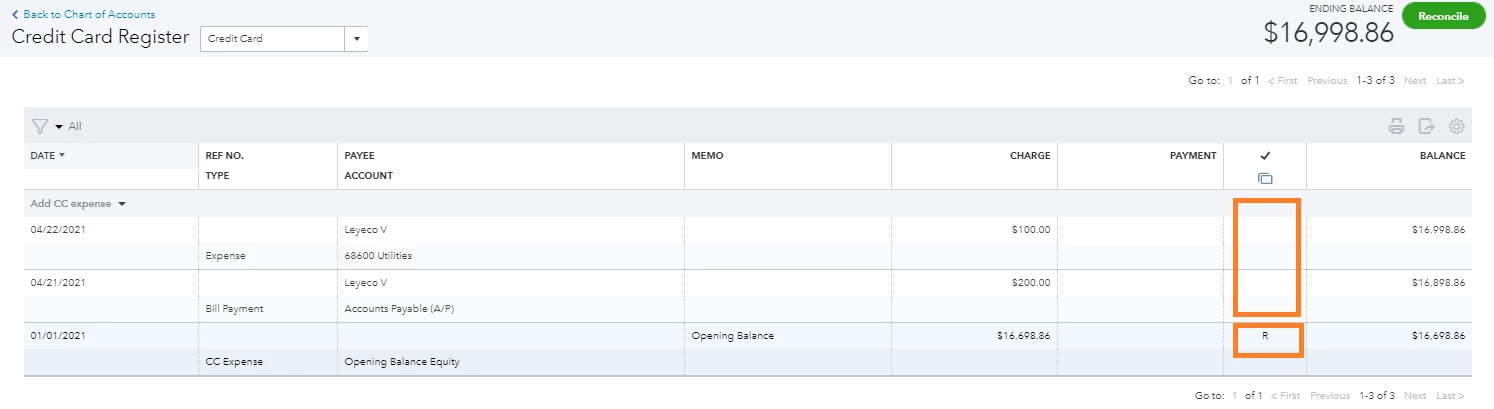
- Check the rest of the transactions on the list. There should be a C or blank box in the checkmark column.
- If there's an R on any other transactions, select the transaction to expand the view.
- Select box in the checkmark column. Keep selecting it until the box is blank. Then select Save.
On the other hand, if this amount isn't included in your credit card statement, you have the option to delete it.
- Go back to your credit card register.
- Look for the opening balance entry.
- Select the transaction and choose Delete.
- Click Yes to confirm.
Once done, follow these steps to start reconciling:
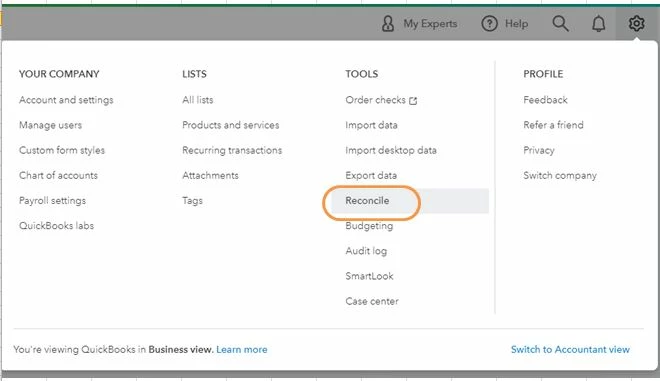
- In QuickBooks Online, select the Gear icon and then select Reconcile. If you're reconciling for the first time, select Get Started first and then Let's do it.
- From the Account drop-down menu, select the account you want to reconcile. Make sure it's the same one on your statement.
- Check the Last statement ending date. Make sure your bank statement starts the day after your last reconciliation.
- Review the Beginning balance. Make sure the beginning balance in QuickBooks matches the one on your bank statement. Here’s what to do if they don't match.
- Enter the Ending balance and Ending date as they're written on your bank statement. Some banks call the ending balance a "new balance."
- When you're ready to start, select Start reconciling.
- From there, you'll have to mark the transactions that appear on your statement.
- Once done, the difference between your statement and QuickBooks should be $0.00.
- Select Finish now and then select Done.
To learn more about the reconciliation workflow in QuickBooks, you can refer to the articles below. It contains complete information to keep your accounts accurate:
Please let me know how it goes. I'm determined to help you fix this beginning balance issue. Have a good one!