May 13, 2020
Solved

Our customer's invoice terms were switched from "Due on Receipt" to "Net 30" under account settings. When I create invoices, the "Due on receipt" terms come up for some.

  • May 13, 2020
  • 1 reply
  • 0 views
When I create invoices on some customer's accounts, the "Due on Receipt" terms are automatically populating for those customers. Why is that?
Best answer by mv32

Thanks for your prompt response and for applying the troubleshooting steps in your end, @kathryn12.


It's possible that some of your customers are set up to pay due on receipt on their invoices.


I'd suggest checking the customer's payment and billing settings so that you'll know if these customers are set to pay due on receipt.


Let me show you how:

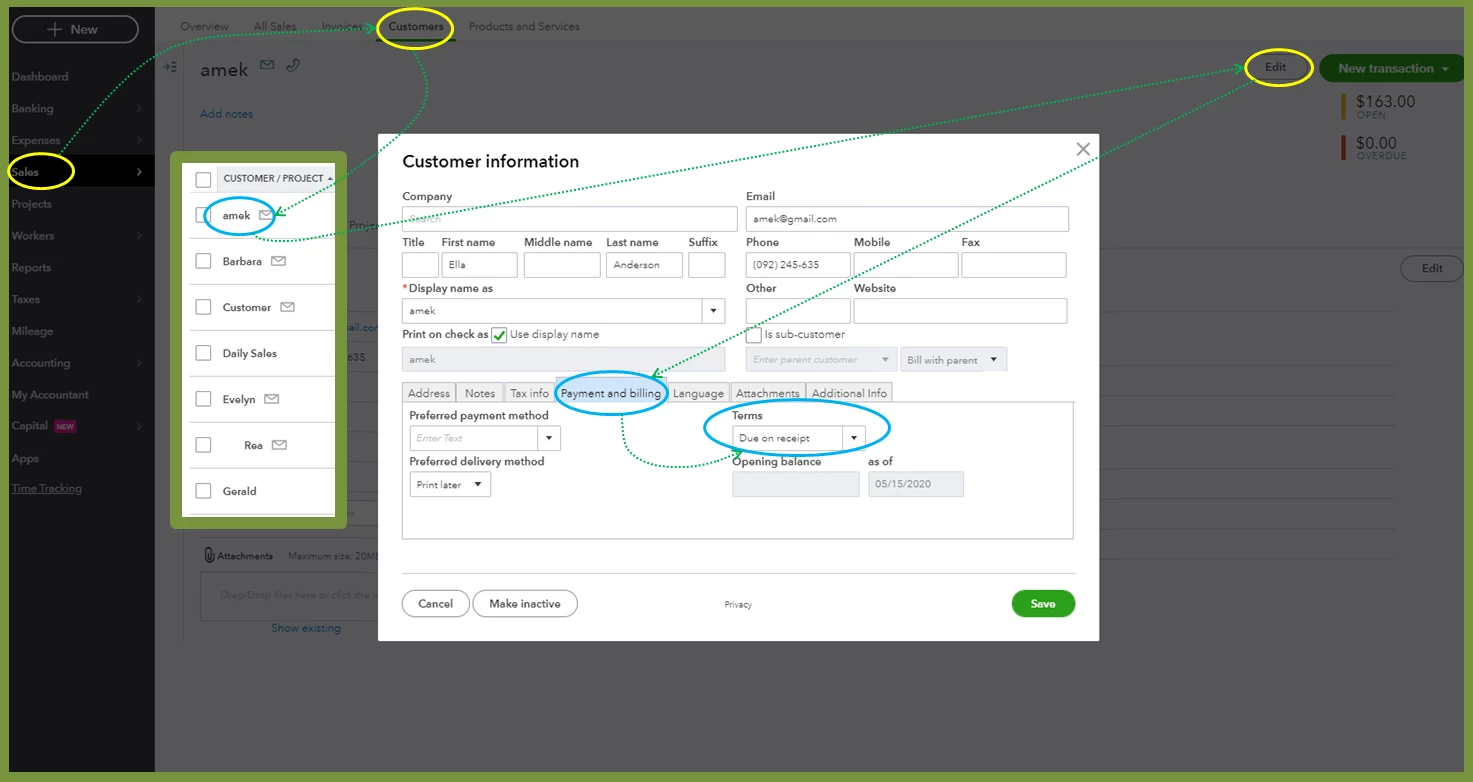
  1. Go to Sales and then select the Customers tab.
  2. Find and then select the customer's name (that shows due on receipt).
  3. Click the Edit button.
  4. Select the Payment and billing tab.
  5. Check the payment Terms.


If you find that it was set to Due on receipt term, click the Edit button to update the customer's Payment and billing terms and leave it blank.


Here's how:

  1. Click Edit.
  2. Select Payment and billing.
  3. Under Terms, click + Add new and directly click the Save button on the Customer Information.

I'll add this video article as your reference in updating your customer's information: Edit customer information.


Otherwise, if the customer's terms aren't set up to pay due on date in the Customer Information settings, I'd recommend contacting our Care Support team. There they have tools to create and investigate with this further and have the issue escalated to our product engineers.


Here's how to reach them:

  1. Go to ? Help on the top right.
  2. Click Contact Us.
  3. Type your query and then hit Let's talk.
  4. Choose to Start a chat/Get a callback.


Please get back to us if you have more questions. I'll keep my notifications open. Stay safe and healthy!


1 reply

Adrian_A
May 13, 2020

I've tried it on my end and I've found no issues, kathryn12.


Let's determine why some of the invoices are populating the previous terms. 


To start with, let's create an invoice on an incognito window. This is where we can identify if the unexpected issue caused by browser-related behavior. You can use these keyboard shortcuts to open one:


  • Google Chrome: Ctrl Shift N
  • Mozilla Firefox: Ctrl Shift P
  • Microsoft Edge: Ctrl Shift P
  • Safari: Command Shift N


If it works, you can go back to a regular browser and clear its cache. Once a browser is full of frequently accessed paged resources, it can be the reason for some sudden issues on the pages we've opened like QuickBooks.


You also have the option to switch to a different browser like Google Chrome, Mozilla Firefox, Microsoft Edge, or Safari.


I've also added these articles in case you want to let your customers pay their invoices online: 


Feel free to get in touch with me if you still need help. I'm always here to help you out!

kathryn12Author
May 14, 2020

I tried the solution and tested it out on one of the customers I was having issues with (Amen Clinics). It is still showing the Due on Receipt terms rather than the Net 30 terms when I create an invoice.

mv32Answer
May 14, 2020

Thanks for your prompt response and for applying the troubleshooting steps in your end, @kathryn12.


It's possible that some of your customers are set up to pay due on receipt on their invoices.


I'd suggest checking the customer's payment and billing settings so that you'll know if these customers are set to pay due on receipt.


Let me show you how:

  1. Go to Sales and then select the Customers tab.
  2. Find and then select the customer's name (that shows due on receipt).
  3. Click the Edit button.
  4. Select the Payment and billing tab.
  5. Check the payment Terms.


If you find that it was set to Due on receipt term, click the Edit button to update the customer's Payment and billing terms and leave it blank.


Here's how:

  1. Click Edit.
  2. Select Payment and billing.
  3. Under Terms, click + Add new and directly click the Save button on the Customer Information.

I'll add this video article as your reference in updating your customer's information: Edit customer information.


Otherwise, if the customer's terms aren't set up to pay due on date in the Customer Information settings, I'd recommend contacting our Care Support team. There they have tools to create and investigate with this further and have the issue escalated to our product engineers.


Here's how to reach them:

  1. Go to ? Help on the top right.
  2. Click Contact Us.
  3. Type your query and then hit Let's talk.
  4. Choose to Start a chat/Get a callback.


Please get back to us if you have more questions. I'll keep my notifications open. Stay safe and healthy!