

July 19, 2021
Question

Payroll reports in Excel does not work.

  • July 19, 2021
  • 1 reply
  • 0 views

I have QuickBooks Desktop Pro 2021, MS Excel 2016 64-bit. Both applications are up-to-date, and work well independently.. When I run "Tax Form Worksheet" report (Reports -> Employee & Payroll -> More Payroll Reports in Excel -> Tax Form Worksheets), I get following error. I don't have QuickBooks Payroll subscription, but that is not required to run these reports in Excel.
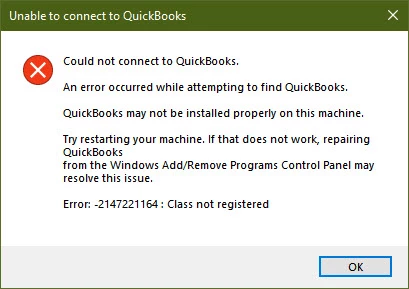


I have reinstalled/repaired QuickBooks multiple times. Some discussions on internet (https://quickbooks.intuit.com/learn-support/en-us/reports-and-accounting/excel-2019-compatibility-with-qb-desktop-pro-2019/00/289947) suggests the compatibility issue between QuickBooks Pro-2021 and 64-bit Excel. However, this article (https://quickbooks.intuit.com/learn-support/en-ca/manage-integrations/microsoft-office-2010-2013-2016-and- 365-faq/00/262207) suggests that 64-bit Excel 2016 is compatible with QuickBooks

1 reply

July 19, 2021

Hello there, @yfegade. Thanks for adding a screenshot.


I see you've been putting a lot of time into trying to fix this error and access your payroll reports.


In this case, we can uninstall the Office that's 64-bit installed and reinstall. You might also try installing with the 32-bit. Once done, we can close your company file and re-open QuickBooks Desktop to refresh your data. This way, we'll be able to identify its work.


If the issue persists, we'll need to check your account in detail to further review and figure out why it's happening. Within your QuickBooks Company file, select QuickBooks Desktop Help from the Help menu. 


Alternatively, you can also press F1 on your keyboard to bring up the same Help panel. To route you to the correct support expert, we need to know what type of question you have. Give a brief description of your issue and click Continue.

Another way to contact our support team is by following the steps below.

  1. Go to this link: Contact Us.
  2. Choose your country and QuickBooks Desktop.
  3. Enter a short description of your concern.
  4. Click Search.

For more information about several Excel reports available in QuickBooks and how to generate them, you can check this article: Excel based payroll reports.


You can go back here if you have more questions. I'm right here together with the Community people to help you out. Stay safe!

yfegadeAuthor
July 20, 2021

I have tried repairing/uninstalling-reinstalling QuickBooks and Office/Excel multiple times. I really don't want to go back to 32-bit version of Excel (32-bit Excel can't handle some of the datafiles I deal with).


I talked to the support on the phone about a month ago. They gave me Case # ([removed]). They said they know about this issue and are working to resolve it.


I posed it in online support community because it's been over a month, and haven't received any further response from QuickBooks Technical Support.


Since you suggested installing 32-bit Excel - does it mean that this issue is really related to 64-bit version of Excel compatibility with QuickBooks?

July 20, 2021

This isn't the kind of service we want you to experience, @yfegade.


I do apologize for the inconvenience. We have reported this issue and are investigating what may be causing this. We do have a workaround that might work for you, so if you have the time I can walk you through those steps right now.


Run the report from previous quarters and then when asked to update select "Yes" and it is able to pull all the data correctly. If that does not work clean install of QB and Excel are possible fixes. Here's how: 

  1. Close Quickbooks
  2. Go to the C drive,
  3. Select the Program Files (86x),
  4. Choose Intuit, then Quickbooks20xx,
  5. Click the Components,
  6. Then, select Templates,
  7. Find the QB_Payroll_Link.xlt and delete it.
  8. Reopen Quickbooks and get a full payroll update

See the following article: Summarize Payroll Data In Excel Fix


To integrate it with QuickBooks:

  1. Locate your QB Programs folder. Usually, the location is something like C:\Program Files (x86)\Intuit\QuickBooks 2020\
  2. Within that folder, go to \Components\Templates
  3. Copy the fixed XLT file included in this ZIP file into that folder, overwriting the file of the same name that is already there
  4. Launch from within QB as normal.

If you haven't contacted our QBO Support yet, I'd recommend reaching out to them. This way, they can pull up your account in a secure environment and sign you up to receive email updates as soon as they become available. 


You can also check this article for the other steps: Fix export to Excel issues in QuickBooks Desktop.


For more helpful information about the operating system, hardware, software, and other requirements to run QuickBooks Desktop 2021, you can click here. Also, to ensure that you also have the updated bug fixes, I'd suggest downloading the latest release of QuickBooks Desktop from time to time. 


Be sure to update me here on the results of your testing, I want to ensure this matter gets resolved.