September 28, 2020
Solved

progress invoicing

  • September 28, 2020
  • 2 replies
  • 0 views

I have 2 questions regarding progress invoicing in QuickBooks Online.

1) Once you have generated the estimate and select the progress invoice to create the invoice can you invoice for the full amount of the invoice and then have quickbooks send invoices out monthly?  For example if I have an estimate for $10K and I create the invoice for the full amount, how can I bill 25% of the invoice monthly?


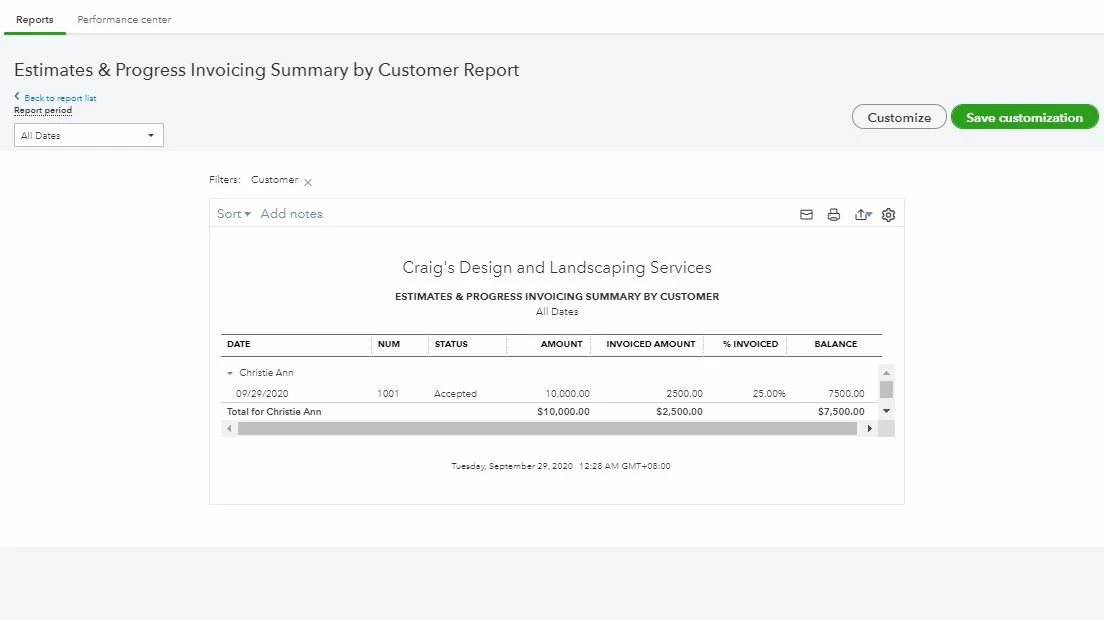
2) How can I show a customer, their estimate total, along with a listing of their invoices that have been billed and any payment acitivity that has been made in one statement/report?


Thank you,

Debbie

Best answer by ChristieAnn 11

Hi there, debbie011.


Yes, you can invoice the full amount of the estimate when you select the progress invoice. Then, have QuickBooks send invoices out monthly. However, I suggest not entering the full amount when you select the progress invoice to create the invoice. This way, you're able to bill 25% of the invoice monthly. Before that, you'll need first to turn on the progress invoicing option from the Account and Settings page.


Here's how:


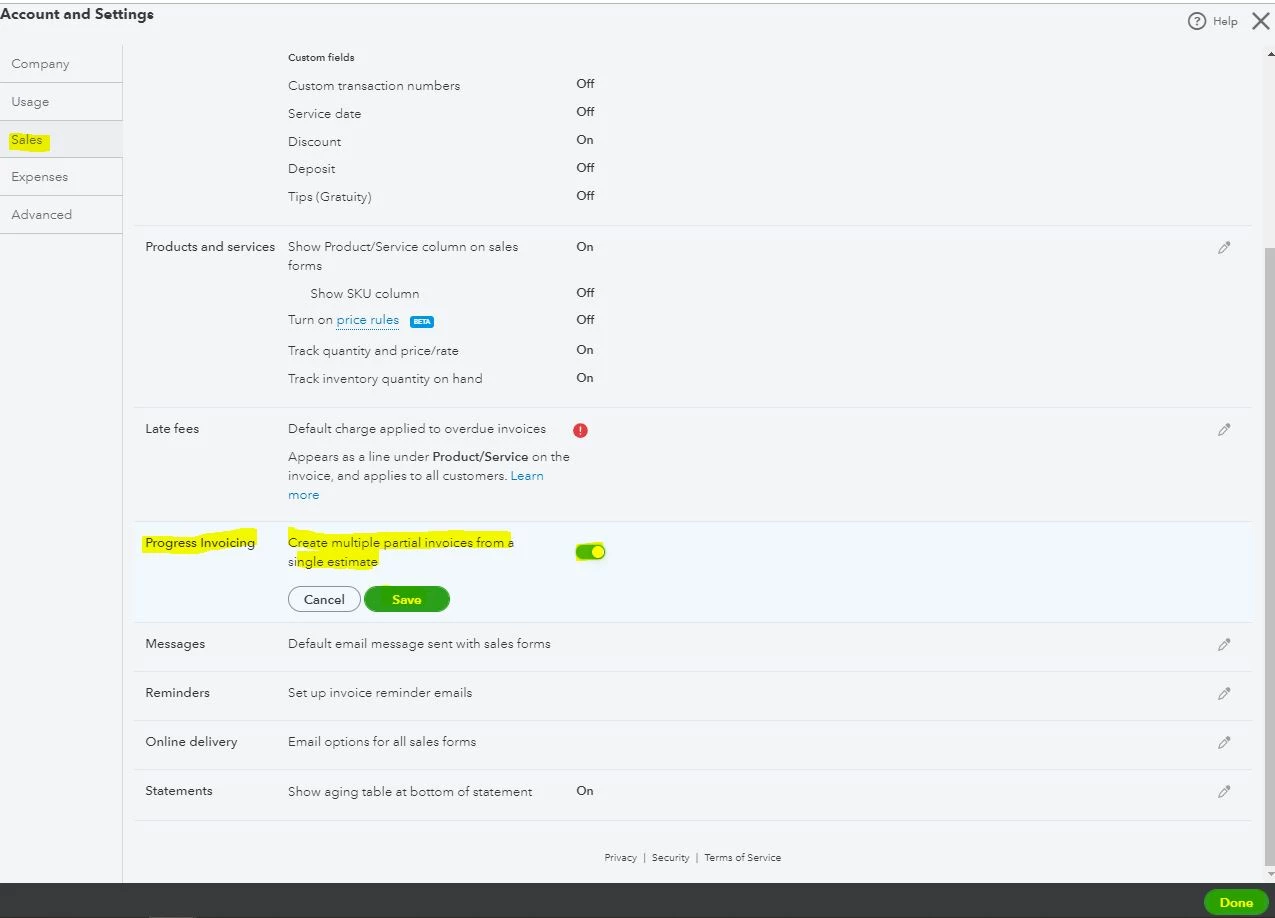
  1. Go to the Gear ⚙ icon and select Account and Settings.
  2. Select the Sales tab.
  3. In the Progress Invoicing section, select the ✎ icon.
  4. Turn on the Create multiple partial invoices from a single estimate checkbox option.
  5. Select Save and hit Done.


Once done, you can now create progress invoices from the estimate and enter 25%. Please follow the steps below.


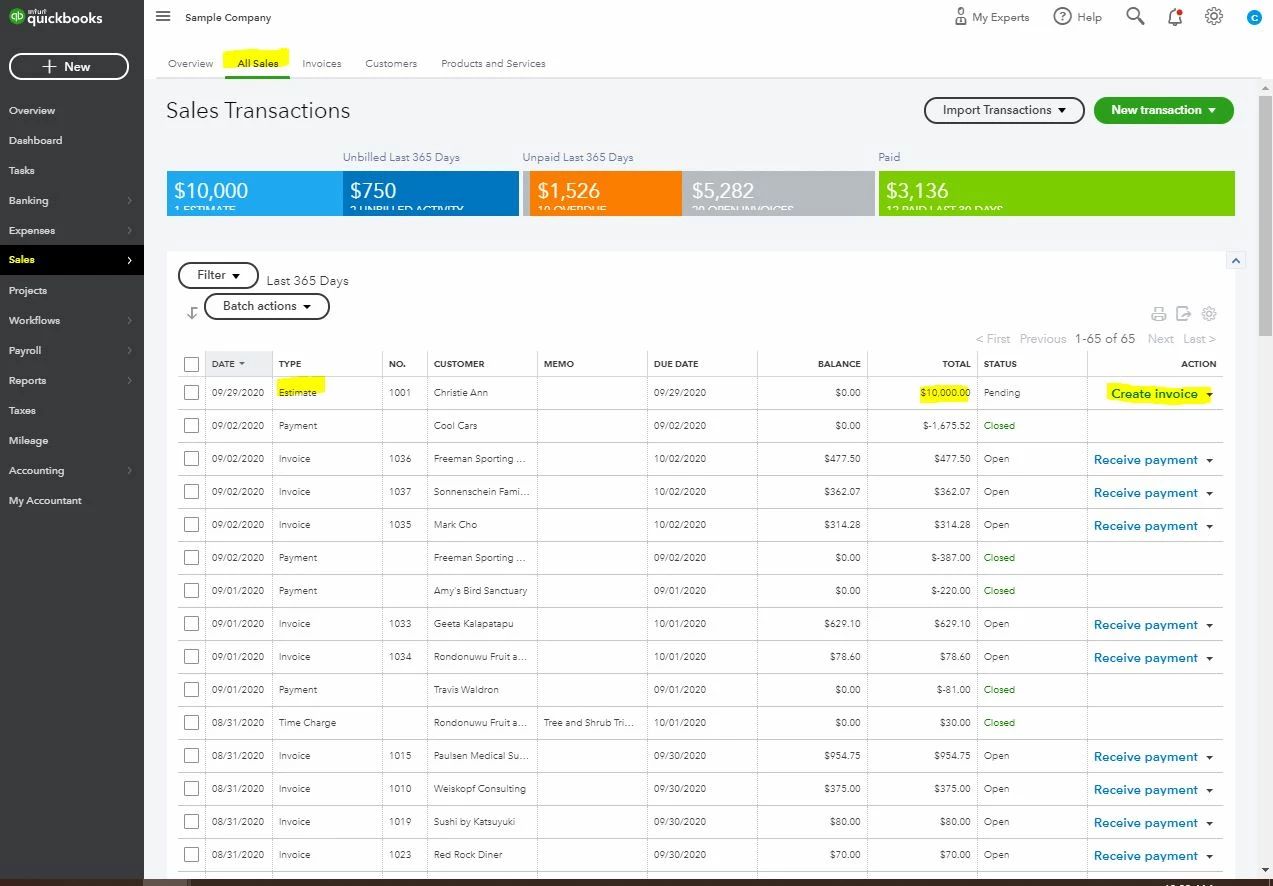
  1. Go to the Sales menu at the left panel. Then, select All Sales.
  2. Find the estimate on the list.
  3. Select Create invoice link from the Actions column. You can also open the estimate and select Create invoice.
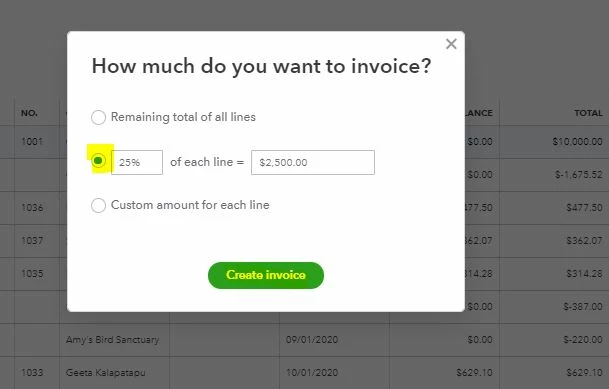
  4. You'll be routed in the How much do you want to invoice? page. Then, click the center radio button.
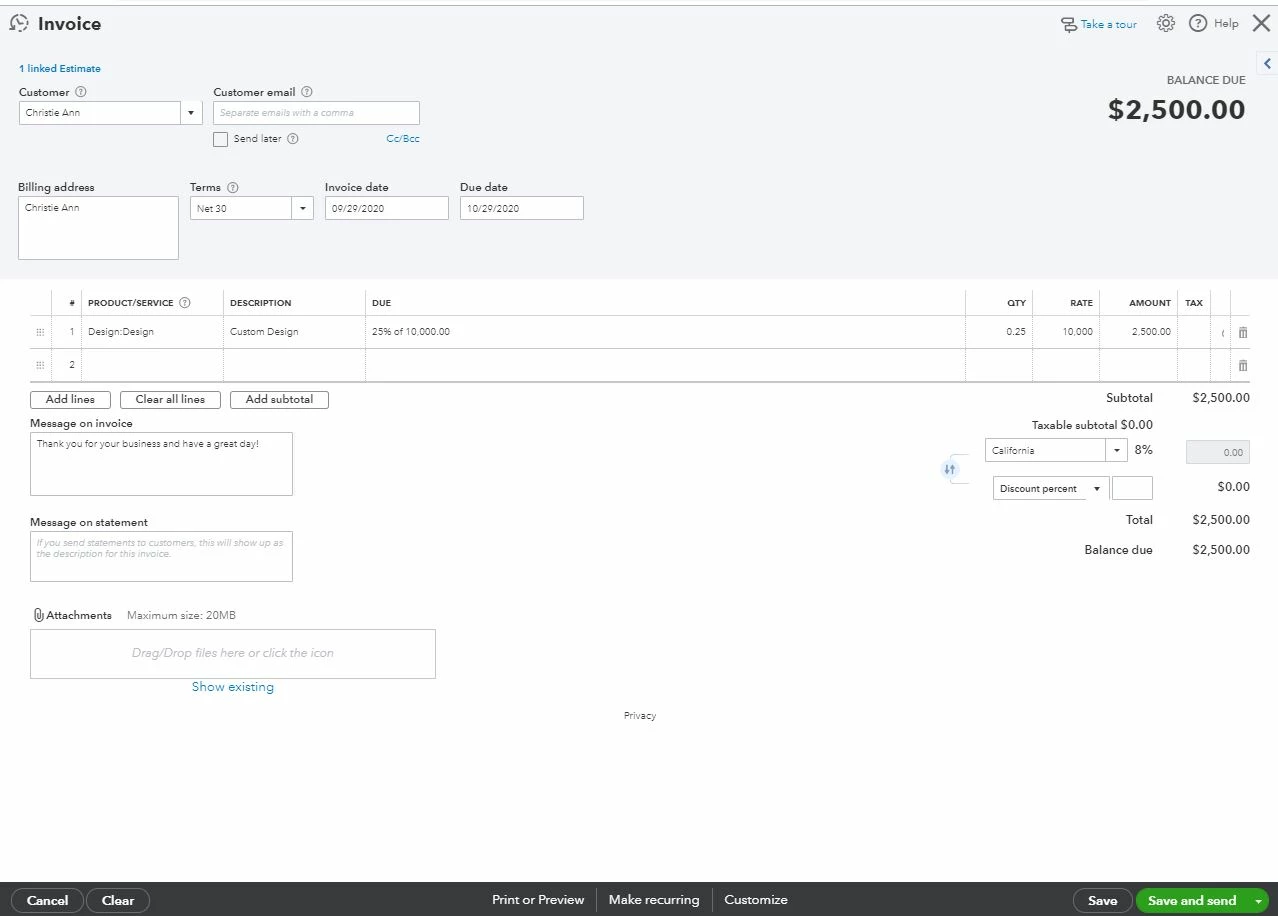
  5. Enter 25% of each line.
  6. Click the Create invoice button. Then, review the information entered in the Invoice page.
  7. Click Save and send or Save and close.


Then, perform again the steps provided above every month. For additional information, you can click this article: Set up and send progress invoices in QuickBooks Online.


On the other hand, you can pull up the Estimate & Progress invoicing Summary by customer. From there, you can customize it by customers to show their estimate total. Then, listing of their invoices that have been billed and any payment activity that has been made.


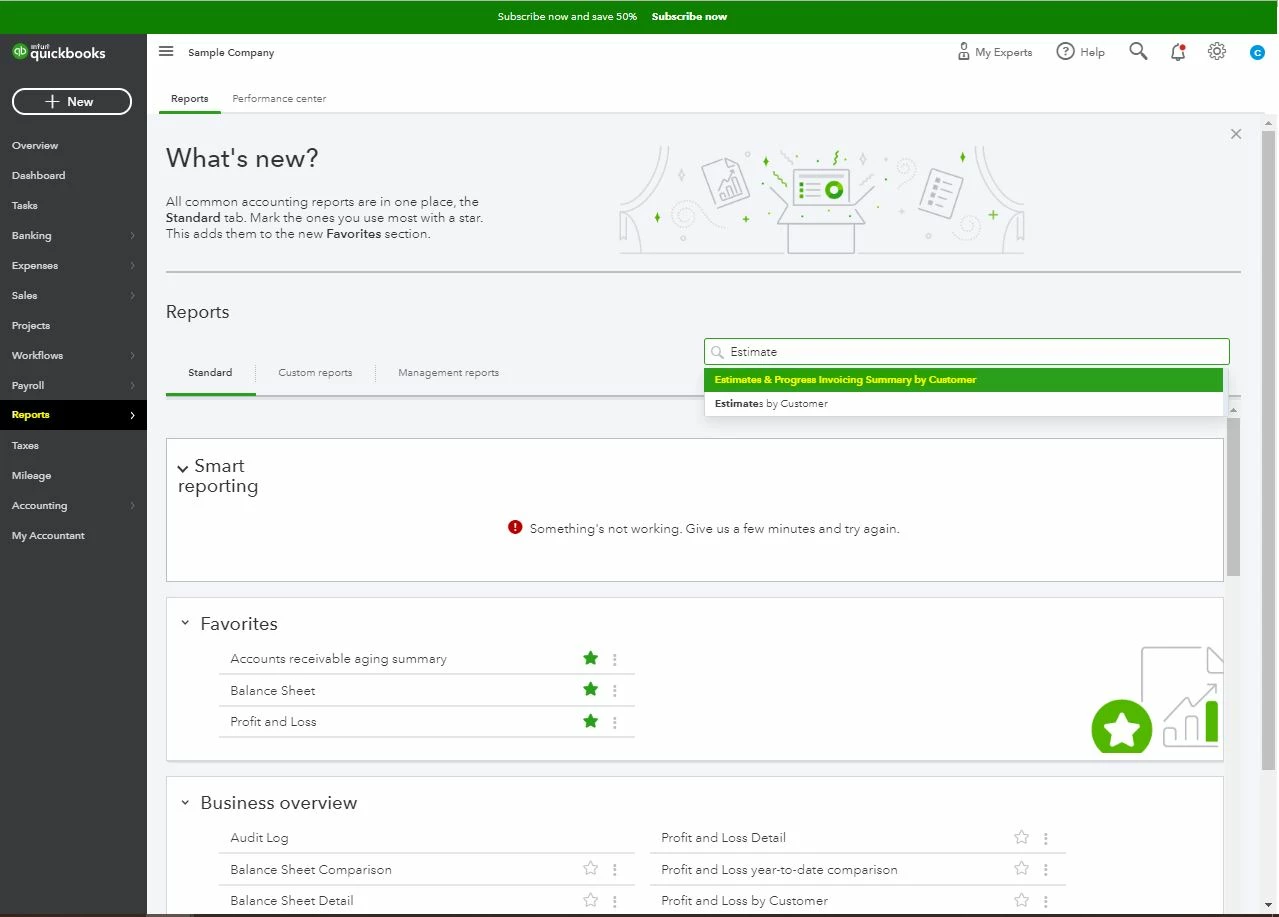
  1. Click Reports at the left panel.
  2. Go to the search icon and type Estimate & Progress invoicing Summary by customer.
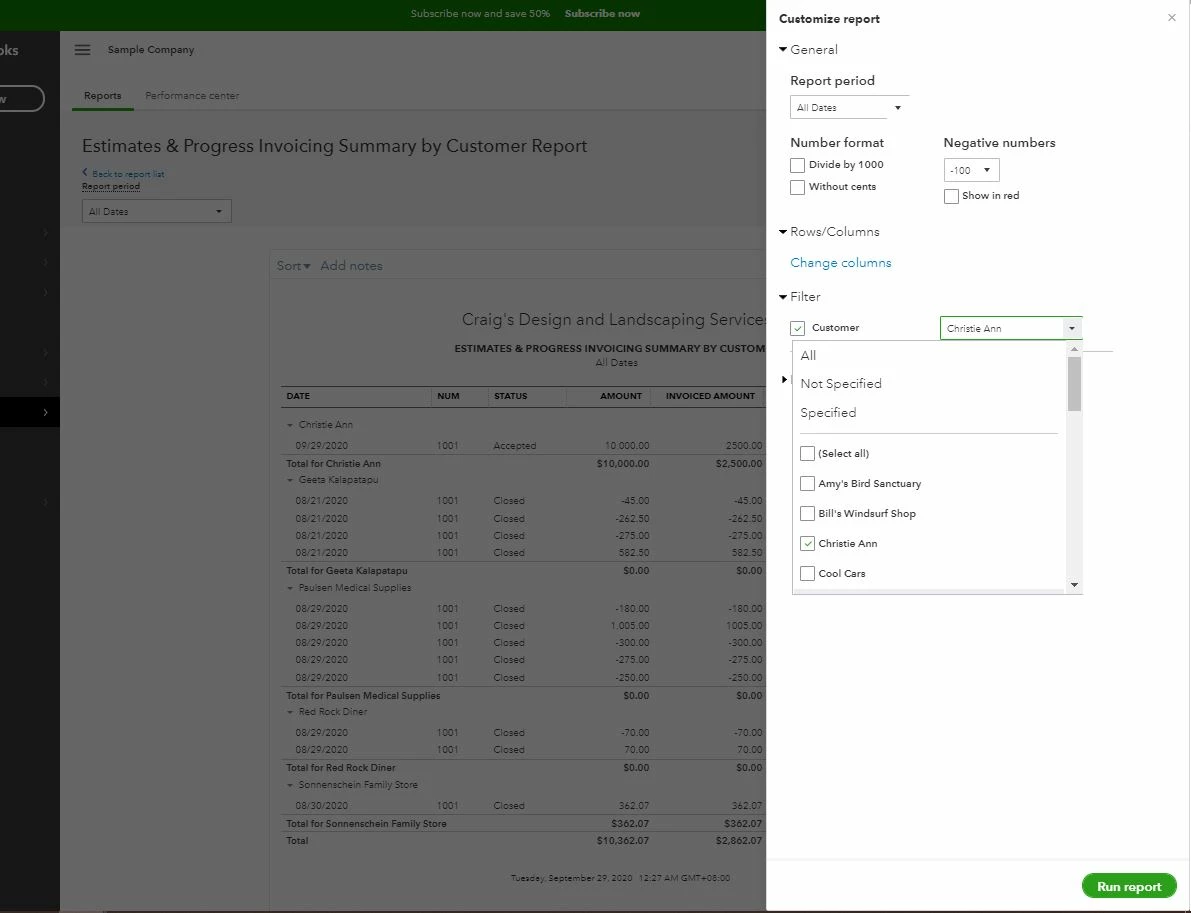
  3. Click the Customize button. Then, go to the Filter drop-down arrow.
  4. Checkmark the Customer box and choose the specific customer.
  5. Hit Run report.


Please refer to this article for additional details on how to customize the report to focus on the data that you want to view: Customize reports in QuickBooks Online.


Please know that you're always welcome to post if you have any other concerns. Wishing you and your business continued success.

2 replies

September 28, 2020

Hi there, debbie011.


Yes, you can invoice the full amount of the estimate when you select the progress invoice. Then, have QuickBooks send invoices out monthly. However, I suggest not entering the full amount when you select the progress invoice to create the invoice. This way, you're able to bill 25% of the invoice monthly. Before that, you'll need first to turn on the progress invoicing option from the Account and Settings page.


Here's how:


  1. Go to the Gear ⚙ icon and select Account and Settings.
  2. Select the Sales tab.
  3. In the Progress Invoicing section, select the ✎ icon.
  4. Turn on the Create multiple partial invoices from a single estimate checkbox option.
  5. Select Save and hit Done.


Once done, you can now create progress invoices from the estimate and enter 25%. Please follow the steps below.


  1. Go to the Sales menu at the left panel. Then, select All Sales.
  2. Find the estimate on the list.
  3. Select Create invoice link from the Actions column. You can also open the estimate and select Create invoice.
  4. You'll be routed in the How much do you want to invoice? page. Then, click the center radio button.
  5. Enter 25% of each line.
  6. Click the Create invoice button. Then, review the information entered in the Invoice page.
  7. Click Save and send or Save and close.


Then, perform again the steps provided above every month. For additional information, you can click this article: Set up and send progress invoices in QuickBooks Online.


On the other hand, you can pull up the Estimate & Progress invoicing Summary by customer. From there, you can customize it by customers to show their estimate total. Then, listing of their invoices that have been billed and any payment activity that has been made.


  1. Click Reports at the left panel.
  2. Go to the search icon and type Estimate & Progress invoicing Summary by customer.
  3. Click the Customize button. Then, go to the Filter drop-down arrow.
  4. Checkmark the Customer box and choose the specific customer.
  5. Hit Run report.


Please refer to this article for additional details on how to customize the report to focus on the data that you want to view: Customize reports in QuickBooks Online.


Please know that you're always welcome to post if you have any other concerns. Wishing you and your business continued success.


debbie011Author
September 28, 2020

Thank you ChristieAnn for your reply to my questions.  However I wanted a better way of invoicing.  I was doing it the way you suggested but it is time consuming to bring up every estimate to see if it is time to create an invoice.  My problem is we have some customers that are invoiced on the first of every month, some on the 15th of the month and then others who are invoiced on the first and the 15th of the month.  In order to tell if a customer needs an invoice I have to go into the customer and see how they are set up.  This is why recurring entries would be nice if only they could be linked to the estimate.  Please let me know if you have any other solutions that might be helpful.


Also for the estimates & progress invoicing reports I can not see where you can include any payment history.  The customers want to see the remaining balance on the estimate, invoice #, date & amount, along with payment date, payment method and payment amount.  Do you have any idea what I can customize to include all of that data?  I tried the transaction detail report but that doesn't give you any information about the estimate.


Thanks,

Debbie011

IamjuViel
September 28, 2020

I appreciate the complete details you've shared, @debbie011.


Currently, QuickBooks allows you to convert an estimate to an invoice. However, the system doesn't have an option to make recurring invoices out of an estimate. In the meantime, you can use a third-party application that offers the same functionality and is supported by QuickBooks. The App Center contains over 400 popular apps that sync with QuickBooks. Here’s how:

  1. Go to https://apps.intuit.com/.
  2. Enter a keyword on the Find the right apps for your business box or use the Categories section.

On the other hand, you can enable the Account Summary feature in your invoices. Here's how:

  1. Go to Settings ⚙.
  2. Select Custom Form Styles.
  3. Find the invoice template you use.
  4. From the Action column, select Edit ✎. 
  5. Choose the Content tab.
  6. In the form preview, select the body section and then Edit ✎.
  7. Mark the Show on the invoice checkbox. 
  8. Select Done

This will display your customer's transaction history on the invoice. However, it will not include the information your estimates. You can generate and customize the Transaction List by Customer report. It shows all your transactions for a specific customer.


Keep me posted if you have other questions about customizing your sales forms in QuickBooks. I'm always here to help.

June 11, 2024

Is there any how to information using Desktop version for progress invoicing.

June 11, 2024

I'll guide you through using the progress invoicing in QuickBooks Desktop (QBDT), @Brita2. This way, you can start splitting an estimate to invoice what's needed.


Firstly, let's turn on this feature in your company file before creating any transactions:


  1. Log in to your QuickBooks Desktop company as an admin.
  2. Navigate to the File menu and select Switch to Single-user mode.
  3. From there, click the Edit menu and select Preferences.
  4. Select Jobs & Estimates from the list menu and go to the Company Preferences tab.
  5. In the Do you create estimates? section select, Yes. Then, select Yes in Do you do progress invoicing? section.
  6. Click OK to save and close the preferences.


Next to it, we can start creating an estimate using the steps below:


  1. Go to the Customers menu and select Create Estimates.
  2. Choose the Customer for whom the estimate is intended.
  3. Enter all the necessary details about the transaction.
  4. Then, click Save & New or Save & Close.


Lastly, follow Step 3: Create progress invoices from the estimate outlined in this article to start splitting estimates into as many invoices as you need: Set up and send progress invoices in QuickBooks Desktop.


After that, you can begin recording your customers' payments to keep your records accurate once your customers decide to pay their balances. 


If you have any questions or concerns with any QuickBooks matters, please don't hesitate to reach out to me. I hope all your business endeavors continue to thrive.