September 24, 2024
Question

Projects - Printing all projects

  • September 24, 2024
  • 1 reply
  • 0 views

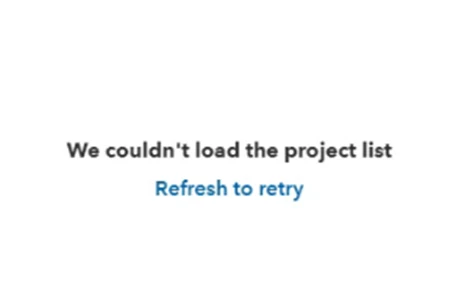
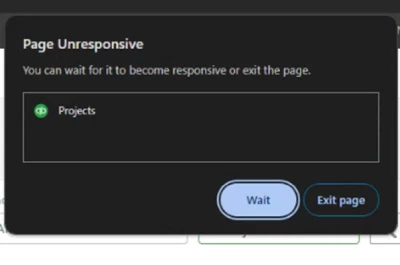
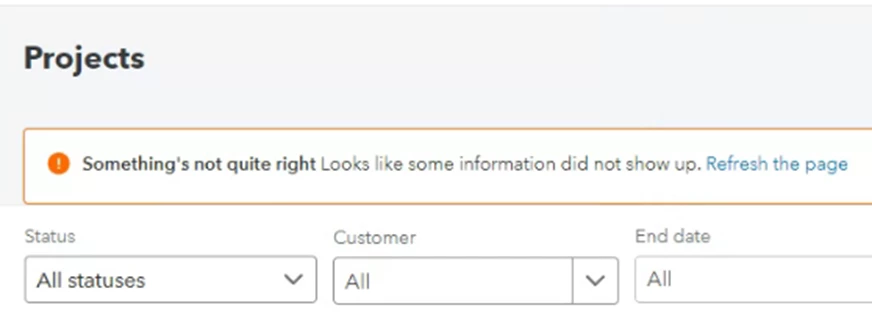
The Projects page has largely become useless starting in the past few weeks. Attempting to print all projects either causes the page to become unresponsive after waiting for several minutes, or the page crashes and says it needs to be reloaded. I have tried accessing this information on multiple computers with high specs, the mobile website on wifi and cellular, and in the Quickbooks Online desktop app.


The Project Profitability Summary report inexplicably does not include the project's start and end dates as  includable columns which I need for my reporting. Why this would not be included on that report is beyond me. In the past the only way I have found to access that information all on one page that I can copy and paste into Excel is by hitting the print button on the projects list page and waiting for it to load all project info, but now that only crashes repeatedly.


How can I get the projects list page's printing to work, or how can I access a report with project name, income, cost, start date, and end date as the fields?


Thanks.
 

1 reply

September 24, 2024

Hello, SB91! I appreciate you for exhausting all your resources to get your issue fixed about running a report for projects in QuickBooks Online (QBO). Let me route you to the right support to help you.


Since the issue persists after trying high-spec computers, I suggest contacting our customer support team. They are equipped with tools to check your account internally and investigate this issue further.


Here's how:


  1. Sign in to your QuickBooks Online company.
  2. Select Help (?).
  3. Select either of these tabs:
  • Assistant tab and select Talk to a human.
  • Search tab and click on Contact Us to connect with a support expert.


Regarding adding start and end date columns in the Project Profitability Summary report, I recommend sending feedback to our Product Engineers. This way, they can review your suggestion and consider adding it in future updates. Here's how:


  1. Select the Gear icon, then choose Feedback.
  2. Type in your product suggestions.
  3. Select Next to submit.


Moreover, I'm adding this article as your reference in personalizing your sales forms in QuickBooks Online: Customize invoices, estimates, and sales receipts in QuickBooks Online.


Please feel free to visit the Community again if you have other concerns about your invoice preference in QuickBooks Online. I'll be here to provide a helping hand.