

November 13, 2020
Question

Quantity on Hand Consitency Issues

  • November 13, 2020
  • 2 replies
  • 0 views

Hello Everyone,


I am having an issue where our Item List inventory isn't matching the QuickReport inventory. It's almost as if there are two separate inventories that Quickbooks is tracking. Please see the two attached screenshots for reference.


I am using Quickbooks Enterprise 2019 Release R13P. What's happening is a customer will order a product and our item list inventory will show 0 for the Quantity on Hand. I will create a Build Assembly to make inventory and it will correctly record that number. You can see this in my first reference screenshot, where I built 3 of an item since we had 3 on a sales order. When I then go to invoice the order, I receive the "Negative on Hand Detected" warning shown in the screenshot. I forgot to expand the last 3 columns before I took the screen shot, they are(from left to right) Quantity on Invoice, On Hand, and On Hand After Invoice. So this window is telling me that we actually only have 2 on hand, not 3, even though the "Item List" and the "Build Assembly" window both tell me we have 3 on hand.
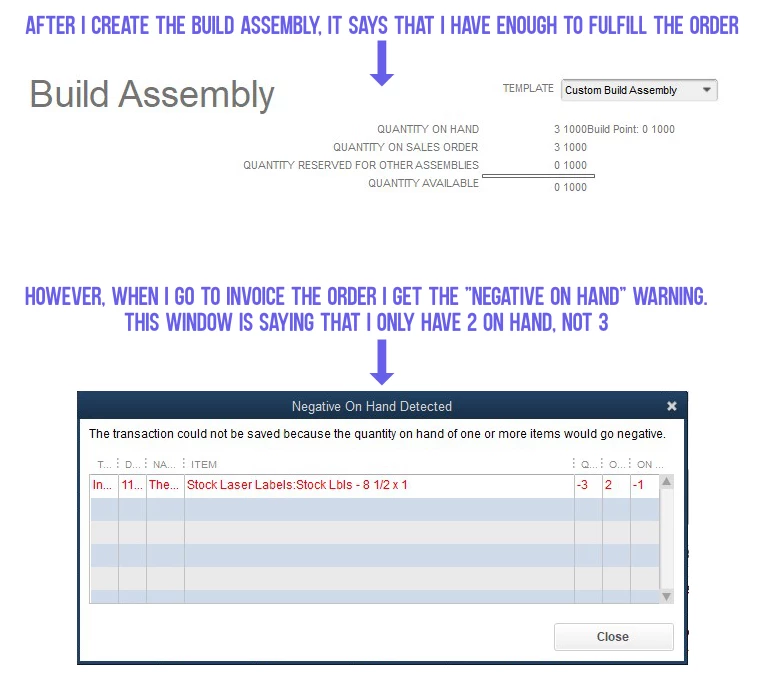
 

In the item list window, I right click the item and choose "QuickReport". This QuickReport shows the 2 On Hand value that the invoice is seeing when it won't let me make a negative invoice. The weird part is that the Item List still says 3 on hand. In my second screenshot, I show this, with a different item. The Item List says I have 9616.52 MSI on hand for the Fluorescent Red Roll. I right click this item, choose "QuickReport" and it tells me the Quantity on Hand is only 5.47 MSI. 
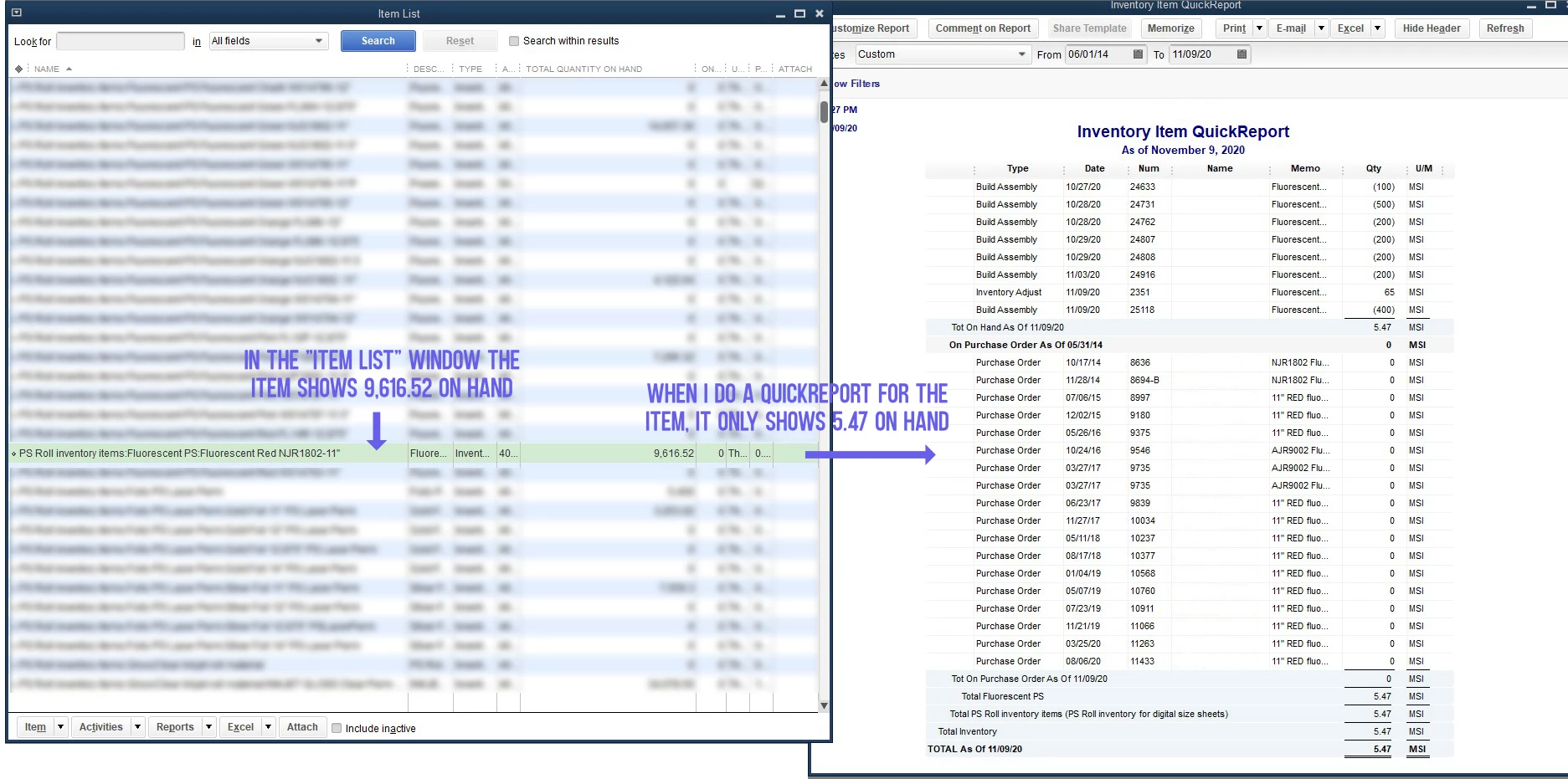


This is causing issues in many areas since some parts of Quickbooks reference the Item List inventory and others reference this other inventory that shows up in the QuickReports. I cannot find any solutions online. I tried reconciling it with an inventory adjust, but any adjustments I make will affect both inventories. So If I wanted to add 9,611 MSI to the Fluorescent Red Roll that has 5.47 MSI in the second screenshot to bring it up to the QoH shown in the item list, Quickbooks will also add that to the 9616.52 MSI one in the item list so they will forever be about 9,611 apart. I haven't found a way to only change one of the inventories.


Another employee has been deleting very old transactions recently to try and help condense the file. My money is on it being something to do with that. Our file won't condense on it's own with the "Condense" feature and he said that this release of Quickbooks has a new feature that allows you to lop off very old fiscal years. I'm not exactly sure what the feature is. He has been rebuilding and verifying the build after every time he does it and it rebuilds successfully. I would think if there was a large inventory error it wouldn't rebuild.


Any comments or solutions are greatly appreciated. Thanks!


2 replies

Jessica_young
November 13, 2020

Hello there @TH-GFL, thanks for reaching out to the Community!
I am happy to look at some reasons why you may be seeing these discrepancies. Some possible reasons we may be seeing this:

  • Non-posting transactions are listed on the QuickReport.
  • Transactions include different units of measure.

Note: if you are using different units of measure, there is no workaround at this time. The item QuickReport is displaying the quantity from the transactions without converting it to the base unit. Intuit is aware of this issue and is working on a resolution. Here are some steps we can use to work around this limitation:

  1. Open the Inventory report without making any modifications to it.
  2. Ensure the dates on the report are set to All.
  3. If the issue persists, from the item QuickReport, click Modify Report.
  4. Click the Filters tab.
  5. From the Filters window, scroll to Posting Status, click the posting radio button.

All pending invoices will be removed from the QuickReport, and the quantity on hand value will match the item’s quantity on hand on the items list. Let me know if you have questions on this, or if this does not work so we can explore other options. Take care!

TH-GFLAuthor
November 13, 2020

Hello @Jessica_young  ,


Thank you for the reply. I tried this out on a few items and it did not produce matching inventories. I will list the results I received to see if that can clue you or anyone else in to what is happening:


Item A

QoH is 1.5 on the Item List

QoH is (1) on the standard QuickReport

QoH is 0 when Non-Posting radio button is selected

QoH is (1) when Posting radio button is selected


Item B

QoH is 12 on the Item List

QoH is 2 on the standard QuickReport

QoH is 0 when Non-Posting radio button is selected

QoH is 2 when Posting radio button is selected


Item C

QoH is 101 on the Item List

QoH is (89.25) on the standard QuickReport

QoH is (101) when Non-Posting radio button is selected

QoH is 11.75 when Posting radio button is selected


*Important note Items A and B currently have no open orders. Item C has an open order for 101. This explains why it has 101 on the Item list and (101) on the Non-Posting because the order hasn't been completed yet. I just don't know where the negative 89.25 and the 11.75 are coming from. When we do complete the and I go to invoice it, I am guessing I will get the negative quantity warning because the invoices seem to look to the standard "QuickReport" inventory and not the Item List inventory.

April 13, 2022

I'm here because I'm having the same issue. An item is showing QOH as 15 in the quickreport (I actually 14 on hand), but only 1 in the item list with 7 on a sales order (that I have yet to invoice because the rest of the order is not complete). That means that once I invoice that sales order, I will show -6, when I'll really still have 7 on hand. I went to do an inventory adjustment because I just counted these and thought I had seen that it was really wrong. It's still wrong (again, I have 14 not 15), but when I go to do an inventory adjustment, it shows 1 on hand. None of the transactions are dated in the future, which has caused issues for me in the past, so I have no idea why it is the way it is. The Quickreport numbers add up correctly, but the item list just doesn't show the right number. We've tried running a rebuild but the file crashes when we do so, so I don't have any other options of things to try. I haven't noticed any other items with this issue lately, so I don't know if there is a larger problem or not. I'm about to start a full inventory, so I'm sure I'll find more.


I'm running Quickbooks 2020 on Enterprise, and we're upgrading to 2021 next week (for other reasons, not an attempt to fix this issue). We always run 1 version behind to avoid being the beta testers for the newest version, as this has bitten us in the past.


TH-GFL, did you ever find a way to fix your issue? Did the rebuild solve it?


Thanks!

DivinaMercy_N
April 14, 2022

Thanks for posting a detailed response about your inventory issue, @Operations_Monkey.


Let's dig in and perform some troubleshooting steps to narrow down the cause of the problem. 


To start, let's open a sample company in your QuickBooks Desktop (QBDT) and test to see if this will also have quantity on hand issues. Here's how:


  1. If you're currently working in your company file, go to the File menu and select Close company. If not, open your QuickBooks Desktop (QBDT) and proceed to step 2.
  2. Then, from the No Company Open window, select the Open a sample file option. 
  3. Select the file you want to access. Once opened, create a sample item with the same on hand quantity (14). 
  4. When finished, create a Sales Order for the sample item and enter 7 in the Ordered column. Click Save & Close when done. 
  5. Next, go back to the Lists menu to check if everything is correct.
  6. Select Item List and highlight the sample item.
  7. Then, click the Reports drop-down arrow and choose QuickReport. 
  8. From there, check if the report's data is the same as what's on the Item List page.


You can also perform the steps on other company files to verify if this is only a file issue (file issues can be fixed by verifying and rebuilding the data). If the problem occurs to all other companies and sample files, we may need to repair your QBDT program. Before doing so, please create backup copies first. This is to ensure you have the original information that you can restore in case of accidental data loss or damage. 


If all other companies are fine, I highly recommend reaching out to our Technical support team to further guide you in resolving the issue. Once connected, you can also request a screen-sharing session so they can review your set up. 


It's also easy to run inventory reports to track the status of your item as well as the transactions linked to them. To get started, simply go to the Reports tab and hover over the Inventory section. From there, choose the report you want to open. 


I'm always willing to help you if in case you have any other concerns managing your inventory. Feel free to leave a reply below. Keep safe and have a good day.