I'd be glad to share a couple of steps to ensure you can pull the desired details on your vendor report in QuickBooks Desktop (QBDT), @pamelac1.
To achieve this, you can run and customize either the 1099 Detail or Summary to get the info you need. Here's how:
- Go to the Reports menu at the top.
- Select either of the said reports from the Vendors & Payables section.
- Click the Customize Report option.
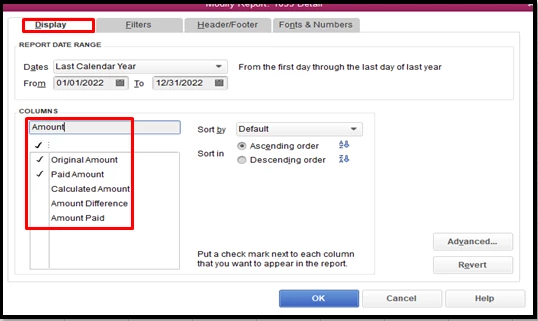
- Select the filter you want to show from the Display tab for the Amount field (for the 1099 Detail report). Then, click OK.
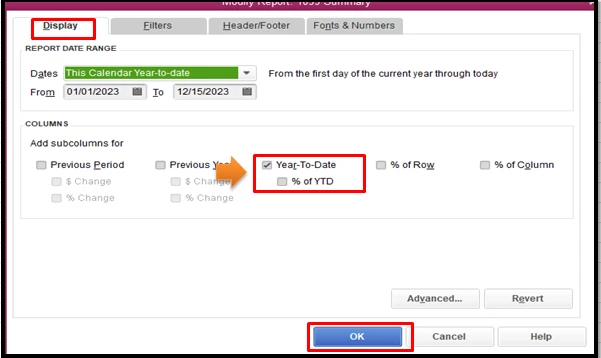
- For the 1099 Summary report, you'll see different options, where you can select the Year-To-Date filter (click OK also to save the filter). The amount is showed as a whole for each vendor. You can double click it to see the specific amounts.
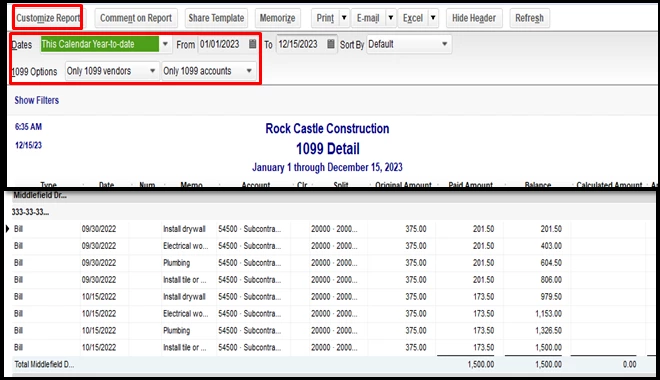
- Choose Only 1099 vendors from the 1099 options drop-down. This will show all the vendors eligible for 1099.
- You can also select Only 1099 accounts from the drop-down if you want the filter the accounts that will show on the chosen report.
- Choose This Calendar Year-to-Date from the Dates drop-down.
- Select the other customization you want, and then click Refresh to apply the changes made.
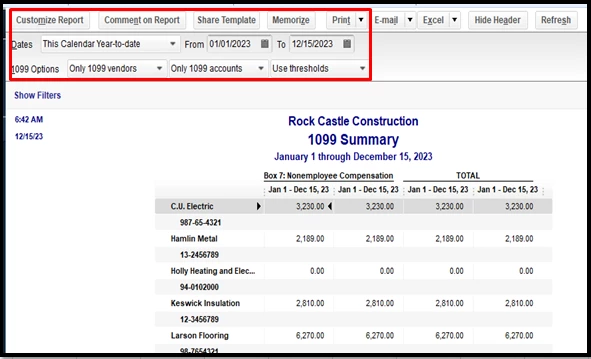
To save the current customization settings of the said reports, you can memorize them. This way, you can access it anytime for future use. For more tips, please review this article: Create, Access, and Modify Memorized reports.
In case you notice some discrepancies on the said reports, you can refer to this handy article for the steps on how to resolve them: Vendor is missing from 1099 reports.
I've got your back if you have more questions about managing your reports in QBDT. I'd love to hear from you in the comment section. Take care and enjoy the rest of the day.