February 2, 2025
Solved

QUIKBOOKS DESKTOP: Report for ITEMs with customer and Monthly sorted.

  • February 2, 2025
  • 1 reply
  • 0 views

Hello,

We have subscribed to QuickBooks Desktop Enterprise 2024.

I am attempting to generate and print a report that includes: Items → Customers → Months.

Could you please assist me in creating and printing this type of report?

Thank you in advance!

Best regards,

Best answer by LollyNino_C

Certainly, Sajid. I can help you access the reports in QuickBooks Desktop (QBDT).


Creating monthly and yearly sales reports is a great way to gain insights into your income using QuickBooks. While there may not be a standard report that perfectly fits your needs, you can access the Sales by Customer Detail report and customize it to suit your requirements.


Here's how:


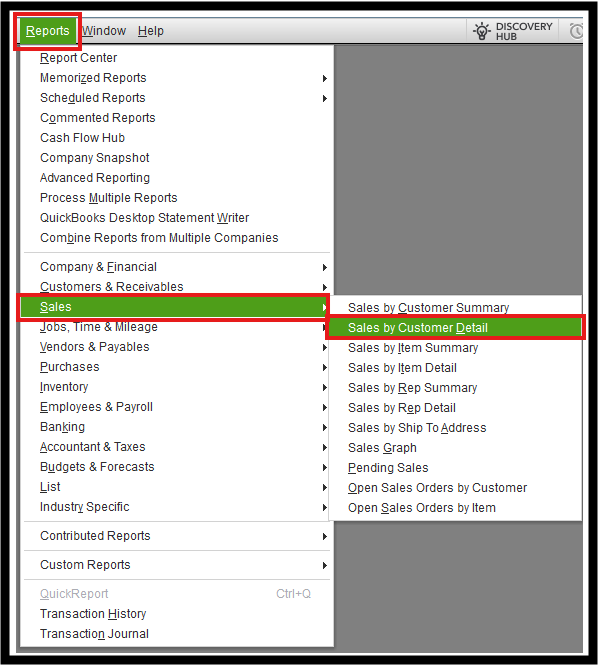
  1. Go to the Reports menu at the top of your screen.
  2. Select Sales and then choose Sales by Customer Detail.
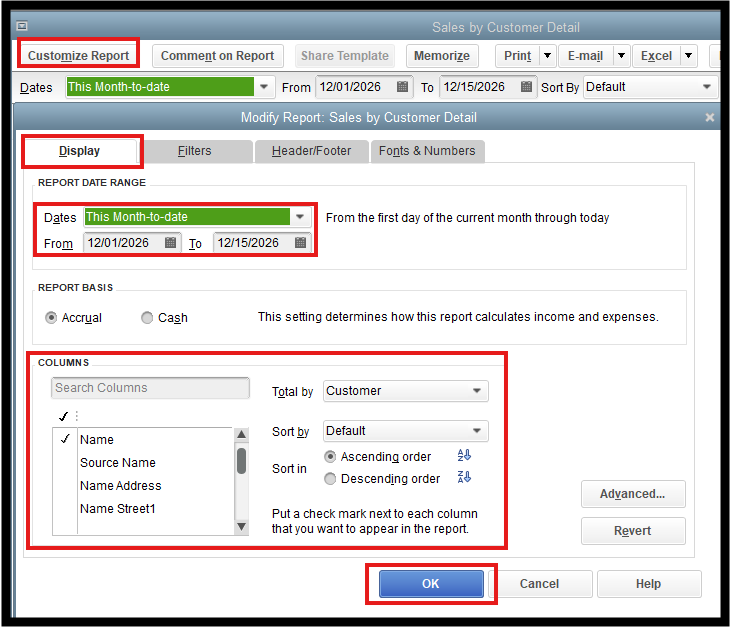
  3. Once the report is generated, click the Customize Report button to modify it according to your needs.
  4. If you want to display specific customer names, select the Name options.
  5. Choose the desired date range for the report. To see sales by month and year, select a date range that covers the period you want to analyze.
  6. Click OK to complete the process.


To learn more about running reports in QBDT, you can check this article: Understand reports.


After customizing, you can export the report to Excel. From there, you can modify it to add columns for the months, listing customers on the left, with each product or line item displayed for each customer.


Following these steps will quickly produce a comprehensive report highlighting Items, Customers, and Months. If you have any questions or need further assistance, feel free to post here again. We’re available 24/7 to help with any queries you may have.


1 reply

February 2, 2025

Certainly, Sajid. I can help you access the reports in QuickBooks Desktop (QBDT).


Creating monthly and yearly sales reports is a great way to gain insights into your income using QuickBooks. While there may not be a standard report that perfectly fits your needs, you can access the Sales by Customer Detail report and customize it to suit your requirements.


Here's how:


  1. Go to the Reports menu at the top of your screen.
  2. Select Sales and then choose Sales by Customer Detail.
  3. Once the report is generated, click the Customize Report button to modify it according to your needs.
  4. If you want to display specific customer names, select the Name options.
  5. Choose the desired date range for the report. To see sales by month and year, select a date range that covers the period you want to analyze.
  6. Click OK to complete the process.


To learn more about running reports in QBDT, you can check this article: Understand reports.


After customizing, you can export the report to Excel. From there, you can modify it to add columns for the months, listing customers on the left, with each product or line item displayed for each customer.


Following these steps will quickly produce a comprehensive report highlighting Items, Customers, and Months. If you have any questions or need further assistance, feel free to post here again. We’re available 24/7 to help with any queries you may have.

February 2, 2025

Thank you for the reply,


However, we prefer BY Items → Customers → Months.


Items are the priority. Can you further explain us...


thnaks...

February 2, 2025

It's good to see you again on this thread, @sajidrasheed.


Currently, generating a detailed report you want isn't an option. However, you can tailor it to your needs with the information below.


As suggested by my colleague, LollyNino_C, you can pull up the Sales by Customer Detail or Sales by Item Detail report and customize it. Alternatively, exporting it to Excel will enable you to adjust the Items, Customers, and Months as desired.


Once the report is ready to be exported, here's how:


  1. Navigate to Reports, then Reports Center.
  2. Locate and double-click the report you want to export.
  3. Select the Excel ▼dropdown, then choose Create New Worksheet or Update Existing Worksheet

     
  4. If you encounter a message that says your report has too many columns, select Advanced, then uncheck the Space between columns checkbox. Select OK.
  5. When you’re ready to export, select OK.


Furthermore, you can save customized report settings for future use by memorizing them. This way, you do not have to go through the customization process again. 


Feel free to click the Reply button below for queries about modifying your reports in QuickBooks Desktop. We'll circle back to help you.