August 1, 2022
Solved

Removing zero columns in custom Class report

  • August 1, 2022
  • 1 reply
  • 0 views

I have tried to turn off including zero and non-active columns in my custom Class report and it does not work.

I clicked on Customize -> Rows/columns-> Show-> Columns, then clicked on "Show non-zero or active only"

and it does not work. $0 columns still show up in the report.


It does work for Rows but not for Columns.

is this a known bug?

Best answer by Rose-A

I appreciate you getting back and providing us screenshots, pgmurals.


I know how important it is to generate and customize an accurate report. However, the option to remove zero columns is unavailable in QuickBooks Online.


As a way around, we can export the report into Excel and remove the zero columns from there (see the sample screenshot).


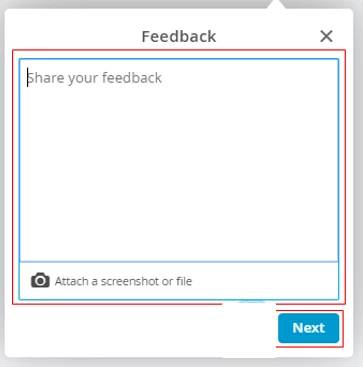
While it's unavailable, I'd suggest submitting feedback within your QuickBooks Online (QBO) account. This way, it goes to our product developers to help improve your experience while using the program. Here's how. 


  1. Go to the Gear icon at the upper right and select Feedback under Profile.
  2. Enter your comments or product suggestions. You can also attach a screenshot or file to combine them all.
  3. Click Next.
  4. You'll be provided a list of suggested help articles related to your comments. You can read through them or choose Skip and send message.
  5. Select the appropriate category from the drop-down menu.
  6. Tap Send message.


I'm including this article: Memorize reports in QuickBooks Online. This will help us save the report's current customization.


If I can be of additional assistance while working with QuickBooks reports, please let me know, pgmurals. I'm always ready to help.


1 reply

LieraMarie_A
August 1, 2022

Hi, @pgmurals.


To clarify a few details, can you provide me with a few screenshots of this issue? Which class report did you pull up? In the meantime, let me share some troubleshooting you can perform to isolate the issue.


First, let's try accessing your account through an incognito window to rule out the possibility of a webpage issue. You can refer to these shortcut keys to open an incognito window in all supported browsers:


  • Chrome: Ctrl+Shift+N
  • Firefox: Ctrl+Shift+P
  • Safari: Command+Shift+N


After logging in to your account, customize your report again. If it works for columns, you may have accumulated too much historical data in your browser. I'd recommend clearing its cache so you can access QuickBooks with a clean slate. Alternatively, you can use a different supported browser.


Let me know how these steps work out. It's my priority that we get this handled as soon as possible. I'll be waiting for your response! 

pgmuralsAuthor
August 1, 2022

it happens in different browsers as well (use incognito all the time).

happens on all custom Class reports.  You can look at "**Local Black History Mural Replacement - Detail Report" as an example