March 14, 2022
Solved

Report for hours worked at each location, each day and not total hours for the entire week

  • March 14, 2022
  • 1 reply
  • 0 views

I am trying to print a report that shows total hours worked at each location, each time/day, for each employee individually.  I can only seem to find a report that shows a grand total of hours per week, not per day at each location.

Best answer by jamespaul

Hello, ECQ.


I'll show the steps and details on how you can run a report for the hours worked per day from each of your employees. 


There are two ways to do this. The first option is to simply download a CSV file of the timesheets for all employees. I'll show you how: 


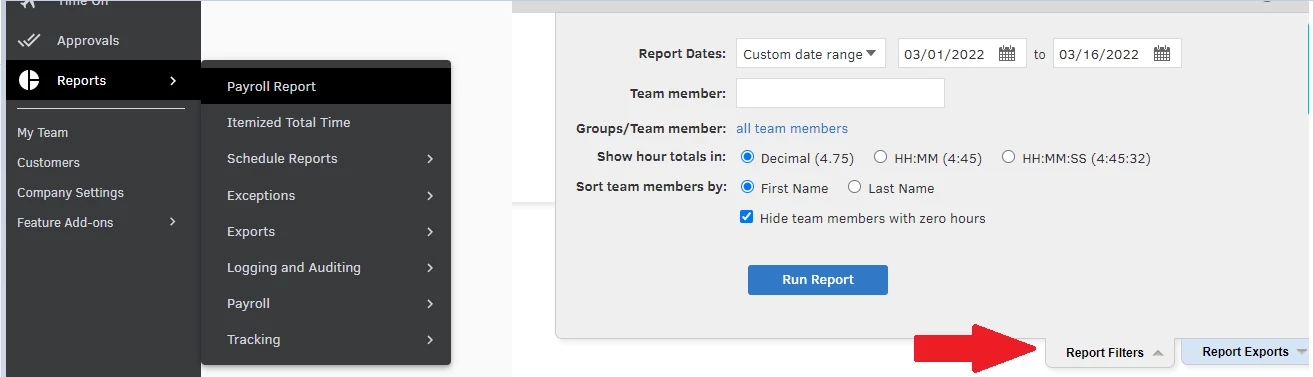
  1. In QuickBooks Time, hover on the Reports menu.
  2. Select Payroll Report.
  3. Expand the Reports Filters bar.
  4. Set a specific Report Date.
  5. Make sure the Groups/Team member: filter is set to All team members.
  6. Hit Run Report after setting your preferred filters. 
  7. The report will populate the data. Expand the Report Exports bar.
  8. Click the Individual Timesheets (CSV) link. 


This is what it looks like: 


The second option is to simply use the Payroll Report function. You can expand the employee's name to see the timesheet details.


It lists the total number of hours per day. After verifying the data you want, click the Download button or Open as PDF


Although, this method doesn't show the location tab but it works if you simply want to see the total hours on a specific day for each employee. 


Do you also want to integrate QuickBooks Online with QuickBooks Time? Check this article for a guide: Integrate QuickBooks Time and QuickBooks Online.


Please let me know if you have any other tasks in QuickBooks Time. If you need help with the Online or Desktop versions, let me know the details. I'd be glad to work with you again. 

1 reply

jamespaulAnswer
March 14, 2022

Hello, ECQ.


I'll show the steps and details on how you can run a report for the hours worked per day from each of your employees. 


There are two ways to do this. The first option is to simply download a CSV file of the timesheets for all employees. I'll show you how: 


  1. In QuickBooks Time, hover on the Reports menu.
  2. Select Payroll Report.
  3. Expand the Reports Filters bar.
  4. Set a specific Report Date.
  5. Make sure the Groups/Team member: filter is set to All team members.
  6. Hit Run Report after setting your preferred filters. 
  7. The report will populate the data. Expand the Report Exports bar.
  8. Click the Individual Timesheets (CSV) link. 
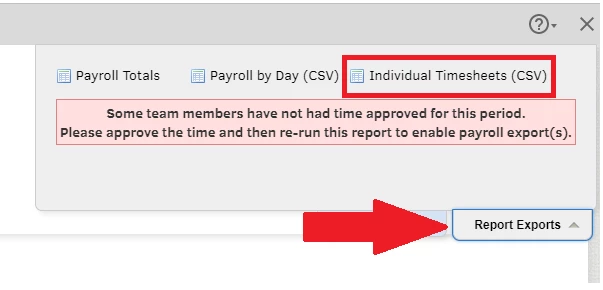


This is what it looks like: 



The second option is to simply use the Payroll Report function. You can expand the employee's name to see the timesheet details.


It lists the total number of hours per day. After verifying the data you want, click the Download button or Open as PDF


Although, this method doesn't show the location tab but it works if you simply want to see the total hours on a specific day for each employee. 


Do you also want to integrate QuickBooks Online with QuickBooks Time? Check this article for a guide: Integrate QuickBooks Time and QuickBooks Online.


Please let me know if you have any other tasks in QuickBooks Time. If you need help with the Online or Desktop versions, let me know the details. I'd be glad to work with you again. 

ECQAuthor
March 22, 2022

Thank you so much!

March 22, 2022

You're welcome! 


Please let me know if you have other questions. I'm here to help.
