March 1, 2021
Solved

Report of open items by Customer Shipping Location

  • March 1, 2021
  • 2 replies
  • 0 views

Hi,


I've been trying to find a way to run a report of open items owed to a customer, but filtered by shipping location.


Example: I have a customer that has 5 shipping locations throughout the US. I would like to run a report that shows all of the items that we owe to that particular location. I can't seem to find anything in the filter lists that will let me get to that info.


I was hoping including any of the address info would be enough, but that seems to go only by the billing. The problem being the billing address is the same for all locations.


I have just recently upgrade from 2018 Premier M&W to 2021 Premier M&W and was hoping that would be one of the new things included, but sadly, no dice.


The only thing I haven't tried is classes. If that is my only option, does anyone have a good guide on setting those up properly. Note: I also want/need to have combined data. I only really need the data split by shipping location for ease of getting shipments ready. i.e. Print out everything we have for a certain location to make sure those get prioritized together. Right now we do this with the combined list and use colored highlighters to make it a bit more easy to take in. I guess the other option is exporting that report to excel and manipulating the data there, but that seems like more work for something that should be easily done in QB. Hope I'm just missing something!


Thanks in advance for any help!!
Best answer by jamespaul

Hello, Leo_N.


Happy to hear back from you. I'll address your questions and add details regarding how classes work on reporting. I'll also throw in another suggestion to help you handle multiple shipping addresses. 


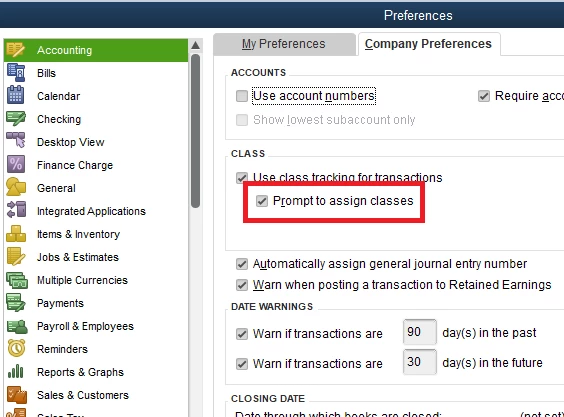
At this time, you can set QuickBooks to prompt you to enter a class in an invoice or sales receipt transaction (if you didn't enter any yet). 


You can enable this in the Preferences section: 


  1. Go to Edit, then select Preferences
  2. Go to the Accounting tab, then select Company Preferences.
  3. Check Prompt to assign classes.
  4. Click OK


Our developers might be working on a feature to pre-fill customer data (including classes).


For now, you can check out the release notes articles for the updates: Release notes for QuickBooks Desktop 2021 (other versions are found under Related Q&A). 


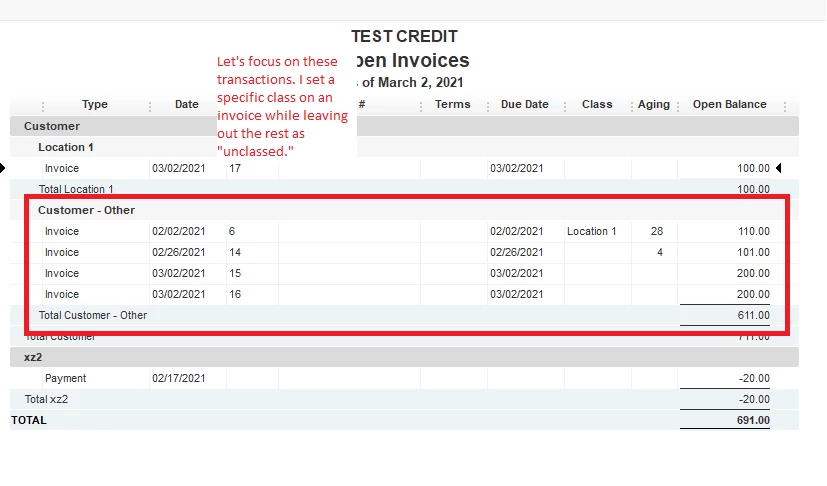
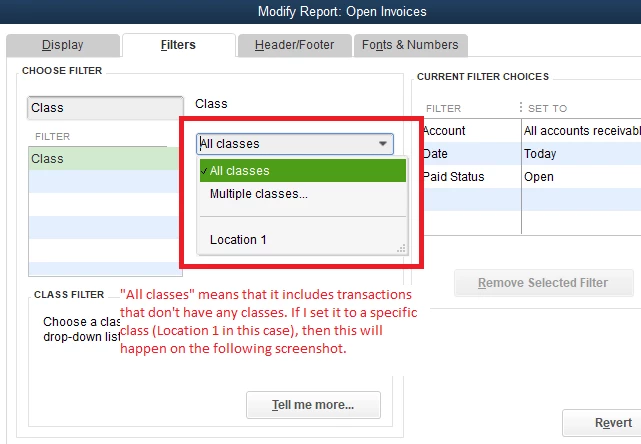
Going back to your questions, there aren't any repercussions for using classes. Your reports will still pick up any data regardless if a transaction has a class or not.


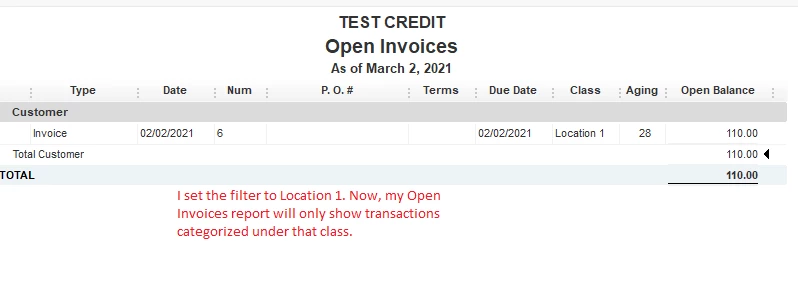
The filter option will only exclude those transaction (with no classes) if you set it to a specific class. Here's a visual demonstration for example: 


For your last question, you can still run reports that ignore classes. It's just an add-on tracking feature for transactions. 


Aside from using the Class tracking feature, I do have one more suggestion to help you manage customers with multiple shipping addresses. 


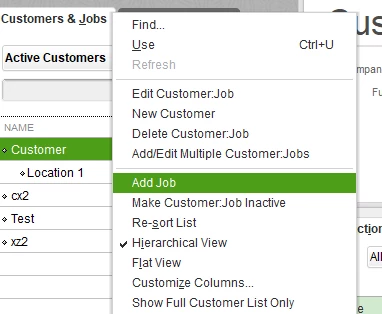
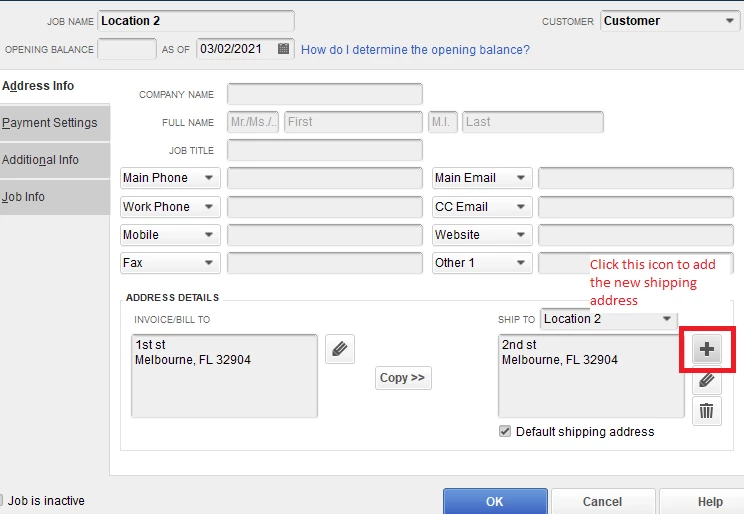
You can set the individual shipping addresses as a job instead. Here's how: 


  1. Go to Customers, then select Customer Center.
  2. Find the main profile of your customer.
  3. Right-click on it, then select Add Job.
  4. Set the Job name as the location's name (basically anything easily identifiable). 
  5. Under the SHIP TO field, click the + button.
  6. Enter the details of the shipping address.
  7. Click OK


Do this until all of the shipping addresses are added in QuickBooks. 


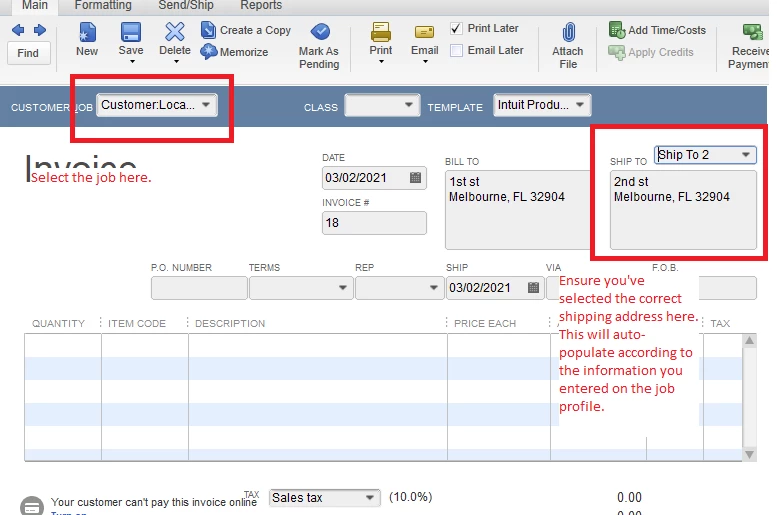
When you create an invoice, make sure you enter it under a specific job (classified as a location). Simply go to your Customer Center, right-click on a job (location) then select Create Invoices.


Another way is to select the job from the CUSTOMER:JOB drop-down menu (invoice creation screen). 


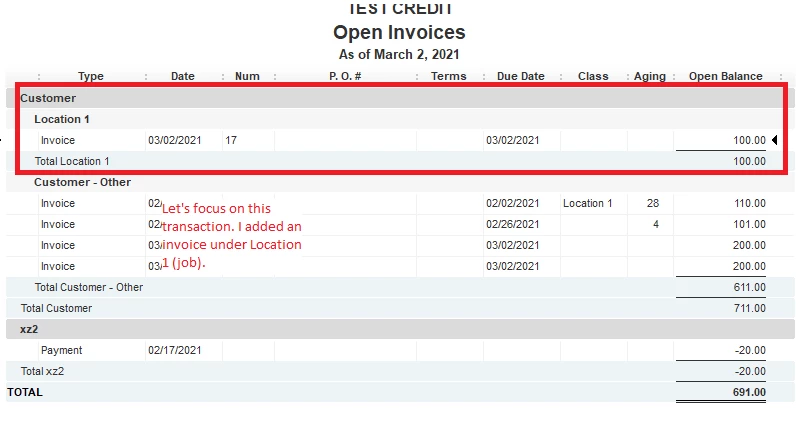
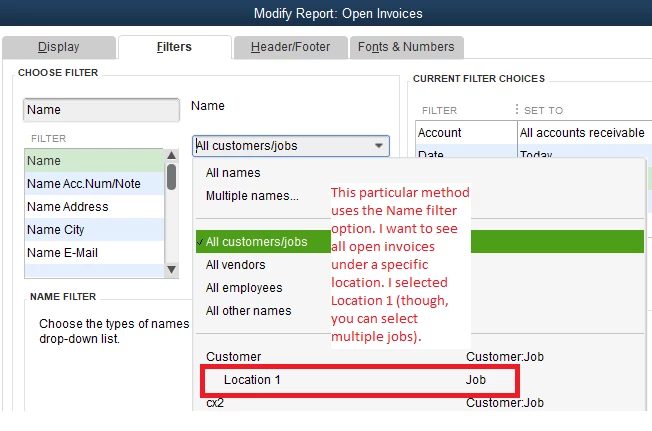
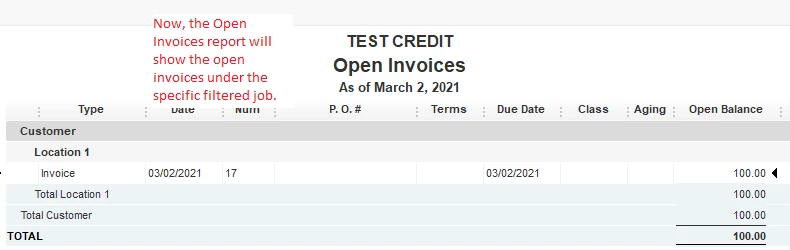
For reporting, you would want to use the Name filter option to show only the open invoices under a specific location. To demonstrate that, here's a set of screenshots: 


Excited to work on your QuickBooks company file? We have other articles to help you out. Browse them in our articles list page. You can also select a specific topic at the bottom of the page. 


If you have more questions for QuickBooks Desktop, I'd be more than happy to answer them for you. I'm here to help you record transactions, run reports and so on. 

2 replies

March 1, 2021

Hello @Leo_N,


You're on the right track, creating the data you need is possible by exporting your report as a new Excel file and manipulating it to display the transaction details you need.


In the same manner, classes allow you to assign a label in every transaction you need to enter to track your account balances. Learn more about this feature with the following articles below:

On top of that, I've also included this reference for a compilation of articles you can use while working with us: Know where you stand financially.


If there's anything else that I can help you with, please let me know by leaving any comments below. I'll be here to lend a hand.

Leo_NAuthor
March 1, 2021

Thanks!


Is there any way to auto assign a class for each transaction per shipping location?


Or is that something I'm just going to have to learn to remember to enter each time?


Any idea if QB has any plans to make something like what I'm looking for easier to just enter as a filter in the future?

March 2, 2021

You're welcome, Leo_N! 


It's all good and I'm glad everything is set for you. And thank you so much for being a long-time customer! 


Just let me know if you need help with your lists or anything else. I'll keep this thread open just in case.