I can help you run a specific report for your checks and modify this to view selected data, SVSU89.
Before we begin pulling up a report for your checks, please know that choosing the check number range is currently unavailable in QuickBooks Online (QBO). Instead, we can run a Check Detail report, customize it, and sort by ascending to descending order or vice versa.
Kindly follow these steps if you're in the Modern View:
- Go to the Report menu.
- From the Find report by name field, enter Check Detail.
- Navigate to Columns, then ensure to tick the Transaction Type, Name, and Num option to include this in your report.
- Go to Filter, then choose Account Type from the Filter by dropdown.
- Under the Options dropdown, click Equals.
- From the Value dropdown, choose according to your preference.
- Go to Group by option to select how you want to group your data.
- Click the Group by dropdown, then click Account or according to your preference.
- From the Subgroup dropdown, you can choose the Transaction type. You can also pick another option.
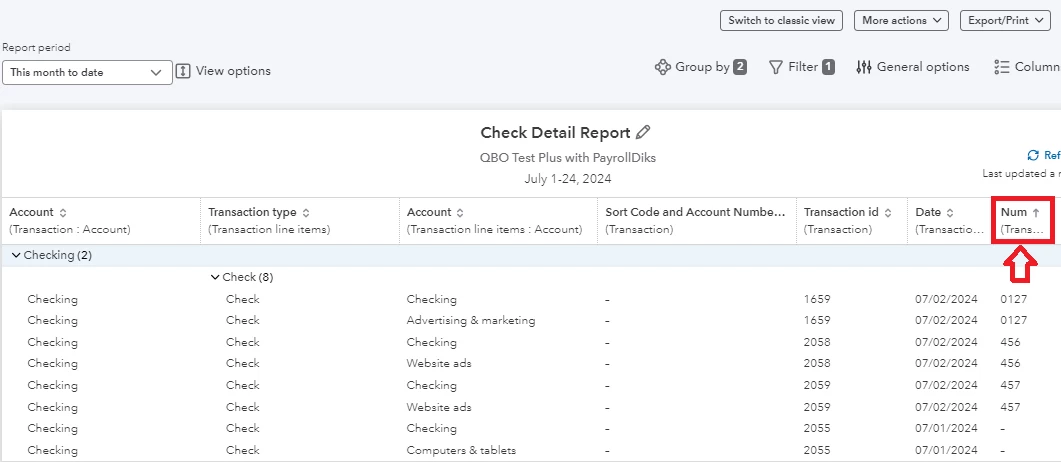
- Find the Num column, then press the Arrow beside it. Doing so will sort the transaction numbers from ascending to descending or vice versa.
You can also view this screenshot for visual reference:
If you're customizing your transaction from the Classic View, worry no more since you can customize the report from there.
Another alternative that we can do is to sort the check number and filter it from your Excel by exporting your report from QBO. After sorting the data, you can also consider printing a report in check number order in QuickBooks Online.
Please let us know if there's anything we can further provide as you sort your check number range, SVSU89. We're still here to back you up.

