I’ve got you covered, LaurenEBC.
I appreciate you for performing the initial steps in trying to find a report for all open invoices. Let me help find a report that will show the total amount for the mentioned transaction.
We’ll have to run the Open Invoices report and export it to Excel to get the total amount. I’ll show you how to run it.
- In your company, tap the Reports menu on the left panel to enter Open Invoices in the search field.
- This will take you to a page that shows all open invoices.
- From there, click the Report period drop-down and select All Dates.
- If you wish to add more information, press the Customize menu to open the Customize report screen.
- Choose from any of the following: General, Rows/Columns, Aging, Filter, and Header/Footer.
- Click the Run report button to apply the changes.
- Press the Export icon and select Export to Excel.
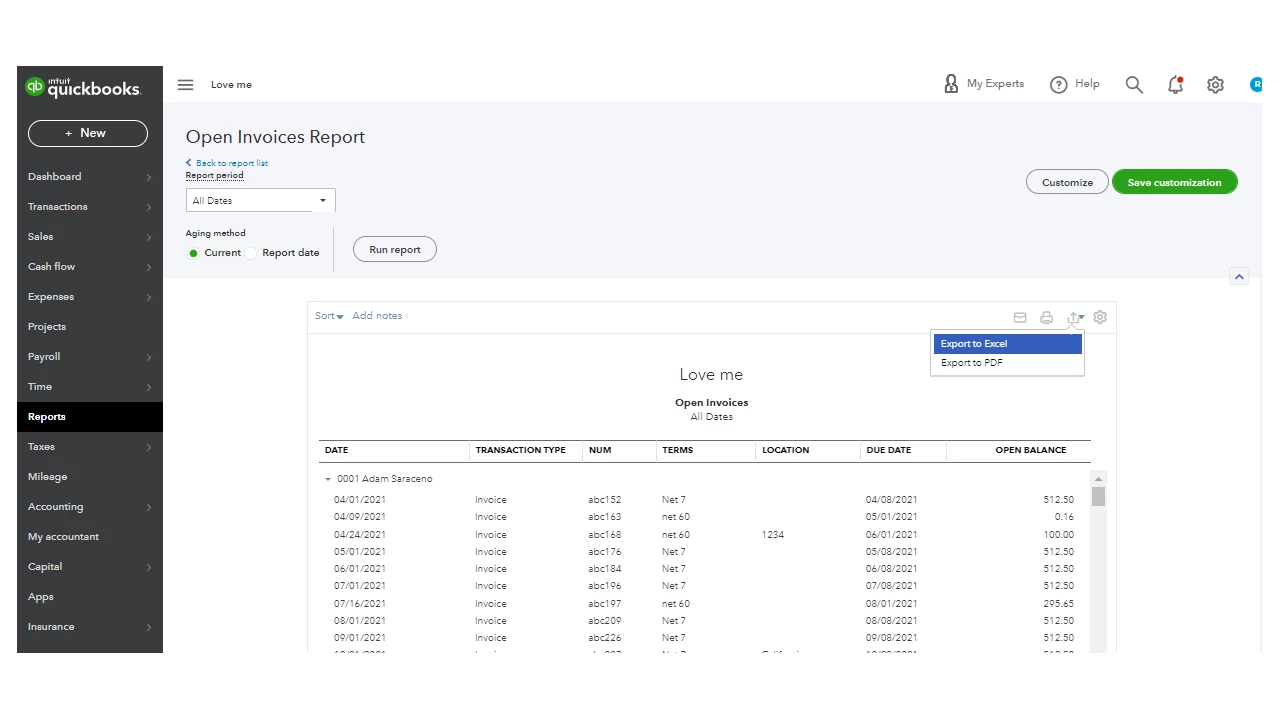
- Open the sheet and manually get the total for each customer.
This reference provides in-depth information about the process: Customize reports in QuickBooks Online. It includes instructions on how to share custom reports and automate one.
Also, the resources below will guide you on how to handle any customer-related activities. You’ll also see the list of reports for your QuickBooks subscription.
Drop a comment below if you have additional questions about running an open invoices report or other QuickBooks concerns. I’ll get back to make sure this is taken care of for you. Wishing your business continued success.

