November 29, 2023
Question

Reports

  • November 29, 2023
  • 1 reply
  • 0 views

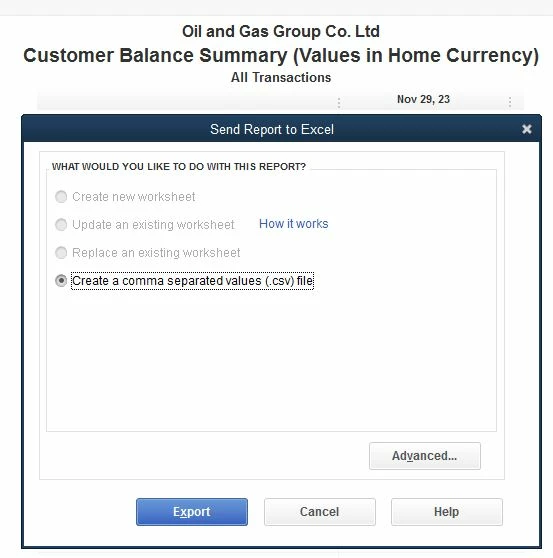
When I wanna send reports to Excel, only one option is activated. Can you explain me how activate other options? 
 

1 reply

November 29, 2023

Hello there, Abdul.


I guide you through some troubleshooting steps to ensure all export to Excel options are available.


We'll start by updating QuickBooks Desktop to the most recent version. This keeps your software up to date, ensuring that you always have the most recent features and fixes.


Here's how:


  1. Go to the Help menu, then hit the Update QuickBooks Desktop tab.
  2. Switch to the Update Now tab. You can select the Reset Update checkbox to clear all previous update downloads.
  3. Select Get Updates to start the download.
  4. When the download finishes, restart QuickBooks.
  5. When prompted, accept the option to install the new release.


After that, reopen QuickBooks and export the report again:


  1. Go to the Reports menu and open any report on the list.
  2. Select the Excel button. All export options, including Excel, should be available.


If you are still unable to select the other options, you should check your QuickBooks system requirements. QuickBooks Desktop is compatible with specific versions of Microsoft Office. You can check the system requirements for your QuickBooks version: 2021, 2022, 2023. If your Excel version is incompatible with QuickBooks, you must upgrade to a supported version.


If the issue persists, you can check out this article to see other steps on how to fix the issue: Fix export to Excel issues in QuickBooks Desktop.


Let me know if you have other concerns or follow-up questions about exporting reports. I'd be glad to help.

