Absolutely, Yogi. There's a way to run a report for inactive customers in QuickBooks Online, including their termination date. I'd be glad to share some tips and walk you through how.
Running and customizing the Customer Contact List Report lets you view your desired information. Make sure to filter the report properly to achieve this. Here's how:
- Open the Reports menu.
- Search for the Customer Contact List Report and click to open it.
- Choose the reporting
- Select the Customize button.
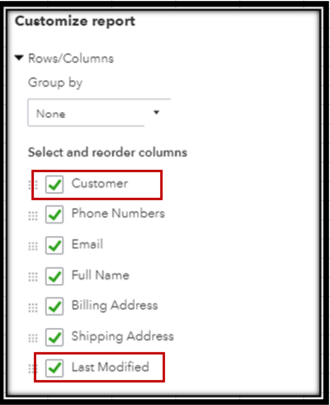
- Go to the Rows/Columns section, click on Change columns, and make sure to check the boxes for Customers and Last Modified.
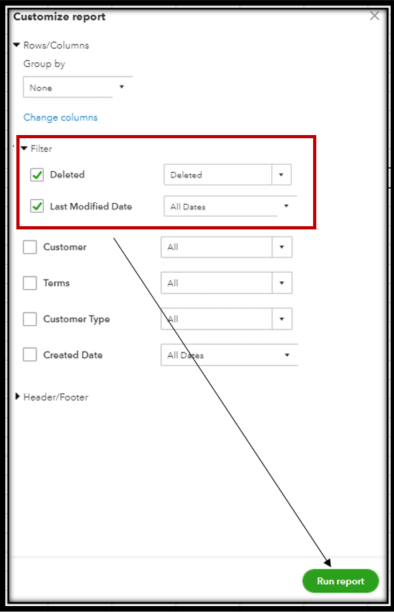
- Under Filter, tick the box for Deleted and select Deleted from the drop-down.
- Also, tick the box for Last Modified Date and select All Dates.
- Once done, click on Run report. Below are some snapshots for you to refer to:
That's it! You should now get this kind of setup for the report:
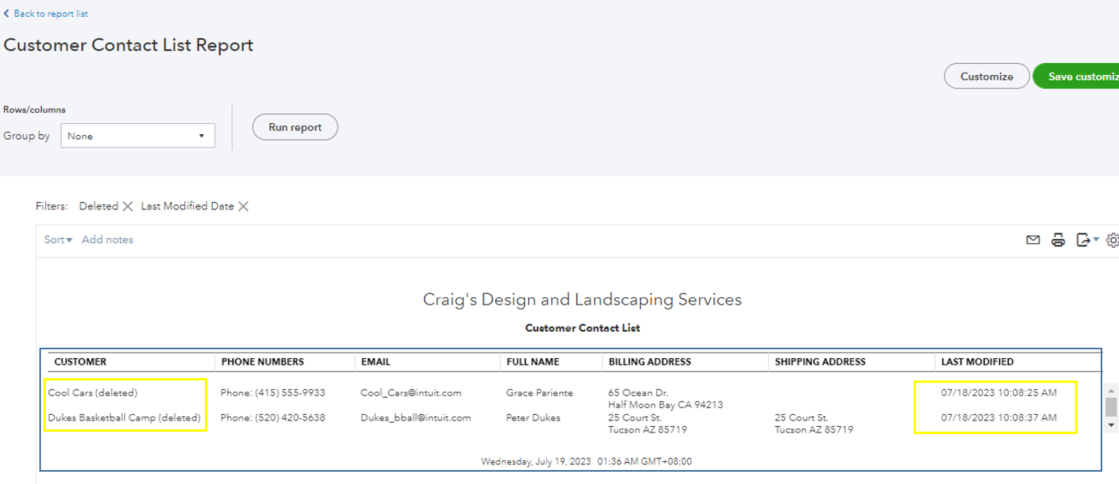
You'll also want to save it with its current customization settings; see this for the steps: Memorize reports in QuickBooks Online.
Finally, here's an extra guide to billing your active customers in the future: Create and send invoices in QuickBooks Online.
I'll be around to lend a hand always. Keep in touch if you need more help managing reports, customers, or QuickBooks. Take the best care!

