

December 18, 2023
Solved

Sales By Item Summary Report - Not showing all items

  • December 18, 2023
  • 1 reply
  • 0 views

I am trying to get a report to show the total quantity sold on all items from the beginning of my business.

When I run the Sales by Item Summary report, it omits inactive items.

Interestingly, when I run the Sales by Item Detail report, it shows details on ALL items, even inactive.

Is there a way to get the 'Summary' report to show me the sales quantity for ALL items?

Or is there a different report I can run to show me the total quantity sold for each item?
Best answer by Rea_M

Yes, there's a way to get the Sales by Item Summary report to show the sales quantity for all your items, both active and inactive, David0. I'll guide you on how to do this below.


We can customize the report's filter to display All items and include all your inactive inventories. To do this, here's how:


  1. Run the Sales by Item Summary report.
  2. On the report window, select Customize Report.
  3. Set the date range in the Display tab.
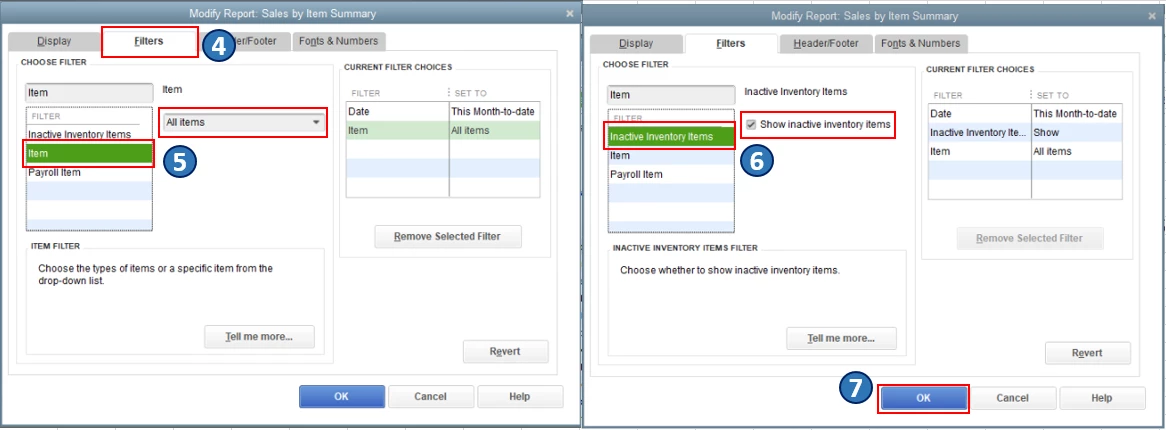
  4. Go to the Filters tab.
  5. Choose the Item filter and set it to All items.
  6. Select the Inactive Inventory Items filter and click the Show inactive inventory items checkbox.
  7. Click OK


Once you're done, you'll want to memorize the report to save the same settings for future use.


Please keep in touch whenever you have other reporting concerns or issues about managing sales reps' transactions in QBDT. I'll get back to you right away to assist you further.

1 reply

Rea_MAnswer
December 18, 2023

Yes, there's a way to get the Sales by Item Summary report to show the sales quantity for all your items, both active and inactive, David0. I'll guide you on how to do this below.


We can customize the report's filter to display All items and include all your inactive inventories. To do this, here's how:


  1. Run the Sales by Item Summary report.
  2. On the report window, select Customize Report.
  3. Set the date range in the Display tab.
  4. Go to the Filters tab.
  5. Choose the Item filter and set it to All items.
  6. Select the Inactive Inventory Items filter and click the Show inactive inventory items checkbox.
  7. Click OK


Once you're done, you'll want to memorize the report to save the same settings for future use.


Please keep in touch whenever you have other reporting concerns or issues about managing sales reps' transactions in QBDT. I'll get back to you right away to assist you further.