March 4, 2021
Solved

Sales Order Report

  • March 4, 2021
  • 1 reply
  • 0 views

Hi

I have an inventory item Chair-Black.

I enter one sales order in Quickbooks Chair-Black qty 5, order received from customer A. 

I enter Second sales order in Quickbooks Chair-Black qty 10, order received from customer B. 


My question is could, I see report which show below information. 


Item                   Customer   On sales Order Qty

Chair-Black           A                  5

Chair-Black           B                10


Kind Regards,

Best answer by DivinaMercy_N

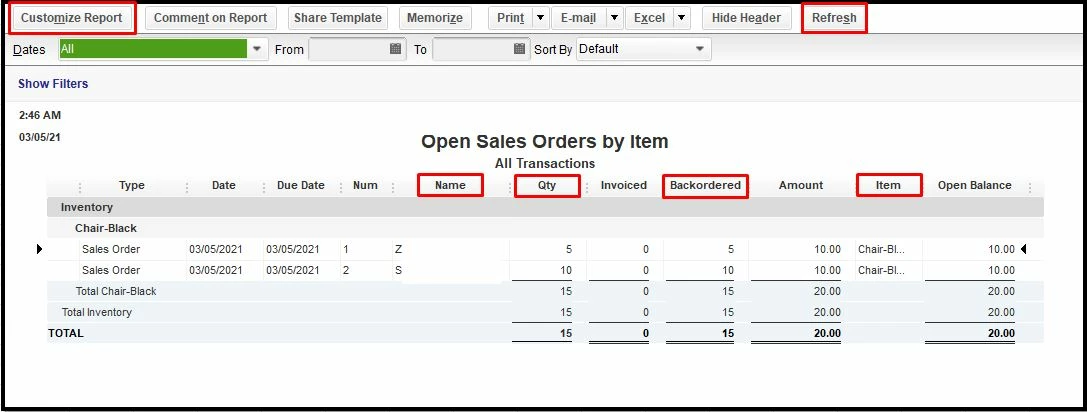
Opening the report to see your customer's Sale Order is a breeze, @talk2khurram.


Follow along below to get this done right away:

  1. Go to the Reports menu and hover over to Sales.
  2. Choose Open Sales Orders by Items.
  3. Once the report is opened, click the Customize Report button to modify the report based on the data you need.
  4. In the Display column, search Item so the report will show the item included on the Sales Orders. You can also add other columns you'll need or remove those you don't. 
  5. Hit OK when done.
  6. Once finished, tick the Refresh option to see the changes. 


Here's the article that will provide info about modifying your report: Customize reports in QuickBooks Desktop.


You can also seek self-help articles on our QuickBooks help articles page, to help you get your QuickBooks task done in no time. 


Feel free to post here again if you need further assistance in accessing your sales order report in QuickBooks. I'm always around to help. Have a good one. 

1 reply

DivinaMercy_N
March 4, 2021

Opening the report to see your customer's Sale Order is a breeze, @talk2khurram.


Follow along below to get this done right away:

  1. Go to the Reports menu and hover over to Sales.
  2. Choose Open Sales Orders by Items.
  3. Once the report is opened, click the Customize Report button to modify the report based on the data you need.
  4. In the Display column, search Item so the report will show the item included on the Sales Orders. You can also add other columns you'll need or remove those you don't. 
  5. Hit OK when done.
  6. Once finished, tick the Refresh option to see the changes. 


Here's the article that will provide info about modifying your report: Customize reports in QuickBooks Desktop.


You can also seek self-help articles on our QuickBooks help articles page, to help you get your QuickBooks task done in no time. 


Feel free to post here again if you need further assistance in accessing your sales order report in QuickBooks. I'm always around to help. Have a good one. 

March 4, 2021


Thanks a lot to provide a problem-solving solution.


Kind Regards,