You can access the Sales by Customer Detail report in QuickBooks Desktop (QBDT), @PremierRef2019. This report now shows all paid invoices from the first quarter, organized by customer, which can assist you in determining and verifying commissions for your sales team based on the fully paid invoices during that specific period.
I'm glad to outline the detailed steps you need to take to achieve your tasks. Here's how:
- Open QuickBooks Desktop and go to the Reports menu.
- Select Sales and then choose Sales by Customer Detail.

- At the top of the report, set the date range to the first quarter by entering the specific dates (e.g., January 1st to March 31st).
- To set and view only the paid invoices, click on Customize Report.
- In the Filters tab, search and select Paid Status. Then choose Closed to show only invoices that have been settled.
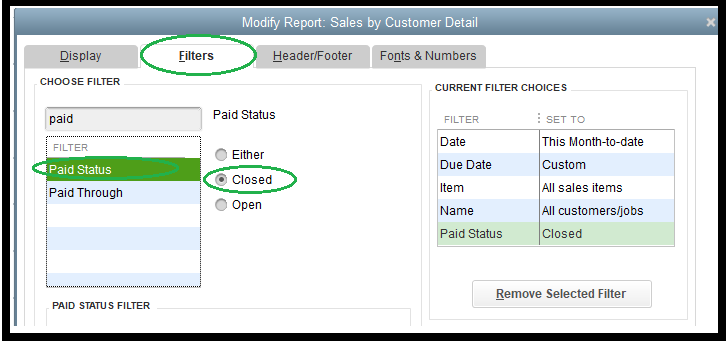
- In the same tab, select the Due Date if you are dealing with invoices that have NET 30 payment terms.

- If you need to track sales representatives assigned to each sale, add the Rep column by selecting it in the Display tab.
- Click OK to apply the filters and customize the report.

To save time in the future, you can memorize and customize reports in QuickBooks Desktop. It will then be for easy access.
If you frequently work with similar reports, consider automating this task. For guidance on setting up and modifying Scheduled Reports, check out this article: Set up and modify Scheduled Reports.
Let me know if you have other concerns with managing reports in QuickBooks. I'll get back to you right away. Have a great day.

