April 10, 2023
Solved

Serial numbers for items in Inventory Stock Status by Site Report?

  • April 10, 2023
  • 1 reply
  • 0 views

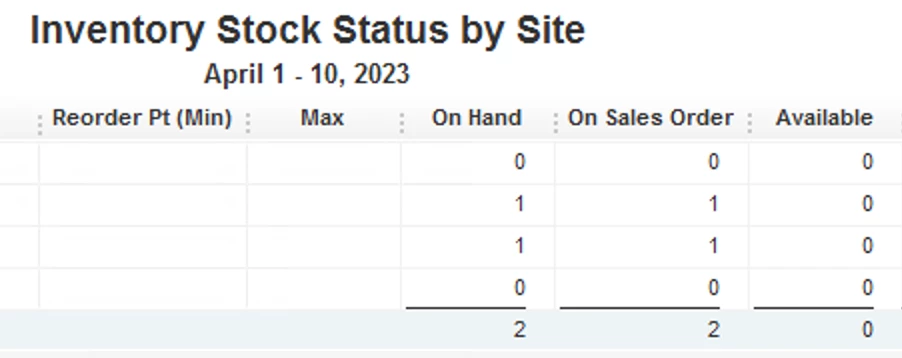
Looking at the Inventory Stock Status by Site Report, which includes "on hand" "on sales order" and "available," (see screen shot below), is it possible to find out the SERIAL NUMBERS which make up the quantity number listed in the "on hand," or "available" columns?

Best answer by JamaicaA

There's a way to view all the serial numbers associated with the On hand or Available items, @DanBu. It'll be my pleasure to walk you through the steps in tracking them so you can reorder when necessary.


When pulling up the Inventory Stock Status by Site report, we can select the amount on the On Hand or Available columns. It will route you to the Inventory Item QuickReport. From there, let's customize it to get the data you need.


Here's how:


  1. Select the Customize Report at the top.
  2. On the Display page, enter the Serial Number in the Columns section.
  3. Tap OK.


Once done, it will populate the serial numbers of the on-hand or available items. For more information about personalizing reports, check out this article: Customize reports in QuickBooks Desktop.


Feel free to scan these guides to learn more about memorizing reports and setting up multiple locations for tracking inventory:


Please let me know if you need further assistance with managing your inventories. I'm just a comment away if you need further assistance. Have a nice day.


1 reply

JamaicaAAnswer
April 10, 2023

There's a way to view all the serial numbers associated with the On hand or Available items, @DanBu. It'll be my pleasure to walk you through the steps in tracking them so you can reorder when necessary.


When pulling up the Inventory Stock Status by Site report, we can select the amount on the On Hand or Available columns. It will route you to the Inventory Item QuickReport. From there, let's customize it to get the data you need.


Here's how:


  1. Select the Customize Report at the top.
  2. On the Display page, enter the Serial Number in the Columns section.
  3. Tap OK.


Once done, it will populate the serial numbers of the on-hand or available items. For more information about personalizing reports, check out this article: Customize reports in QuickBooks Desktop.


Feel free to scan these guides to learn more about memorizing reports and setting up multiple locations for tracking inventory:


Please let me know if you need further assistance with managing your inventories. I'm just a comment away if you need further assistance. Have a nice day.
DanBuAuthor
April 10, 2023

Thank you for your help! I had not thought about customizing the QuickReport!

It feels like a miracle to finally have this info, thank you!

April 10, 2023

Hello there, @DanBu.

I'm glad to hear you're able to customize the report with the details you need by following the steps provided by my colleague. 


Don't hesitate to post here in the Community if you need our assistance with QuickBooks Desktop. We are always here to help. Have a great day.