I appreciate your proactive approach to optimizing your vendor payment management in QuickBooks Online, Angela. It’s great to see you looking for the best way to keep that overpaid amount as a credit rather than requesting a reimbursement. Let me guide you through the precise steps to ensure this excess payment is accurately recorded and seamlessly applied to your future bills, keeping your accounts perfectly balanced.
In QuickBooks Online (QBO), you can effectively manage an overpayment to a vendor by creating a Vendor credit that reflects the overpaid amount. This vendor credit serves as a placeholder within your system, accurately recording the extra payment.
After that, when you receive and pay future bills from the same vendor, you can apply this credit toward those outstanding balances. This approach not only keeps your books accurate but also streamlines your accounts payable process by automatically offsetting future payments with the existing credit.
Here’s how you can do this step-by-step:
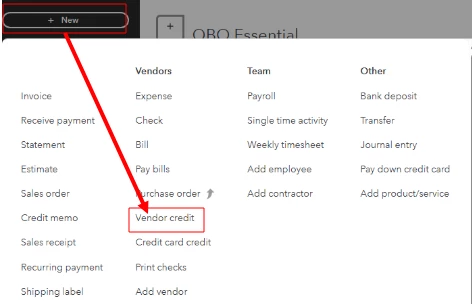
- Click the + New button on your QBO dashboard.
- Select Vendor Credit under the Vendors category.
- In the Vendor dropdown, choose the supplier to whom you overpaid.
- Enter the date and the amount of the overpayment as the credit amount.
- Determine the appropriate expense or accounts payable relating to the original payment.
- Add a memo or description if desired to note this is an overpayment credit.
- Hit on Save and close to record the vendor credit.
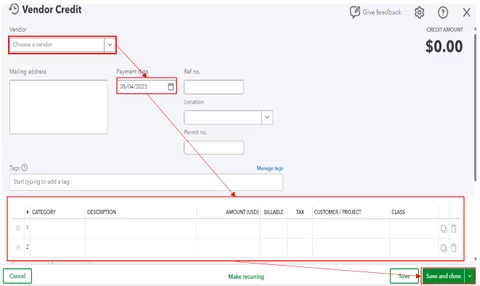
This records the overpayment as a credit on the vendor’s account, reducing your accounts payable balance accordingly.
To apply the credit when you receive a new bill from the vendor, here's how:
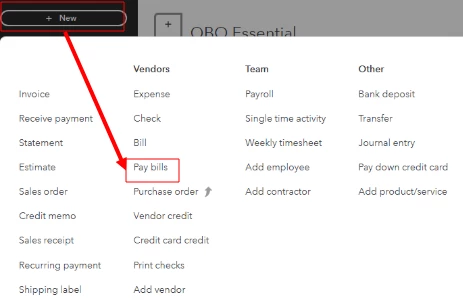
- Navigate to the + New icon again and select Pay Bills.
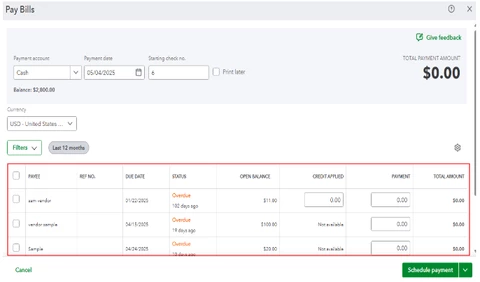
- Choose the vendor from the list to see outstanding bills.
- In the Credits section, you will see the available vendor credit.
- Hit on the credit to apply it to the bill.
- Confirm the amount of credit applied and complete the payment process.
- Click Save and close.
If you don’t want to apply the credit immediately, you can leave it on the vendor’s account and apply it later to any future bills.
The overpayment will show as a negative balance on the vendor account and reduce your accounts payable balance, which is normal in QBO’s system since vendor credits are tracked within accounts payable, not accounts receivable.
Regarding why the overpayment happened, I recommend reviewing your recent vendor transactions and payment history to identify exactly how the overpayment occurred. This can help prevent it from happening again in the future.
Additionally, I’m excited to share these valuable resources with you to empower you in mastering your QuickBooks Online experience. These tools will assist you in balancing your accounts and tailoring your reports to fit your unique business needs:
I'm glad I was able to provide you with the help you need to manage your finances in the program, Angela. Remember, I'm always here to help you navigate and address any concerns that come your way. It's our pleasure to continue supporting your business and helping you achieve your goals.

