April 3, 2020
Solved

What do I need to do to get the customer list to stay on hierarchal view? Everytime I close an invoice, estimate, etc... the customer list switches back to flat view.

  • April 3, 2020
  • 1 reply
  • 0 views
Original commenter did not share additional details

Best answer by RaymondJayO

I have the steps you can perform to get the customer list to stay on hierarchical view, @chad25


The customer list may have become damaged. That's why it switches back to flat view each time you close a sales transaction. 


Let's first re-sort the list so it will go back to its default order. I'll guide you how. 

  1. Go to Customers from the top menu. 
  2. Select Customer Center.
  3. Click a customer name. 
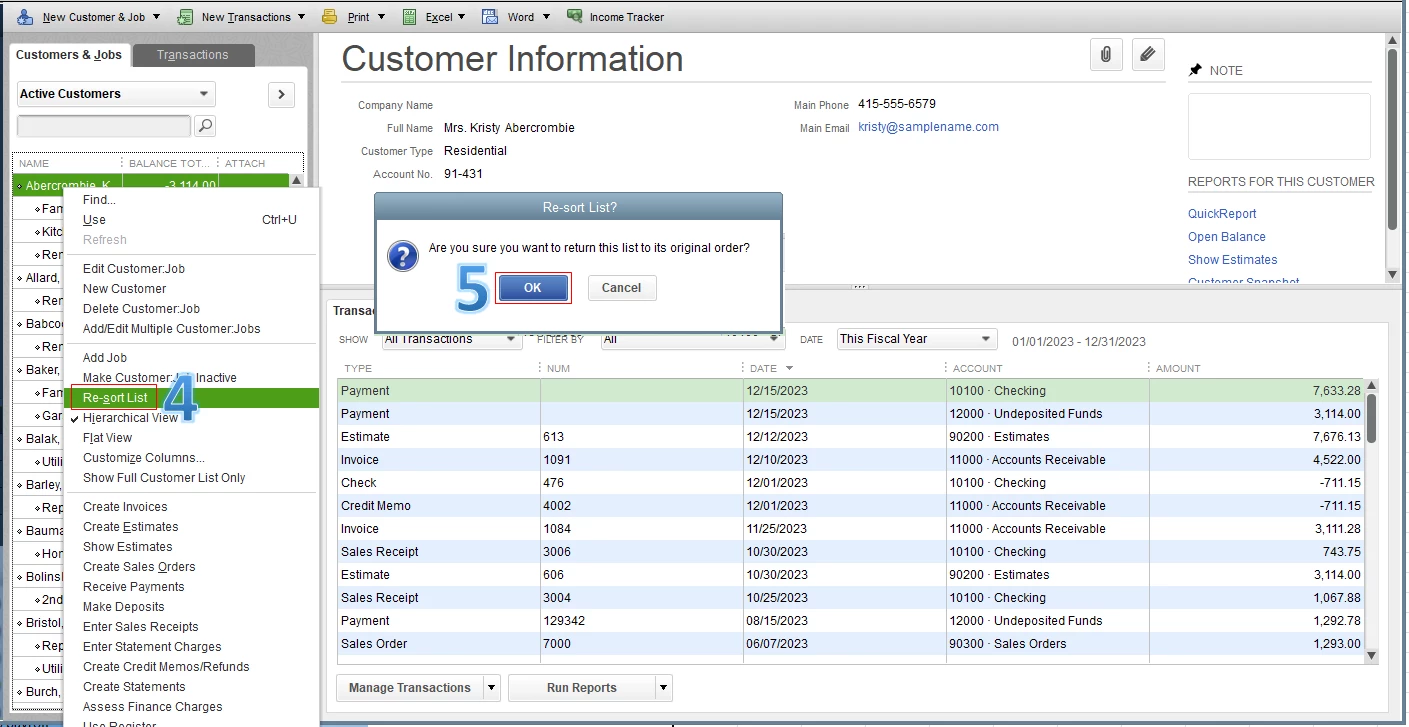
  4. Choose Re-sort List.
  5. Hit OK to confirm. 


The screenshot below shows you the last two steps. For the detailed instructions, check out this article: Re-sort Lists.
 

Second, make sure to select Hierarchical View from the customer list again. This way, the program will stay on your preferred view. 


Additionally, you can run and customize any sales reports in QuickBooks. These will help you efficiently manage your sales and expenses per customer within a specific period. For more details, visit this article: Customizing Sales Reports


Feel free to leave a comment below if there's anything else you need. Have a good day, @chad25

1 reply

April 3, 2020

I have the steps you can perform to get the customer list to stay on hierarchical view, @chad25


The customer list may have become damaged. That's why it switches back to flat view each time you close a sales transaction. 


Let's first re-sort the list so it will go back to its default order. I'll guide you how. 

  1. Go to Customers from the top menu. 
  2. Select Customer Center.
  3. Click a customer name. 
  4. Choose Re-sort List.
  5. Hit OK to confirm. 


The screenshot below shows you the last two steps. For the detailed instructions, check out this article: Re-sort Lists.


Second, make sure to select Hierarchical View from the customer list again. This way, the program will stay on your preferred view. 


Additionally, you can run and customize any sales reports in QuickBooks. These will help you efficiently manage your sales and expenses per customer within a specific period. For more details, visit this article: Customizing Sales Reports


Feel free to leave a comment below if there's anything else you need. Have a good day, @chad25

April 23, 2020

Hi.  I tried resorting the customer list & it still doesn't stay in hierarchical view.  I'm using QB Pro 2019, & just starting using Jobs to keep track of change orders & additional work, so this is really important to me.  Any solutions?  I've also tried rebuilding & verify data.  That didn't work either.

RenjolynC
April 23, 2020

Hi there, SuperiorGCAZ.


After selecting the Hierarchical View from the Customers window, let's go to the settings and save the current desktop view. 


Here are the steps: 


  1. Go to Edit > Preferences.
  2. In the Preferences window, select Desktop View on the left panel.
  3. Select My Preferences.
  4. Under Desktop, put a check mark on the Save current desktop option.
  5. Hit the OK button.


Once done, go back to the Customers page and check to see if it stays in the Hierarchical View. Otherwise, reach out to our Customer Care Team to investigate this further. Before doing so, please check our support hours here. Then follow these steps:


  1. Go to Help > QuickBooks Desktop Help.
  2. In the Have a Question window, click the Contact Us link at the bottom.
  3. From the Contact Us page, select any topics.
  4. Under Here's how to connect with a QuickBooks expert section, click the Get Phone Number or Start a Message button.

Please don't hesitate to leave a comment here if you have any additional questions or other concerns. Stay safe.
