
May 3, 2023
Solved

what reports should i create before i turn off quickbooks

  • May 3, 2023
  • 2 replies
  • 0 views

I sold my business, so I want to close out Quickbooks.  what reports should i create before i turn it off?

Best answer by LollyNino_C

It's my priority to ensure you'll be able to keep a handy copy of your data, @KCEnterprise


You can export your reports by downloading your reports, list, and other data from QuickBooks Online. By doing so, you'll be able to save them to your local hard drive. I'll show you how.
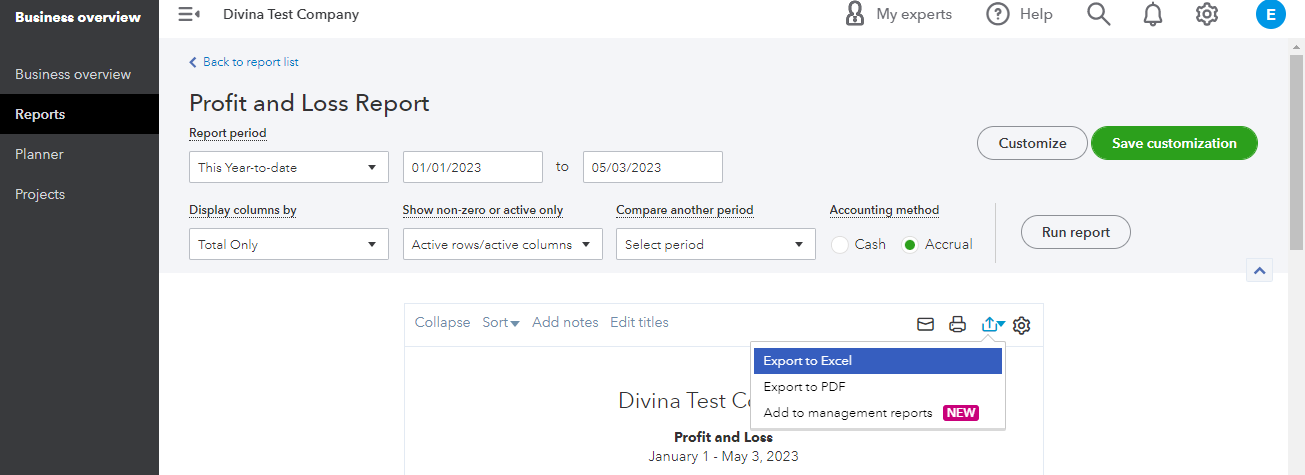
 

  1. Go to Business Overview and select Reports (Take me there).
  2. Search for and select the report you want to export.
  3. At the top of the report, select the Export icon. Then, select Export to Excel.
  4. Save the file somewhere you can easily find, like your Downloads folder or your desktop.


Also, you can export lists, reports, non-posting transactions, and attachments in the only program. It only takes a few clicks to do this in your company. Here’s how: 
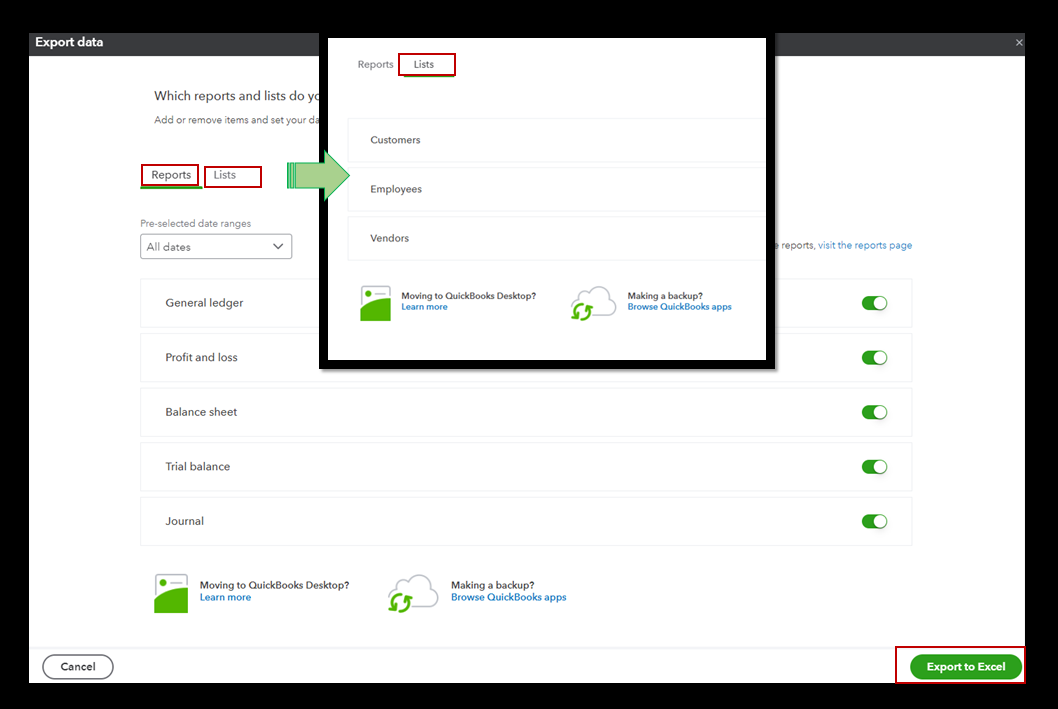
 

  1. In your existing QBO account, click the Gear icon and select Export data under Tools.
  2. In the Reports tab, select the date range and choose the report from the list.
  3. Click Export to Excel.
  4. On the Export data page, go to the Lists tab and select CustomersEmployees, and Suppliers.
  5. Press the Export to Excel button. 
  6. Once done, you'll be prompted with a confirmation. 


Need data that isn’t found in basic reports? You can create custom reports to get the data that matters to you most.


Also, the non-posting transactions won't be included once you exported your reports and lists. To export them, I'd suggest checking out this article:  Download your Data from QuickBooks Online.


Feel free to get back to us. If you have any other concerns or questions about your progress in saving all your data. I’ll be around to help and ensure you are taken care of. Have a great day ahead. 

2 replies

May 3, 2023

It's my priority to ensure you'll be able to keep a handy copy of your data, @KCEnterprise


You can export your reports by downloading your reports, list, and other data from QuickBooks Online. By doing so, you'll be able to save them to your local hard drive. I'll show you how.


  1. Go to Business Overview and select Reports (Take me there).
  2. Search for and select the report you want to export.
  3. At the top of the report, select the Export icon. Then, select Export to Excel.
  4. Save the file somewhere you can easily find, like your Downloads folder or your desktop.


Also, you can export lists, reports, non-posting transactions, and attachments in the only program. It only takes a few clicks to do this in your company. Here’s how: 


  1. In your existing QBO account, click the Gear icon and select Export data under Tools.
  2. In the Reports tab, select the date range and choose the report from the list.
  3. Click Export to Excel.
  4. On the Export data page, go to the Lists tab and select CustomersEmployees, and Suppliers.
  5. Press the Export to Excel button. 
  6. Once done, you'll be prompted with a confirmation. 


Need data that isn’t found in basic reports? You can create custom reports to get the data that matters to you most.


Also, the non-posting transactions won't be included once you exported your reports and lists. To export them, I'd suggest checking out this article:  Download your Data from QuickBooks Online.


Feel free to get back to us. If you have any other concerns or questions about your progress in saving all your data. I’ll be around to help and ensure you are taken care of. Have a great day ahead. 

Fiat Lux - ASIA
May 4, 2023

@KCEnterprise 

As an additional option, convert your data to a QB Desktop file format.